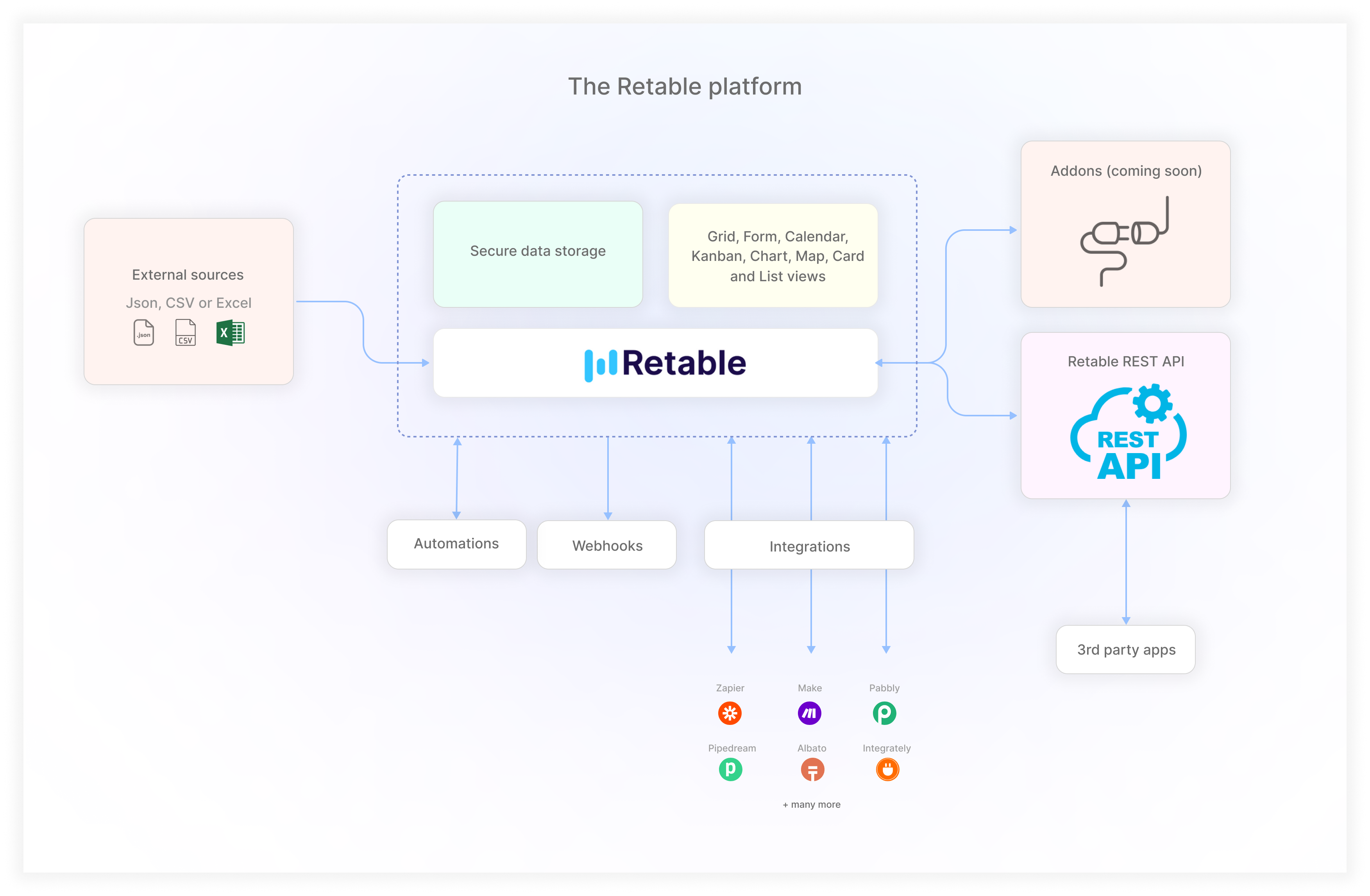
# Welcome to Retable

Welcome, we are glad you are here! :wave:

Retable is a simplified spreadsheet and database application used as an online organization and collaboration tool. Retable is suitable for all types of organizations relying on collaborative working practices.&#x20;

Retable can be used for a variety of use cases:

* Collaboration between teams/partners
* Customer relationship management (CRM)
* Task management
* Project management
* Inventory tracking
* Managing marketing strategies
* HR services
* Managing sales teams
* Managing individual workloads

Retable is a role and rule-oriented system. It is highly customizable and can be adapted to meet the needs of individual organizations or even different projects within a single entity.

<figure><img src="https://1709022688-files.gitbook.io/~/files/v0/b/gitbook-x-prod.appspot.com/o/spaces%2F-MWwce7QQJjTB7U3RSKz%2Fuploads%2FS0v5IJvL9sUqlLkKeVnY%2FRetable.png?alt=media&amp;token=ad12e991-fdb7-4115-a2f7-4c70655a355f" alt=""><figcaption></figcaption></figure>

In the following table, let's give you some basic information about what a workspace, project and table is. For more information about Retable components in general, [please see this blog post](https://www.retable.io/blog/retables-structural-components)<mark style="color:blue;">.</mark>

<table data-view="cards"><thead><tr><th></th><th></th><th></th><th data-hidden data-card-cover data-type="files"></th></tr></thead><tbody><tr><td><h3>What is a Workspace?</h3><p>A Workspace is an area related to a group of Projects. Projects can fall into similar business-operational categories. </p></td><td><h3></h3></td><td></td><td><a href="https://1709022688-files.gitbook.io/~/files/v0/b/gitbook-x-prod.appspot.com/o/spaces%2F-MWwce7QQJjTB7U3RSKz%2Fuploads%2Fc9bg9N9Sn2UQjAH8MllS%2FScreenshot%202023-05-16%20at%201.53.44%20AM.png?alt=media&amp;token=095c0332-3364-40f9-86ec-bfad587cdcdb">Screenshot 2023-05-16 at 1.53.44 AM.png</a></td></tr><tr><td><h3>What is a Project?</h3><p></p><p>Projects are like spreadsheets and can contain a number of Tables. Each project is under a Workspace.</p></td><td></td><td><h3></h3></td><td><a href="https://1709022688-files.gitbook.io/~/files/v0/b/gitbook-x-prod.appspot.com/o/spaces%2F-MWwce7QQJjTB7U3RSKz%2Fuploads%2FWlSrnFMdUWmnpAXvyI28%2FScreenshot%202023-05-16%20at%201.53.48%20AM.png?alt=media&amp;token=7a0510fc-9516-433b-a1f9-a862acfdb23d">Screenshot 2023-05-16 at 1.53.48 AM.png</a></td></tr><tr><td><h3>What is a Table?</h3><p></p><p>Tables are the building blocks of Projects. Each Project can include one or more Tables. </p></td><td></td><td></td><td><a href="https://1709022688-files.gitbook.io/~/files/v0/b/gitbook-x-prod.appspot.com/o/spaces%2F-MWwce7QQJjTB7U3RSKz%2Fuploads%2F5iieajaXlqf26GqKk8fI%2FScreenshot%202023-05-16%20at%201.53.50%20AM.png?alt=media&amp;token=e051f956-a34a-4eee-9693-507eac10e171">Screenshot 2023-05-16 at 1.53.50 AM.png</a></td></tr></tbody></table>

## Why Retable?

* Retable allows you to work on multiple Excel and spreadsheet files at the same time.
* Data manipulation is quick and easy and resembles Excel and other spreadsheets
* **Several types of views (e.g Kanban, chart, etc)** allow you to mix and match components.
* It has an elegant, easy-to-use visual user interface.
* Multiple users at the same time can work seamlessly on the same table **in real-time**.
* The system can perform **data masking** on columns.
* You can edit, manage, and share spreadsheets and data with the business team. No additional coding is required
* Storing records and keeping everything organized is possible.
* Performs **import and export transactions** efficiently. Users can export files in a variety of formats, eliminating a vendor lock-in.
* Retable has a **snapshot history** to track all changes.
* You can **chat with other project members** without leaving the application
* Provides simplified Excel / data / table management for those not skilled in using technology.
* It improves data quality and reduces data correction and cleansing time.
* It has a great data loading capacity and often works a lot faster than similar applications due to extensive optimizations.
* Works on all the related data on your table.
* It allows adding files to a cell using a simple drag and drop method.

{% hint style="success" %}
You can check all Retable limits from this [<mark style="color:blue;">link.</mark>](https://go.retable.io/viewZzWGSOWVyRul2f5o)
{% endhint %}

## **Migrating from Airtable, Excel or Google Sheets**

Retable provides an easy way to migrate from several file and database formats:&#x20;

* Airtable (for more information, [see this link](https://docs.retable.io/retable-user-guide/working-with-retable/untitled-3#importing-an-airtable-base))
* Excel (XLS or XLSX)
* Google Sheets
* CSV

When you create a new table, you have the option to choose whether to create a new table, or migrate from one of your previous tables, including Airtable.

## **Who is Retable for?**

From HR to marketing, sales to project management and design, Retable has no limits. Any businesses using spreadsheets and/or databases will benefit from choosing Retable as its main spreadsheet solution.&#x20;

Retable works for every type of project and every type of team, across all business levels and industries. It can be used by staff, clients, consumers and freelancers without the requirement for any technical skills.

Retable is great for:

* **Sales teams:** Empower your sales team by putting everything they need, from pipeline tracking to lead management and customer relationship management in one place.
* **Marketing teams:** Empower your marketing team with a single platform to generate, share and improve projects and ideas. From social media calendar management to content production timelines, collaborate across data and tasks.
* **Human resources teams:** Empower your HR team with advanced data and spreadsheet management tools. From employee onboarding to recruitment tracking and employee engagement surveys, Retable allows you to create an all-in-one HR database.
* **Project management teams:** Empower your project management team by helping them organize projects at a glance. From task tracking to contractor timeline management and pipelines, stay on track across all your projects.
* **Creative teams:** Empower your creative teams by helping them keep their inspiration and ideas in one place. Consolidate design project pipelines, create visual inspiration tables and collaborate with clients quickly and easily.

## Video tutorials

Whether new to Retable or looking to deepen skills, detailed tutorials will guide every step of the way. Our tutorials cover everything from the basics to advanced features, helping you become a Retable expert.

You can easily access Retable academy and Video tutorials from the menu on the left side of your Retable dashboard.

[Video tutorials](https://www.youtube.com/@retableio/videos)

[Retable academy](https://www.retable.io/academy)

## Roadmap and feature requests

You can take a look at all our features in development, completed, to-do and in beta on our roadmap page You enjoy following the developments from [<mark style="color:blue;">this link.</mark>](https://www.retable.io/roadmap)

## Join Discord community

{% hint style="success" %}
[Join our Discord community](https://discord.gg/3KtWYbgY7e) and have the opportunity to talk with other Retable users and its maintainers.
{% endhint %}

## Retable Desktop app

You can also use Retable on a desktop with the help of the Retable desktop application. This application has the same features as the browser app and can run on Windows, Mac and Linux. Try Retable on Desktop by [downloading it here](https://www.retable.io/download).

## Retable Chrome extension

Chrome Extension will save you from downloading your CSV files to your device and help you view and edit them directly in your browser.&#x20;

With Retable's CSV Viewer plugin, you can quickly view and edit all CSV files on the internet without even logging in. Also, you can share it with your teammates or save it in the cloud.&#x20;

{% hint style="success" %}
[Install the Retable CSV Viewer](https://chrome.google.com/webstore/detail/retable-csv-viewer/igdenijgigmjhonfjmoaioeagpkgfmfo) extension for free and avoid downloading CSVs. \
You can watch the [CSV Viewer Chrome Extension](https://www.youtube.com/watch?v=AxZriAD18nE) video to get an understanding of how it works.
{% endhint %}

Here's a step-by-step guide to view and edit CSV files:

1. Install Free CSV Viewer & Editor Chrome Extension.
2. Click "Add to Chrome" button to directly setup the free CSV Viewer and Editor Chrome extension to your browser.
3. Activate the CSV Viewer and Editor Chrome Extension. You're ready to see and edit all CSV files on the internet without download them.
4. Go to the website where you want to download the CSV file.
5. A button automatically will appear next to all CSV files on the website.
6. By clicking this button, you can easily view the CSVs file in your browser and you do not need to download the CSV files to your device. You can easily view and edit your CSV file in a no login smart online spreadsheet. You can benefit from all the features of Retable when you open your CSV file directly with your CSV viewer extension without downloading it to your computer. So you can edit your CSV file with the capabilities of an intelligent data management tool.
7. After the .csv file is opened in Spreadsheet, "Set the first row as header?" No or Yes should be selected from the pop-up. \
   If "Yes" is selected, set the first row as header, if "No" is selected, set first row as header.
8. Click the "Save Retable" button at the top right of your table. When you click the "Save Retable" button you can easily signup to Retable with your Google account. \
   Or, if you already have a Retable account you can directly sign in to your Retable account to save your CSV file. When you click the "Save Retable" button and Sign up to Retable you'll directly redirected to your Retable dashboard.&#x20;
9. You can see your imported CSV file directly at the "Externally saved projects" section In your Retable dashboard, you can manage all of your CSV files.

## How to leave a comment, question or suggestion

If you want to send your comments, questions or suggestions about Retable, follow the steps below.

1. While in the table, click the "Feedback" button in the upper right corner of the screen.
2. Fill in the relevant information via the "Contact us" form that opens.
3. Then click the "submit" button.
4. If you want to rearrange the data in your submitted form, click the "Update Your Submission" button.

Additionally, you can always [check our roadmap and suggest features](https://retable.io/roadmap), or [join our Discord community](https://discord.com/invite/3KtWYbgY7e) for a lively discussion.


# Success in 10 minutes

Welcome to Retable! This guide will help you get the most out of your Retable experience. You are encouraged to go down the list step by step, reading the articles and watching the videos in order to explore and understand the capabilities of Retable.

And while there’s plenty to discover about working in Retable, you can get familiar with the basics in just 10 minutes and start seeing the results right away!

As an example, we used a specific template - however these steps would work for almost any use case. People use Retable for everything from marketing workflows to auto inventory part tracking to keeping track of their customers.

{% embed url="<https://www.youtube.com/watch?v=EnJAcTFoCtw>" %}

### Understand your data structure

Before we dive into adding or importing data, it is important to know the most important sections of a Retable screen. This screen includes a project called 'HR Knowledge Base Spreadsheet template' together with one project (but can be many) and two views.&#x20;

Note that if you are moving from Airtable to Retable, there is a handy migration utility. [Follow the steps here](https://docs.retable.io/retable-user-guide/working-with-retable/untitled-3#importing-an-airtable-base) to migrate all your bases to Retable.

<figure><img src="https://lh7-us.googleusercontent.com/WB8DQvgoC7TCa3iKZhjFqedbSvca1EfUfUK2keKoi0-eP9k-MBTlZXtsXaj72GENJhZGg37dhm62x2epLQ-hTYqO_jZa1wjeoZquuv19wjOlOlOL1s7kBbtR-L9uLWJLOOOHQW_y-h8dzmgdT96KpgM" alt=""><figcaption></figcaption></figure>

* **Table:** Every project consists of tables which are sets of data you use in your work.
* **Columns:** Each column has a specific type (e.g text, date etc) included in the rows.
* **Rows:** Each row is a set of data in that table
* **Data actions:** This is where you add additional formatting to your current data (e.g filtering, sorting and font colors)
* **View types:** In addition to the generic 'grid type' that you are familiar with Excel or Google Sheets, Retable has several view types, e.g forms, card, Kanban, chart or map.<br>

In the next step, we are going to create your first workspace.

### Step 1: Create your first workspace and project

Upon logging in, you will see a sample workspace with several templates you can use as a base. A workspace is a collection of projects where each project can hold several tables and views.&#x20;

<figure><img src="https://lh7-us.googleusercontent.com/nTnXWSvt7UJ3rr6qUEPq-hgCXQZ9645RQR5RQWR1FZcYaZDgxSkoSV0NisooAvSZJh9M_5g87RZHlhdsstWL_xp_pVRgaAqILhOj2Pdvcli6yUcRdKlA2KxR-YWDI4Dz8AQG9F73sCctoTM35YZg96g" alt=""><figcaption></figcaption></figure>

{% hint style="info" %}
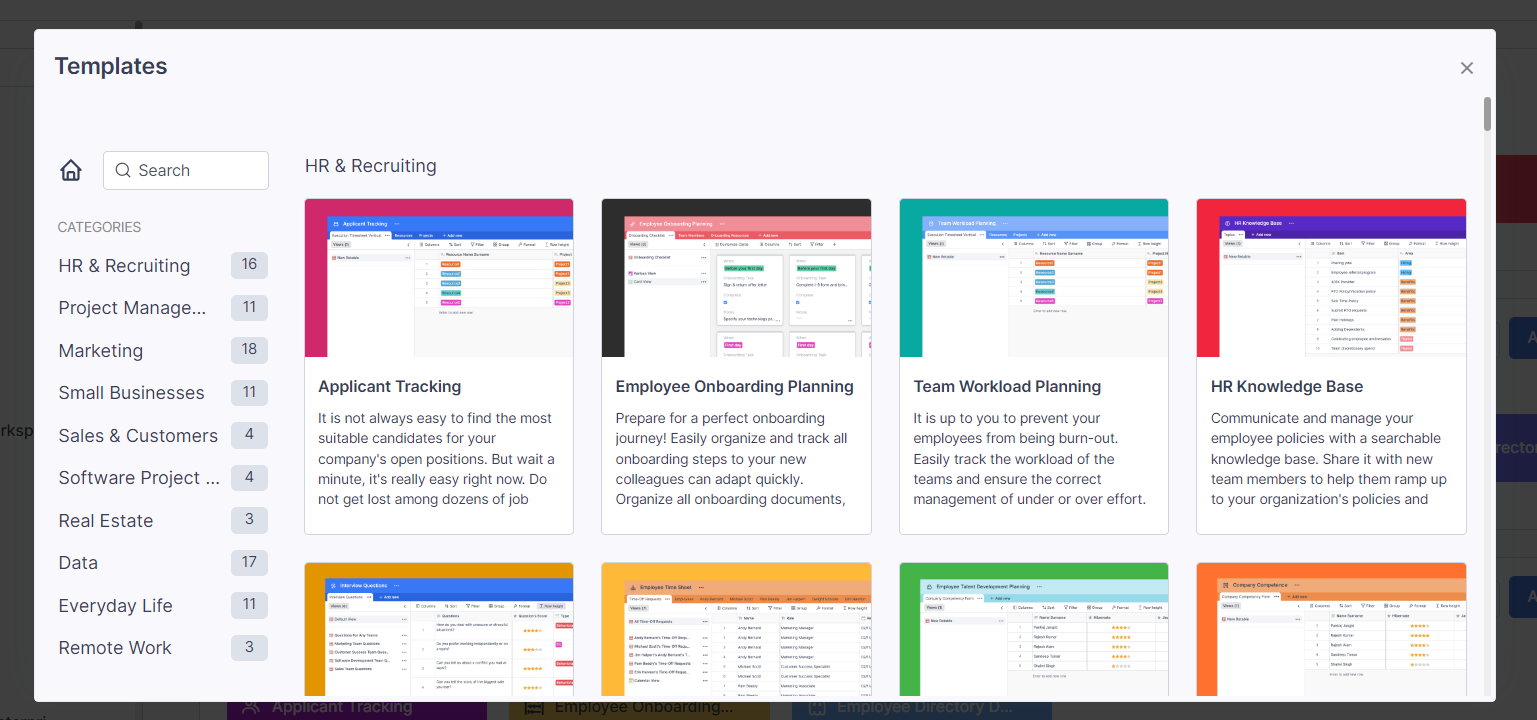
When you first start with Retable, feel free to use any of our templates, or directly go to the Templates section in your app to search for a template you would need. All 90+ templates in Retable are readily available for one of your use-cases. Using a template can greatly decrease the time to get set up.&#x20;
{% endhint %}

See how to [create a workspace and project here](https://docs.retable.io/retable-user-guide/working-with-retable/untitled-1#creating-workspaces). Upon completing, read on to step 2.

### Step 2: Decide how you will use Retable

Now it is time to understand how Retable can help you. Bear in mind that Retable is designed with one focus in mind: Keep your company data and workflow in one place. That being said, try to write down:&#x20;

* What workflows you have
* Your team's goals
* Data you keep scattered around but want to add everything in one place
* Think about which company members and client users you'll invite to Retable&#x20;

Retable has several different column types, and they each serve a different purpose. They allow you to organize all company information so it can easily be sorted, managed, and analyzed. Those columns are vertically present in your tables, and each one keeps different data.&#x20;

The most used column types are:&#x20;

* **Text field:** This is the most generic field type - basically you can write anything here, e.g. project name, task name, customer name, and such.
* **Single or multi-select field:** This helps track key details with your data. It allows you to create a custom set of dropdown options.
* **Date field:** You can enter a date and/or time that is associated with your project (e.g a timeline or deadline).&#x20;
* **Collaborator field:** It is used to assign a task to someone, whether he/she is in your team or not. This field helps you tag one or more collaborators who can read, edit or collaborate with your table. They are basically people associated with a task/user mentioned in that row. The only requirement here is that, you previously must have shared the workspace or the project with the people you are going to use in this column.

There are more than [30 different column (field) types in Retable](https://docs.retable.io/retable-user-guide/working-with-retable/untitled-3#column-types), and the ones above are just the tip of the iceberg. Read this further if you would like to understand what each column type is capable of.&#x20;

### Step 3: Import data from other tools

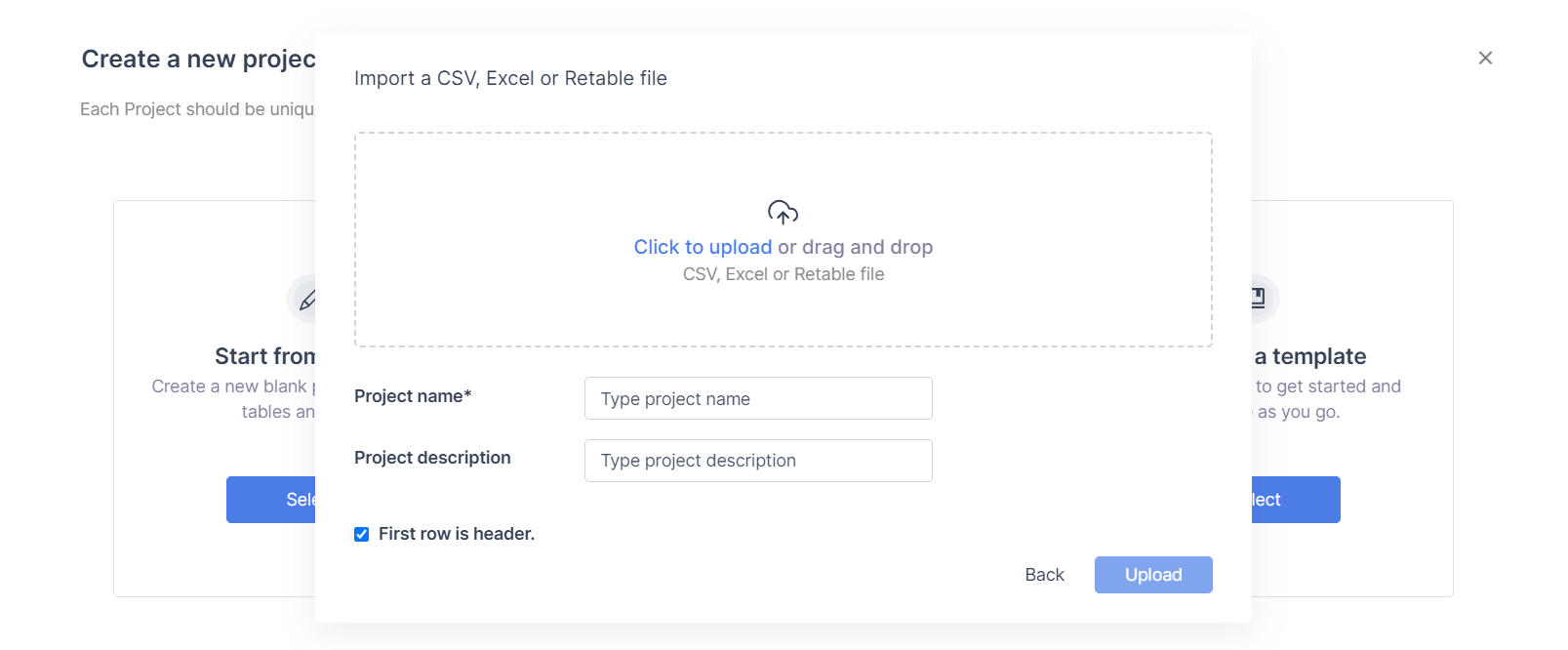
Retable has the ability to import data from several tools. There are a few ways to do this - one of them is exporting using CSV and then importing into Retable. You can do this by clicking on "New project" in your dashboard, and select the "Import document" option.

<figure><img src="https://1709022688-files.gitbook.io/~/files/v0/b/gitbook-x-prod.appspot.com/o/spaces%2F-MWwce7QQJjTB7U3RSKz%2Fuploads%2Fe7B3fQo6fckdaiwsUev1%2FScreenshot%202023-11-09%20at%206.51.46%20AM.png?alt=media&amp;token=753acf82-0eb9-4780-92c3-cac99d8bd49b" alt=""><figcaption></figcaption></figure>

Note that you can also migrate from Airtable, [as depicted in this document.](https://docs.retable.io/retable-user-guide/working-with-retable/untitled-3#importing-an-airtable-base)

### Step 4: Decide how you will structure your data

Once you’ve got your workflow up and running, you can use [different types of views](https://docs.retable.io/retable-user-guide/working-with-retable/retable-views) Retable provides to enhance the way your data looks. This list shows what view types Retable has, and when to use them.

| **View type** | **When to use**                                                       |
| ------------- | --------------------------------------------------------------------- |
| Grid view     | Details of a project, product, task, costumers, plans, deals and more |
| Chart view    | Build a colorful chart and get a big-picture of a table               |
| Calendar view | Upcoming due dates                                                    |
| Kanban view   | Task and project status                                               |
| Form view     | Get responses to your surveys and data                                |
| Map view      | Display all the locations on a map                                    |

Depending on what type of data to manage, choose the view that best suits your purpose and best displays your data. You can also repetitively use Grid view to store information and show in a way that different employees in your team can enjoy.

### Step 5: Link your data

One of the most used features of Retable is to be able to link data between tables in the same project. Assume that you have a customer table and a project table. In the project table, you map each project to a customer.&#x20;

Rather than defining each customer again in the project table, you just link a column to the customer table and return the values automatically - this way, when a customer is added to the customer table, you can automatically retrieve this information to reflect changes in the project table - and don't have to type in a new customer information repetitively.&#x20;

Another example - a consultancy company would like to connect a person in the Projects table to the Client table to help connect the contact information about each project owner. There is no need to create another field - a linked record allows this connection automatically.&#x20;

### Step 6: Onboard your team

Now that you have started to include some company-related data in your workflow, it is time to include more team members in your organization. This can happen in two ways:&#x20;

* **Option 1:** Creating an organization and adding users to your organization: In this option, you create an organization and add users (either internal to the company or a client user). Each user will go towards your user limit in your plan. Most of the time you would want to go this way.
* **Option 2:** Adding a user to the workspace or project: If the user you are going to add has his/her own plan, then this is a better option. In this case, your organization user count won't be affected.<br>

When you invite a user, you'll most probably go with Option 1.

### Step 7: Automate your work

Automations let you eliminate repetitive tasks from your work, offering a reliable and consistent way to streamline your processes.

[Find more information about Automations here.](https://docs.retable.io/retable-user-guide/working-with-retable/untitled-2#automations)

### Step 8: Integrate with other platforms

Retable can integrate with several platforms of your choice, including but not limited to Zapier, Make, Integrately and Pabbly. This way, you can build a two way sync of Retable and another application of your choice.&#x20;

[Find more information about Integrations here.](https://www.retable.io/integrations)

### Step 9: Need more help?&#x20;

This guide is by no means complete. Should you have any questions, feel free to contact us using one of the links below:

* Find us in our [Discord channel](https://discord.com/invite/3KtWYbgY7e) - hang out with Retable users, ask questions and help others.
* Hop on to [Facebook Retable group](https://www.facebook.com/groups/974504000221999/) and ask your questions.
* If you are a Redditor, [click here](https://www.reddit.com/r/retableio/) and exchange your questions, answers and future ideas to a better Retable.<br>


# Getting started

## Signing up

Follow the steps below to sign up to Retable;

1. Go to the [Retable website](https://www.retable.io/).
2. Click on the “Try for free” button on the top right of the screen.
3. Type your first name, last name, email and password.&#x20;

   <figure><img src="https://1709022688-files.gitbook.io/~/files/v0/b/gitbook-x-prod.appspot.com/o/spaces%2F-MWwce7QQJjTB7U3RSKz%2Fuploads%2FOdZGXrScMC27HGubUNnm%2Fimage.png?alt=media&amp;token=ec0bc298-52f2-4d33-ae51-f3f89c04fc92" alt=""><figcaption></figcaption></figure>
4. Click on the “Start” button.

Alternatively, you may also use Google or LinkedIn single-sign-on.

<figure><img src="https://1709022688-files.gitbook.io/~/files/v0/b/gitbook-x-prod.appspot.com/o/spaces%2F-MWwce7QQJjTB7U3RSKz%2Fuploads%2FSLs8vFsGPnfui4q85XXE%2Fimage.png?alt=media&amp;token=f3e79c91-c6a9-414e-9c31-b1d4b9e71471" alt=""><figcaption></figcaption></figure>

## Signup in with a Google Account

Follow the steps below to sign up for Retable with a Google account;

1. Go to the [Retable website](http://retable.io/).
2. Click on the “Try for free” button on the top right of the screen.
3. Click on the "Sign up with Google" button on the "Sign up" screen.
4. Select your account from the screen that opens.
5. You are signed up to Retable with your Google account.

## Signing up with a LinkedIn Account

Follow the steps below to sign up to Retable with your LinkedIn account:

1. Go to the [Retable website](https://www.retable.io/).
2. Click on the “Try for free” button on the top right of the screen.
3. Click on the "Sign up with LinkedIn" button on the "Sign up" screen.&#x20;
4. Select your account from the screen that opens.&#x20;
5. You are signed up to Retable with your LinkedIn account.

## Signing up with an Apple Account

Follow the steps below to sign up to Retable with your Apple account:

1. Go to the [Retable website](http://retable.io/).&#x20;
2. Click on the “Try for free” button on the top right of the screen.
3. Click on the "Sign up with Apple" button on the "Sign up" screen.&#x20;
4. Select your account from the screen that opens.&#x20;
5. You are signed up to Retable with your Apple account.

## Logging in

Follow the steps below to log in to Retable;

1. Go to the [Retable website](https://www.retable.io/).
2. Write your email and password using Google, Linkedin or Apple single-sign-on.
3. Click on the "Login" button.

<figure><img src="https://1709022688-files.gitbook.io/~/files/v0/b/gitbook-x-prod.appspot.com/o/spaces%2F-MWwce7QQJjTB7U3RSKz%2Fuploads%2FFBfa6msLTVxfPNDI5v8L%2Fimage.png?alt=media&amp;token=5746f33d-6b07-44aa-9ab2-dc6b124f724e" alt=""><figcaption></figcaption></figure>

## Editing your profile

Follow the steps below to edit your profile;

1. Click the profile picture of the user which is on the right top of the screen.
2. Click “Profile”.
3. Edit profile picture, profile name or surname.
4. Click “Save”.

<figure><img src="https://1709022688-files.gitbook.io/~/files/v0/b/gitbook-x-prod.appspot.com/o/spaces%2F-MWwce7QQJjTB7U3RSKz%2Fuploads%2FcMUkTYN7mTKuGmDNpA8x%2Fimage.png?alt=media&amp;token=1bcfba07-9164-40d1-934b-03f164908300" alt=""><figcaption></figcaption></figure>

## Changing your email

You can change the email address you have associated with your Retable. In case you move to a different organization, you can move your data to another email using the steps below:

1. Click the profile picture of the user which is on the right top of the screen.
2. Click “Profile”.
3. Click on the "E-mail" area and change your email.
4. Type your current password and click on the "Save" button.

<figure><img src="https://1709022688-files.gitbook.io/~/files/v0/b/gitbook-x-prod.appspot.com/o/spaces%2F-MWwce7QQJjTB7U3RSKz%2Fuploads%2FAgd6lYsrsH7ZbXMqe5P3%2Fimage.png?alt=media&amp;token=369d7b3c-3435-4543-a8c3-73abfd42e351" alt=""><figcaption></figcaption></figure>

{% hint style="info" %}
If you are logged in with your Google or LinkedIn accounts, you will see the notification "to change your email, you must first add a Retable password". In this case click on "Add a Retable password." and define a password first, and follow the steps above.
{% endhint %}

## Delete account

Once you delete your account, there is no going back. All data associated with your account will also be permanently deleted and cannot be retrieved later. We recommend that you export your data before deleting your account.

To delete your Retable account:

1. Click on the name of the user which is on the right top of the screen.&#x20;
2. Click on “Profile”.
3. Scroll to the bottom of your Profile page and go to "Danger Zone".
4. Click the "Delete my account" button.
5. Verify your Account by entering your password.
6. Click on the link in the email you receive and delete your account.

If you do not have a password and you have logged in with Google, Linkedin or Apple, you will be create a password.

<figure><img src="https://1709022688-files.gitbook.io/~/files/v0/b/gitbook-x-prod.appspot.com/o/spaces%2F-MWwce7QQJjTB7U3RSKz%2Fuploads%2FLUnNrs9EEm8CDhXh7BXj%2Fimage.png?alt=media&amp;token=86d8d19c-cbc2-46aa-a4d5-b7b0190ed344" alt=""><figcaption></figcaption></figure>

## Resetting your password

(If you forgot your password, please see the 'Forgot password' section below).

Follow the steps below to reset your password:

1. Click on the name of the user which is on the right top of the screen.
2. Click on “Password”.
3. Type your current and new password.
4. Click on “Change password”.

<figure><img src="https://1709022688-files.gitbook.io/~/files/v0/b/gitbook-x-prod.appspot.com/o/spaces%2F-MWwce7QQJjTB7U3RSKz%2Fuploads%2FFBdYxFBBGXzy7WyKxrlC%2Fimage.png?alt=media&amp;token=abe5bf0d-3216-4644-9ebb-fac3b096e78a" alt=""><figcaption></figcaption></figure>

## When you forget your password

If you forgot your password, follow the steps below.

1. Click on the “Forgot password” link on the login page.
2. Type your email and click “Send”.

<figure><img src="https://1709022688-files.gitbook.io/~/files/v0/b/gitbook-x-prod.appspot.com/o/spaces%2F-MWwce7QQJjTB7U3RSKz%2Fuploads%2FAIF9XpQyirZ92X7veEcI%2Fimage.png?alt=media&amp;token=56b9a8f6-dd76-4642-bc78-fccabd1d70cc" alt=""><figcaption></figcaption></figure>

## API

API can be used to remotely connect to your Retable database and add or remove lines from your tables.

You can create new API keys and delete your existing API Key. It'll give you more control over API access.

To create a new API key;

1. Click on the name of the user which is on the right top of the screen.&#x20;
2. Click on the "API" tab.
3. Click the "Create New API key" button.
4. You can change the name of your API.

<figure><img src="https://1709022688-files.gitbook.io/~/files/v0/b/gitbook-x-prod.appspot.com/o/spaces%2F-MWwce7QQJjTB7U3RSKz%2Fuploads%2FPRPvJQLiPzq80KG046IK%2Fimage.png?alt=media&amp;token=bdd493d8-788e-4628-8b9c-b6d5cf6747b3" alt=""><figcaption></figcaption></figure>

Do not forget to enable your API key to use it on any platform.

[Check our detailed API documentation to learn more](/retable-user-guide/retable-api/api).

## Settings

You can set your default date, currency and digit formats in Retable. So you don't have to set it again every time you use this data in your tables and it comes in the format you choose by default. Of course, you can update them whenever you want.

1. Click on the name of the user which is on the right top of the screen.&#x20;
2. Click on “Settings”.
3. Set your Date format, Start week on, Digit separator, Currency symbol, Currency symbol placement, Presets, Percent symbol placement and Time format.

<figure><img src="https://1709022688-files.gitbook.io/~/files/v0/b/gitbook-x-prod.appspot.com/o/spaces%2F-MWwce7QQJjTB7U3RSKz%2Fuploads%2FKEuVinn4cEqxbS7IPSmx%2Fimage.png?alt=media&amp;token=b769aff3-023f-46d4-a885-7c9dfb3cb29b" alt=""><figcaption></figcaption></figure>

## Using dark or light mode

You can easily switch between light and dark modes with one click and use your spreadsheets as effectively as you wish.

1. Click on the name of the user which is on the right top of the screen.&#x20;
2. Click on “Switch theme”.

<figure><img src="https://1709022688-files.gitbook.io/~/files/v0/b/gitbook-x-prod.appspot.com/o/spaces%2F-MWwce7QQJjTB7U3RSKz%2Fuploads%2FUEqwPFmMqFtiYJ0hF74h%2Fimage.png?alt=media&amp;token=a6e8b7bb-3a42-496e-b5db-8e3f2fba1cf1" alt=""><figcaption></figcaption></figure>

## Changing language

Retable supports four languages (English, French, Italian, Turkish). In the future, we will add more languages to Retable.

1. Click on the name of the user which is on the right top of the screen.&#x20;
2. Changing language.

<figure><img src="https://1709022688-files.gitbook.io/~/files/v0/b/gitbook-x-prod.appspot.com/o/spaces%2F-MWwce7QQJjTB7U3RSKz%2Fuploads%2FGmQpZpzNwYqqlG01LpgU%2Fimage.png?alt=media&amp;token=bea70baa-c063-4307-985d-18ea5e714b08" alt=""><figcaption></figcaption></figure>

## Logging out

Click on the name of the user which is on the right top of the screen and click Logout from the opened area.

<figure><img src="https://1709022688-files.gitbook.io/~/files/v0/b/gitbook-x-prod.appspot.com/o/spaces%2F-MWwce7QQJjTB7U3RSKz%2Fuploads%2FCSl2NufuKHFeVr7RvHDv%2Fimage.png?alt=media&amp;token=9ae12a77-c0f0-4131-8b99-0c389e0a6bcf" alt=""><figcaption></figcaption></figure>


# Workspaces

Workspace can be used to classify and combine projects. Think of a Workspace as a collection of projects and tables shared among a group of people working together.

## Creating workspaces

Follow the steps below to create a workspace.

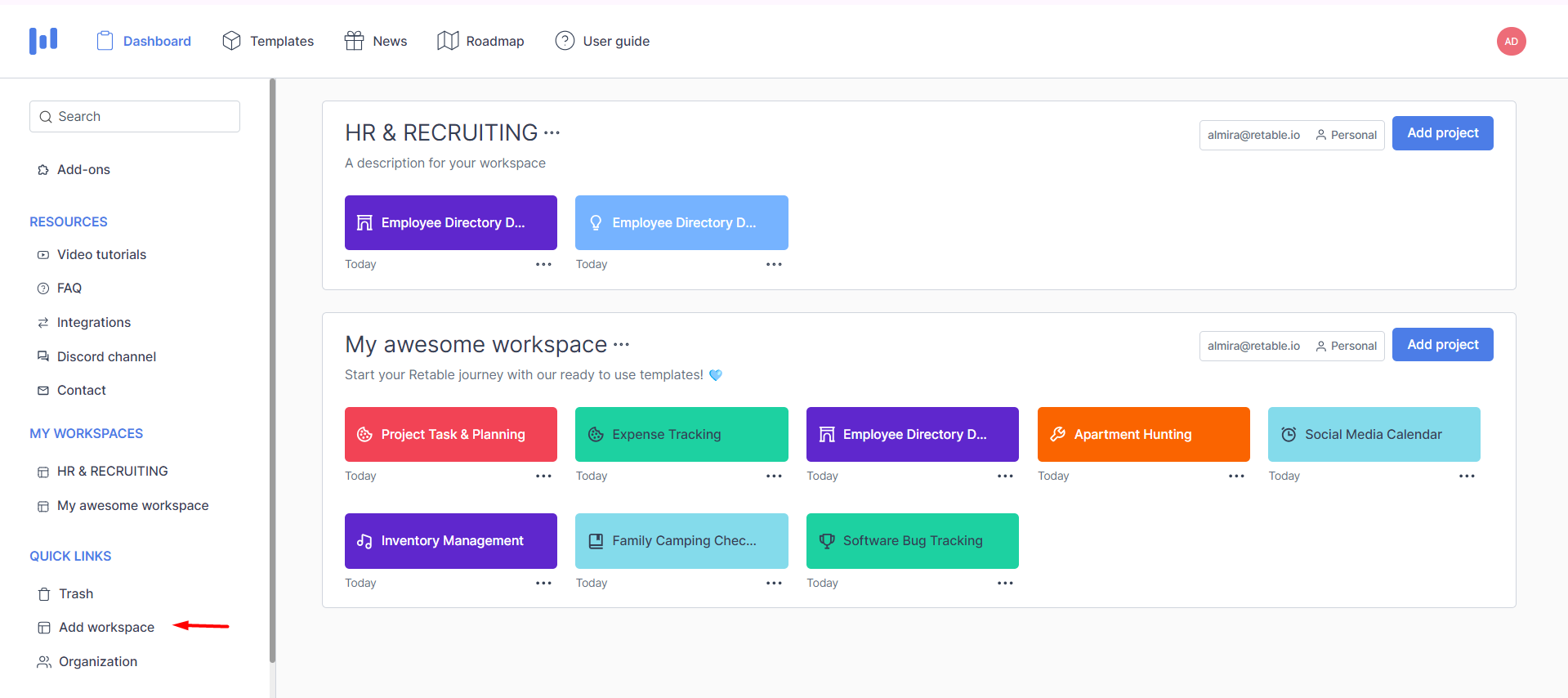
1. &#x20;Click on **“Add workspace”** button.
2. &#x20;The workspace name field is a required field, fill in this field.
3. "For use in organization" or "For personal use" should be selected for the Workspace.
4. Click on "Add workspace" button.

<figure><img src="https://1709022688-files.gitbook.io/~/files/v0/b/gitbook-x-prod.appspot.com/o/spaces%2F-MWwce7QQJjTB7U3RSKz%2Fuploads%2FkiBst5KfeKo24Z7elBsC%2Fimage.png?alt=media&amp;token=e8b76c49-facd-4459-b657-faf6358b8658" alt=""><figcaption></figcaption></figure>

## Renaming a workspace

Follow the steps below to rename a workspace.

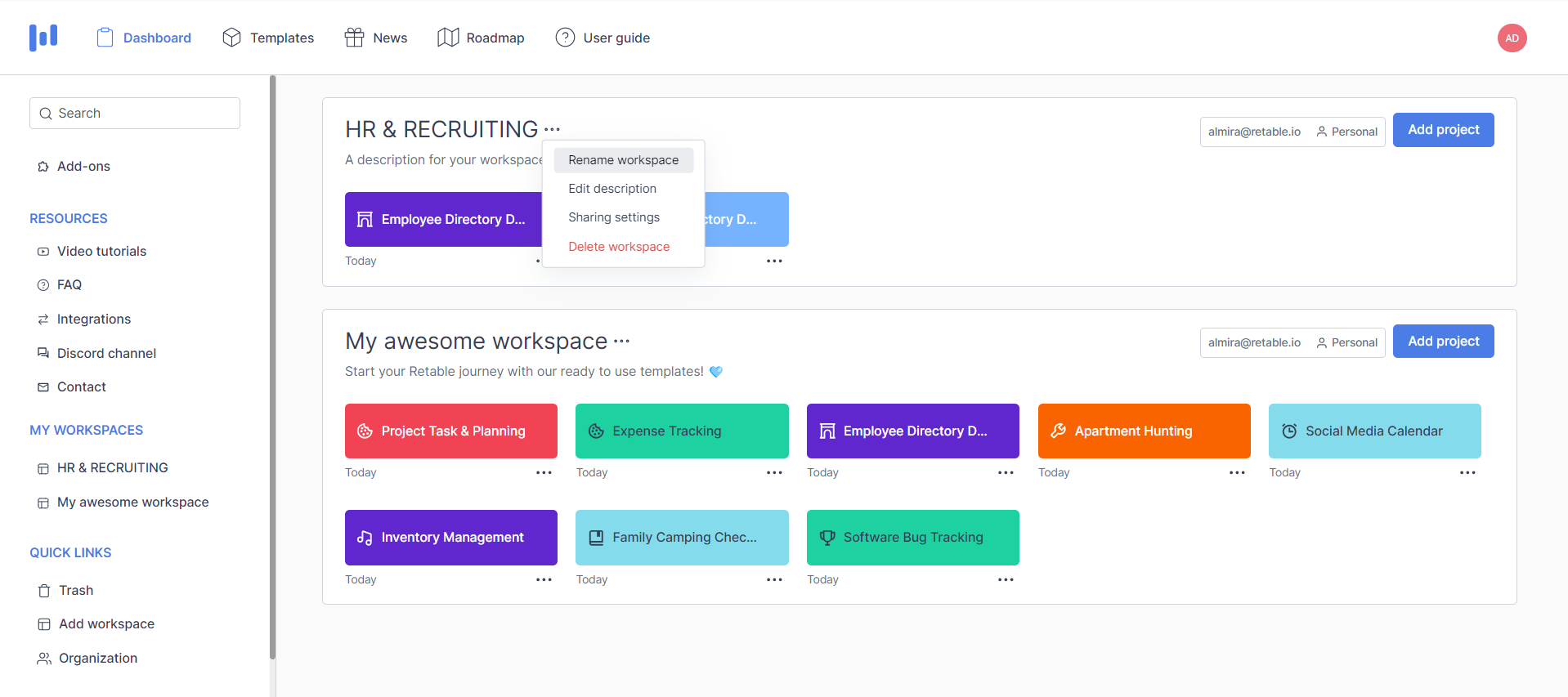
1. Click the three dots next to the Workspace name which needs to be renamed.
2. Click “Rename Workspace” and change workspace name.

<figure><img src="https://1709022688-files.gitbook.io/~/files/v0/b/gitbook-x-prod.appspot.com/o/spaces%2F-MWwce7QQJjTB7U3RSKz%2Fuploads%2FPg0q0Reazlhq5iNM6uDY%2Fimage.png?alt=media&amp;token=f405e9a5-4cce-4c6c-9d50-5eb9e0623270" alt=""><figcaption></figcaption></figure>

## Editing workspace description

Follow the steps below to edit a workspace.

1. Click on the three dots next to the workspace name you want to edit.
2. Click on "Edit description".
3. Change workspace name or description of the workspace.

<figure><img src="https://1709022688-files.gitbook.io/~/files/v0/b/gitbook-x-prod.appspot.com/o/spaces%2F-MWwce7QQJjTB7U3RSKz%2Fuploads%2FYgTEfYYMch8e0fa9XnoP%2Fimage.png?alt=media&amp;token=c767de4c-9a7a-497f-af51-6b073d1b050c" alt=""><figcaption></figcaption></figure>

## Sharing a workspace with other users

You can invite other users to your workspace. This way they will be able to view or edit your work.\
User must be logged in and must have at least one workspace to display shared users.&#x20;

Follow the steps below to display or share users.

1. Click Sharing settings in three dots.
2. All shared users are shown under the Workspace Members on the pop-up screen.
3. Type the e-mail address you want to share the project. You can invite more than one collaborator, separated with comma.
4. Choose either Owner, Editor or Viewer as the role.
5. Click on "Invite" button.
6. All shared users are shown under the "Workspace Members" on the pop-up screen.
7. If you want to remove users from the workspace, with the user cross, you can remove the user from the "Workspace Members" area.

{% hint style="info" %}
There are 3 types of users in Retable:

"**Owner**" users have all kinds of privileges. \
"**Editor**" user can rename and edit in the relevant project. This user cannot delete a workspace, project, table or view. \
"**Viewer**" user can only display data.

You can add, delete, or update users according to their assigned roles.
{% endhint %}

<figure><img src="https://1709022688-files.gitbook.io/~/files/v0/b/gitbook-x-prod.appspot.com/o/spaces%2F-MWwce7QQJjTB7U3RSKz%2Fuploads%2FHH9pAgJanDCjMHEKprV3%2Fimage.png?alt=media&amp;token=d1efb43a-d001-4d7f-99e9-597bcd1f03e1" alt=""><figcaption></figcaption></figure>

## Inviting users to a workspace

Follow the steps below to invite users to a workspace.

1. Click Sharing settings in three dots.
2. Click on the "Invite by link" tab in the pop-up.
3. When you activate the "Invite link" switch, you can share the workspace using this link.

People who will join to workspace with this link will have Viewer role. This link is personal. Only you and people who you will invite can see this link.

<figure><img src="https://1709022688-files.gitbook.io/~/files/v0/b/gitbook-x-prod.appspot.com/o/spaces%2F-MWwce7QQJjTB7U3RSKz%2Fuploads%2F5JOtpVnXFsCamMLgDtLP%2Fimage.png?alt=media&amp;token=eb1095a2-4f12-4f23-b633-337981a424e5" alt=""><figcaption></figcaption></figure>

## Deleting a workspace

Follow the steps below to delete a workspace.

1. Click on the three dots next to the Workspace name you want to delete.
2. Click on “Delete workspace”.
3. A confirmation pop-up will appear. Click on “Delete” to delete the workspace.

<figure><img src="https://1709022688-files.gitbook.io/~/files/v0/b/gitbook-x-prod.appspot.com/o/spaces%2F-MWwce7QQJjTB7U3RSKz%2Fuploads%2F6cH1YiMmptThPnf5a2mi%2Fimage.png?alt=media&amp;token=f5e4cba4-b84e-47b8-8bcd-7f3b184e3f89" alt=""><figcaption></figcaption></figure>

## Using trash bin&#x20;

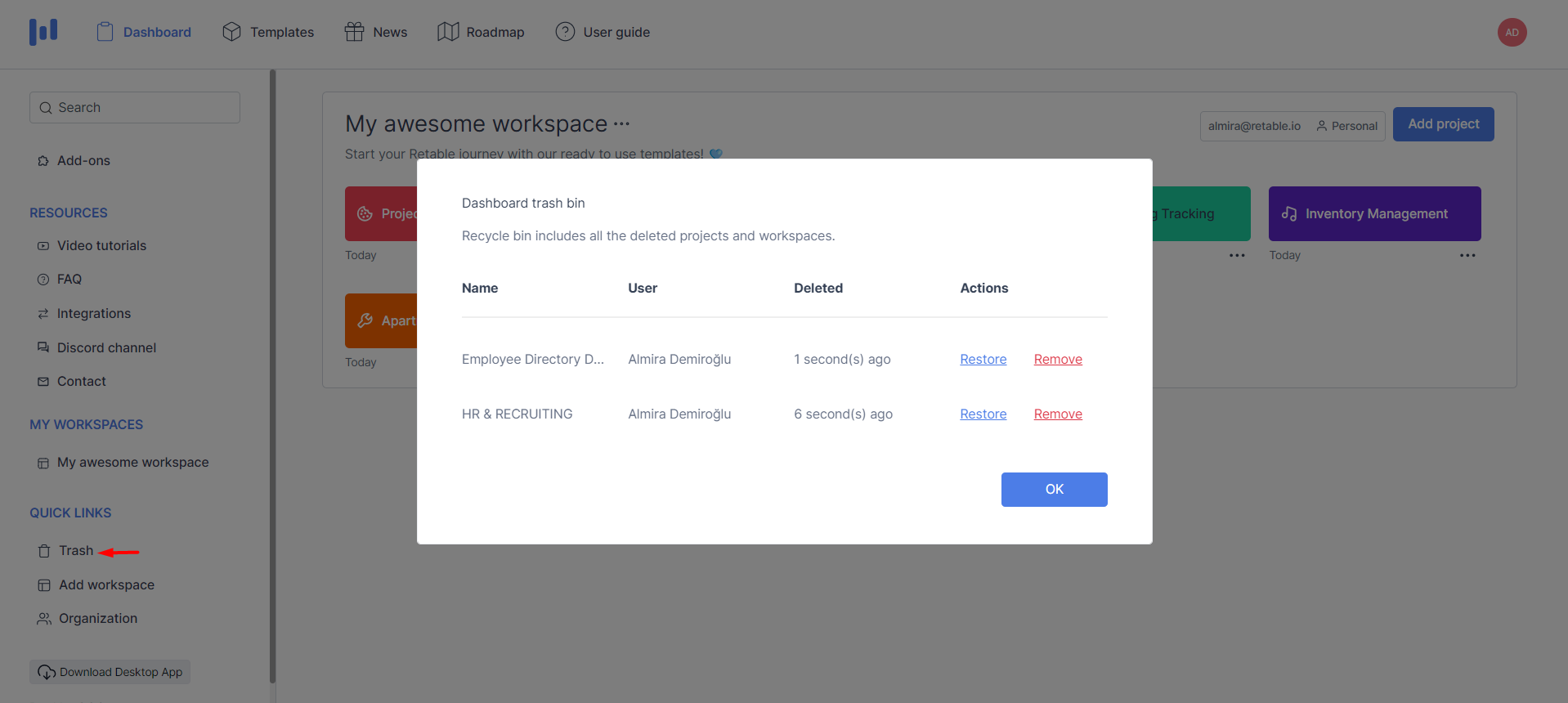
The trash bin function allows you to see and restore workspaces, projects, tables and views that have been deleted previously.

When you delete a workspace or a project it will be available in your trash. Deleted workspace or project can be restored from this trash.

Follow the steps below to send a file to trash bin.

1. Click on the Trash button.
2. Your deleted workspaces/projects are located here.
3. If you want to restore an item, click on the "Restore" button.
4. If you want to delete an item permanently, click on the "Remove" button.

Users with the "Editor" or "Viewer" role cannot remove or restore files in the trash.

<figure><img src="https://1709022688-files.gitbook.io/~/files/v0/b/gitbook-x-prod.appspot.com/o/spaces%2F-MWwce7QQJjTB7U3RSKz%2Fuploads%2Fjnn93ukDq6yk7ghhgsyC%2Fimage.png?alt=media&amp;token=4e8cdb94-ae5f-4d10-9c76-dc8b351149bc" alt=""><figcaption></figcaption></figure>

## Reordering workspace

A workspace can be reordered by simply dragging and dropping. Follow the steps below to reorder a workspace.

1\. Hover the mouse over the workspace you want to move from MY WORKSPACES.

2\. Drag it to its new location.

3\. When you release the mouse, the contents are moved to the new location.

<figure><img src="https://1709022688-files.gitbook.io/~/files/v0/b/gitbook-x-prod.appspot.com/o/spaces%2F-MWwce7QQJjTB7U3RSKz%2Fuploads%2FqdfTvPby2FVbfHRJYoL2%2Fimage.png?alt=media&amp;token=d11f458a-2287-4fd2-a99f-992595e4a45e" alt=""><figcaption></figcaption></figure>


# Using projects

Projects are very similar to spreadsheets, and can contain a number of Tables. Each project is under a Workspace.

## Creating project

Follow the steps below to create a project.

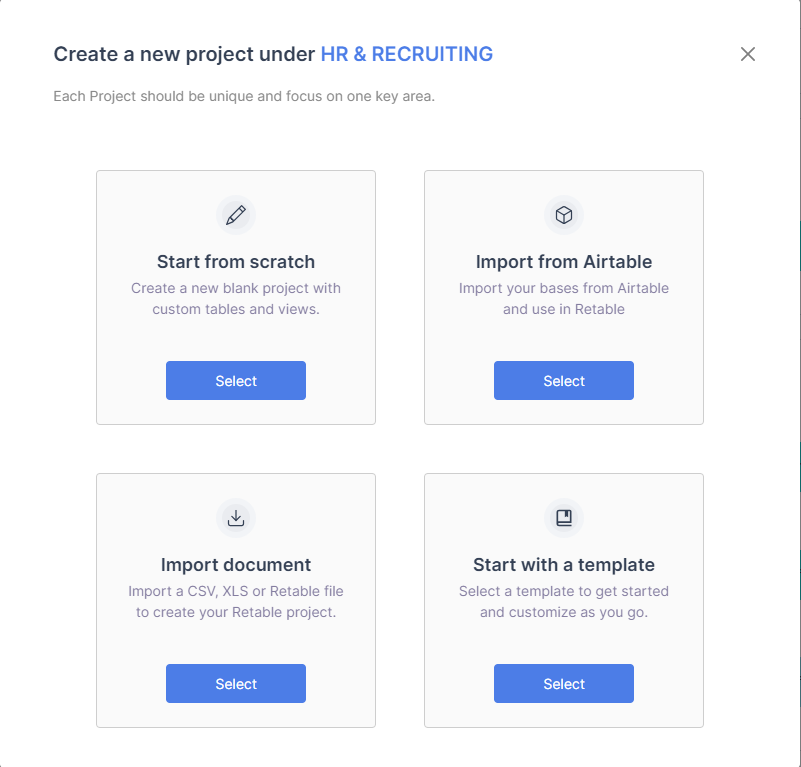
1. Click **"Add project"** under the workspace where you want to add a project.
2. Select your project type from the Add project field.&#x20;
3. "Start from scratch" -> Create a new blank project. \
   "Import document" -> Import a CSV, XLS or Retable file. \
   "Start with a template" -> Select a template to get started.\
   "Import from Airtable" -> Import your bases from Airtable and use in Retable

<figure><img src="https://1709022688-files.gitbook.io/~/files/v0/b/gitbook-x-prod.appspot.com/o/spaces%2F-MWwce7QQJjTB7U3RSKz%2Fuploads%2F03wRkWEijRkkPgcyNdBz%2Fimage.png?alt=media&amp;token=4f4f150d-4774-4a69-bc80-b1c2e59d7f8a" alt=""><figcaption></figcaption></figure>

### Start from scratch

Create a new blank project with custom tables and views.

Follow the steps below to start from scratch.

1. Click on **“Start from scratch” .**
2. Enter the Project name.
3. Choose a color and icon.
4. Click on "Create".

<figure><img src="https://1709022688-files.gitbook.io/~/files/v0/b/gitbook-x-prod.appspot.com/o/spaces%2F-MWwce7QQJjTB7U3RSKz%2Fuploads%2FLxWjylD8Rbtf2fukqcGX%2Fgitbook2.png?alt=media&amp;token=b3a4fde3-8a04-4624-a0d4-eacdc18dcd61" alt=""><figcaption></figcaption></figure>

### **Import from Airtable**

{% hint style="info" %}
This feature is currently in beta so expect some feature additions and bug fixes. If you have any feedback, please [join our community ](https://discord.gg/3KtWYbgY7e)and brainstorm with other Retable enthusiasts.
{% endhint %}

Retable can import an Airtable base. Within minutes, you can import all your Airtable bases into Retable and start working.

Here is an introduction video:&#x20;

{% embed url="<https://youtu.be/-6UPk7MdqrE?si=8D0vKj4Q5mubF9np>" %}

To proceed with this operation, you must obtain Airtable tokens, which can be found [here](https://airtable.com/create/tokens). You must be logged into your account to access your tokens.

Follow the steps below to import an Airtable base into Retable.&#x20;

{% hint style="info" %}
This documentation has a short explanation for the technical savvy. If you would like to read a detailed, step by step explanation of how to migrate your data from Airtable to Retable, [see this documentation ](https://www.retable.io/faq/import-from-airtable-to-retable)
{% endhint %}

1. Click on "**Import from Airtable"**
2. Enter your Airtable personal access token to Retable's import from Airtable screen.
3. You'll see a popup where you can insert the Airtable access token. To create a personal access token, [see this page on Airtable](https://airtable.com/create/tokens). Below you can see the most important sections to fill in.&#x20;

   <figure><img src="https://1709022688-files.gitbook.io/~/files/v0/b/gitbook-x-prod.appspot.com/o/spaces%2F-MWwce7QQJjTB7U3RSKz%2Fuploads%2FtTUYX5EqiPsEbUlSijZD%2Fimage.png?alt=media&amp;token=edece268-5cd3-4340-8168-1cec1ae7146f" alt=""><figcaption></figcaption></figure>
4. When you see the "Import from Airtable" popup, use the token you created on Airtable end and paste it here.&#x20;

   <figure><img src="https://1709022688-files.gitbook.io/~/files/v0/b/gitbook-x-prod.appspot.com/o/spaces%2F-MWwce7QQJjTB7U3RSKz%2Fuploads%2FOXqxTQPA2uZ3AoiiXjKm%2Fimage.png?alt=media&amp;token=54cf483a-2757-43a2-9701-6d46dff224d5" alt=""><figcaption></figcaption></figure>
5. Click the "Next" button.
6. Select the Airtable base you want to import into Retable After completing all your selections.
7. Click the "Import" button.
8. You'll be notified via email when your import is completed. (Depending on your data size, it may take several minutes.)
9. Refresh your dashboard after receiving your email notification.&#x20;

Note that there are a few limitations when you import data from Airtable:

1. Filter is not applied - you need to filter after importing.
2. Sort is not applied- you need to sort after importing.
3. Group is not applied- you need to group after importing.
4. Formatting is not applied- you need to apply formats after importing.
5. Hide is not applied- you need to hide columns after importing.

**For a complete list, please see the** [**supported field types document.**](https://go.retable.io/projUK5xXUnNGcFSLi9M)

### **Import document**

You can import all worksheets from an Excel workbook into a Retable project by uploading a .csv, .xls or .xlsx file.

Follow the steps below to import a project.

1. Click on “**Import document”**&#x20;
2. Import a new project by selecting a csv, xls or retable file.
3. If the first line is the header, click on "First row is header."
4. Click on "Upload".

<figure><img src="https://1709022688-files.gitbook.io/~/files/v0/b/gitbook-x-prod.appspot.com/o/spaces%2F-MWwce7QQJjTB7U3RSKz%2Fuploads%2FvkJXNLy3aMEtwLRp4gL1%2Fg%2Ctbook%20_Re.png?alt=media&amp;token=9d349c0a-fd8f-434e-b580-e01aafd2c57c" alt=""><figcaption></figcaption></figure>

{% hint style="info" %}
If you import your file with the ".retable" extension, you can import it with the same properties when you want to import your file.
{% endhint %}

### **Start with a template**

Templates are designed to fit common use cases. You can use templates to start a project, saving you time.&#x20;

Follow the steps below to start with a template.

1. Click on “**Start with a template”**&#x20;
2. After entering the template gallery, you can search in templates using the "Search" at the top.&#x20;
3. When you find template for your needs, click on the "Use template" button.&#x20;
4. Choose which workspace to add this template to.

<figure><img src="https://1709022688-files.gitbook.io/~/files/v0/b/gitbook-x-prod.appspot.com/o/spaces%2F-MWwce7QQJjTB7U3RSKz%2Fuploads%2FnNdA629r8eTkUttehxsN%2Fimage.png?alt=media&amp;token=882e2d9b-b149-4c7d-bdc2-8130617105ff" alt=""><figcaption></figcaption></figure>

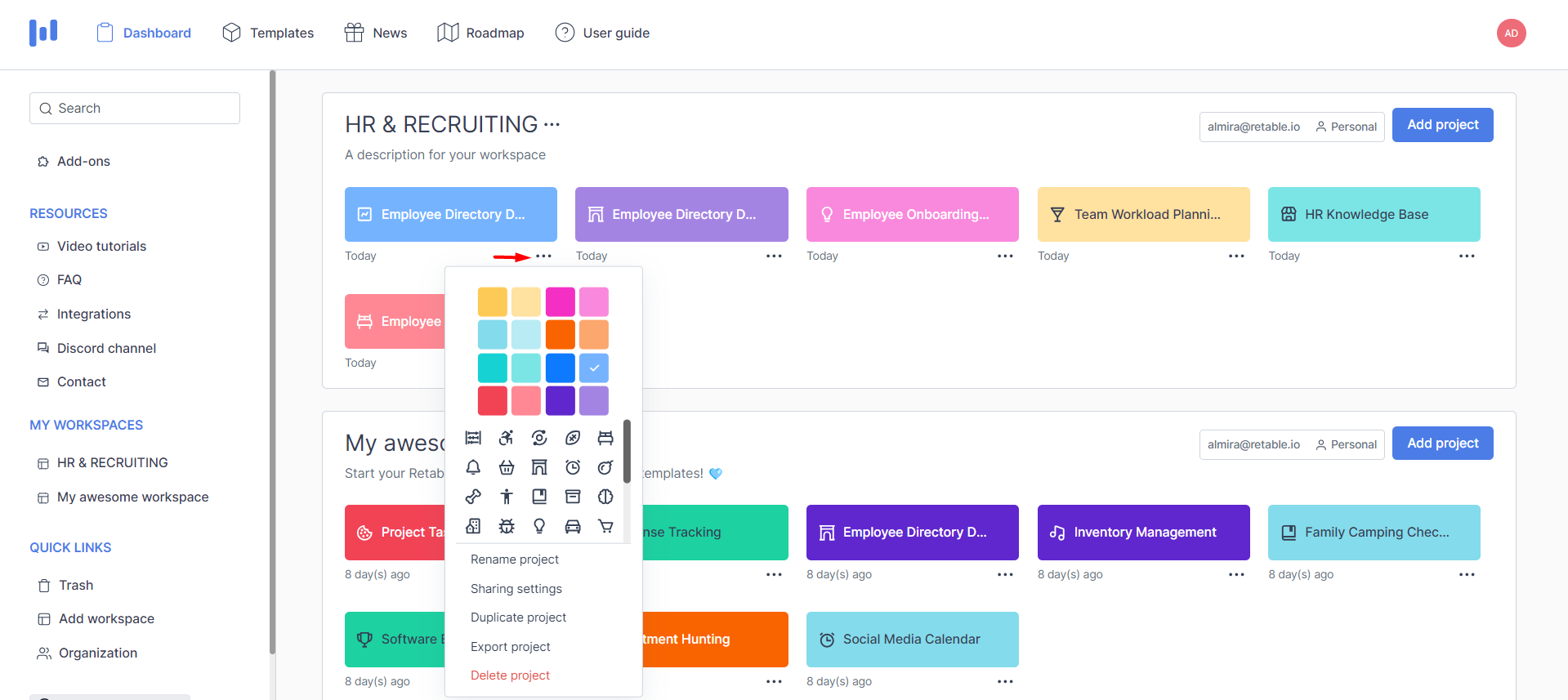
## Editing a project

Follow the steps below to edit a project.

1. Click on the three dots next to the project name.
2. Here you can edit color or symbol in the pop-up that opens.

<figure><img src="https://1709022688-files.gitbook.io/~/files/v0/b/gitbook-x-prod.appspot.com/o/spaces%2F-MWwce7QQJjTB7U3RSKz%2Fuploads%2F8DVc1oyOzy2Ye0QNS4Oy%2Fimage.png?alt=media&amp;token=06db3bd2-18f2-495e-b3e5-d8d7755a6ce8" alt=""><figcaption></figcaption></figure>

## Renaming a project

Follow the steps below to rename a project.

1. Click the three dots next to the project name which needs to be renamed.
2. Click “Rename Project” and change project name.

<figure><img src="https://1709022688-files.gitbook.io/~/files/v0/b/gitbook-x-prod.appspot.com/o/spaces%2F-MWwce7QQJjTB7U3RSKz%2Fuploads%2FCb6jVLDUtFvS6NwN41ab%2Fimage.png?alt=media&amp;token=d0eba80f-c1bf-4560-a535-59fae96cec45" alt=""><figcaption></figcaption></figure>

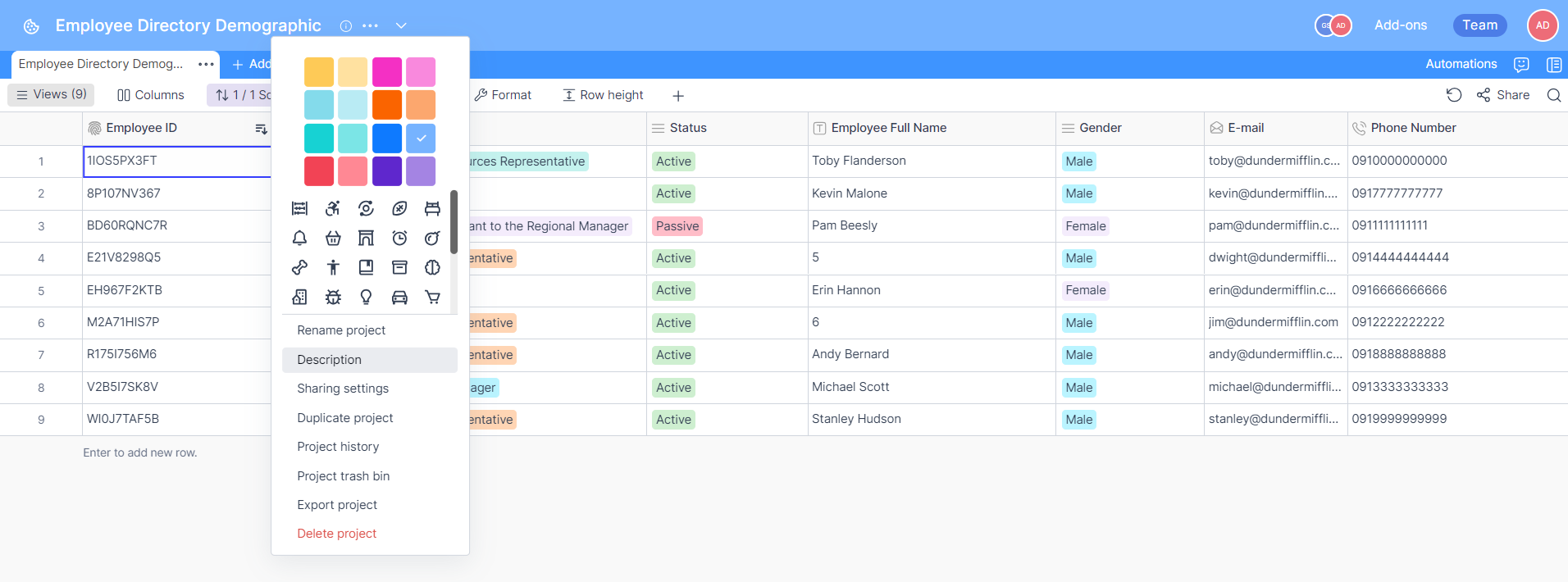
## Editing project description

You can have more comprehensive descriptions for your projects by using our rich text field for your project descriptions. In this way, new members of your team will have more detailed insights about your projects and you can create a quick and accessible project guide for them. Follow the steps below to edit a project description.

1. Click on the three dots next to the project name.
2. Click on “Description”.
3. Edit description of the project.

<figure><img src="https://1709022688-files.gitbook.io/~/files/v0/b/gitbook-x-prod.appspot.com/o/spaces%2F-MWwce7QQJjTB7U3RSKz%2Fuploads%2FguOoaopYQKbLu44RU2QK%2Fimage.png?alt=media&amp;token=0bffb0dc-a47a-451a-aaae-108e430f9655" alt=""><figcaption></figcaption></figure>

<figure><img src="https://1709022688-files.gitbook.io/~/files/v0/b/gitbook-x-prod.appspot.com/o/spaces%2F-MWwce7QQJjTB7U3RSKz%2Fuploads%2FkG8mEor32TC6KRCBVAEx%2Fimage.png?alt=media&amp;token=b3260f1f-057a-4fac-a97d-705f2c4e67cb" alt=""><figcaption></figcaption></figure>

## Project information

Within the project menu, there is an information field that displays all relevant IDs for the current table. This field is helpful if you want to establish an API connection to your table.&#x20;

Through this menu, you can effortlessly access your workspace ID, project ID, table ID, and the total number of rows in the table.

<figure><img src="https://1709022688-files.gitbook.io/~/files/v0/b/gitbook-x-prod.appspot.com/o/spaces%2F-MWwce7QQJjTB7U3RSKz%2Fuploads%2F36ez5QEPXSInPoWopkUR%2Fimage.png?alt=media&amp;token=93986a56-d074-4ae6-87b8-bef83c145d09" alt=""><figcaption></figcaption></figure>

## Inviting members to a project

User must be logged in and must have at least oe a workspace and project to display shared users.\
You can invite other users to your project. This way they will be able to view or edit your work.

Follow the steps below to display or share users.

1. Click the share icon or click on Sharing settings in three dots.
2. All shared users are shown under the Workspace Members and Project Members on the pop-up screen.
3. Type the e-mail address you want to share the project. You can invite more than one collaborator, seperated with comma..
4. Choose either Owner, Editor or Viewer as the role.
5. Click on "Invite" button.
6. All shared users are shown under the "Project Members" on the pop-up screen.

If you want to remove users from the workspace, with the user cross, you can remove the user from the "Workspace Members" area.

{% hint style="info" %}
"Owner" users have all kinds of privileges. \
"Editor" user can rename and edit in the relevant project. It cannot delete the project, table or view. \
"Viewer" user can only display.

You can add, delete, or update users according to your role.
{% endhint %}

<figure><img src="https://1709022688-files.gitbook.io/~/files/v0/b/gitbook-x-prod.appspot.com/o/spaces%2F-MWwce7QQJjTB7U3RSKz%2Fuploads%2FwYNJHJPnfYksNKvsrsak%2Fimage.png?alt=media&amp;token=372b45eb-46c0-4139-aec6-0e9c7418eabd" alt=""><figcaption></figcaption></figure>

## Display other users using project link

You can also display your project with your collaborator using a link specific to that project. In this case, user can see the tables in your project without logging in. Users won't be able to edit the project.&#x20;

Follow the steps below to send the project link to a user.

1. Click on three dots and click on Sharing settings.
2. Click on the "Project Link" tab in the popup.
3. When you activate the "Enable all tables in the project for public view" switch, you can share your project with a unique link.
4. You can copy the link with "Copy link", or open in a new tab with "Open link to new tab".
5. If you share your Retable projects by activating the "Allow viewers to copy data" option, the people you share can easily copy all the tables and views in your project to their Retable dashboard and use this project as a template for themselves without making any changes to your data. When the project link switch is opened, the public view switches of all views in the project are opened automatically.

{% hint style="info" %}
In case the project link is shared, shared people won't be added to the member list as they are not signed up. They will be able to view your tables and views in the project.
{% endhint %}

6. If you have a Team plan, you can customize Retable branding and add your own branding components to Retable. This feature instead of Retable's logos and colors, you can design your organization's workspace in accordance with your own corporate identity. For this you have to add Organization workspace and turn on the "Apply organization branding" switch.

<figure><img src="https://1709022688-files.gitbook.io/~/files/v0/b/gitbook-x-prod.appspot.com/o/spaces%2F-MWwce7QQJjTB7U3RSKz%2Fuploads%2FBGOyJkJHGO67u9ScQpIR%2Fimage.png?alt=media&amp;token=0dea52e1-2865-474b-b406-4fe90b4e01c6" alt=""><figcaption></figcaption></figure>

## Duplicating a project

You can duplicate existing project to save time. \
Follow the steps below to duplicate a project.

1. Click on the three dots next to the Project name.
2. Click on “Duplicate project”.
3. You can see a duplicate of your project with the "Duplicate of {Project Name}".

<figure><img src="https://1709022688-files.gitbook.io/~/files/v0/b/gitbook-x-prod.appspot.com/o/spaces%2F-MWwce7QQJjTB7U3RSKz%2Fuploads%2FWJfWuNKpOYPo3fhRciW4%2Fimage.png?alt=media&amp;token=5f56c01c-3a5f-4830-8296-a3a947b32c0f" alt=""><figcaption></figcaption></figure>

## Project trash bin&#x20;

The trash function allows to see and restore the workspaces, projects, tables, views that have been deleted.

When you delete a table or a view it will be available in your trash. Deleted table or view can be restored from this trash.

Follow the steps below to trash bin.

1. Click on the three dots next to the project name.
2. Click on “Project trash bin”.
3. Your deleted tables/views are located here.
4. If you want to restore an item, click on the "Restore" button.
5. If you want to delete an item completely, click on the "Remove" button.

Users with the "Editor" or "Viewer" role cannot remove or restore files in the trash.&#x20;

<figure><img src="https://1709022688-files.gitbook.io/~/files/v0/b/gitbook-x-prod.appspot.com/o/spaces%2F-MWwce7QQJjTB7U3RSKz%2Fuploads%2Frfg4h1thwbF7FKfRp0AT%2Fimage.png?alt=media&amp;token=4fc1e9a7-b25e-4bb2-9f8a-482fe1a662d6" alt=""><figcaption></figcaption></figure>

## Exporting a project

A project can be exported to either xlsx or Retable formats. When you export your projects having more than one tab, they will be displayed as tabbed in Excel.&#x20;

Follow those steps to export a project.

1. Click on the three dots next to your project name or find the project that you want to export and click on the three dots next to your project.&#x20;
2. Click on "Export Project" In the Export As pop-up, the drop down list appears of the Export Format.&#x20;
3. Select ".xlsx" or ".retable"&#x20;
4. Click on "Export" button.

{% hint style="info" %}
If you export your file with the ".retable" extension, you can import it with the same properties when you want to import your file to Retable again.&#x20;

When you download the .xlsx file, it will be located in your devices default download location.
{% endhint %}

<figure><img src="https://1709022688-files.gitbook.io/~/files/v0/b/gitbook-x-prod.appspot.com/o/spaces%2F-MWwce7QQJjTB7U3RSKz%2Fuploads%2F5cqP51STQYVk62Nk7iAH%2Fimage.png?alt=media&amp;token=8abe6201-32ea-4774-bd3d-f01eef4b5026" alt=""><figcaption></figcaption></figure>

## Deleting a project

Deleting a project within the workspace.

Follow the steps below to delete a project.

1. Click on the three dots next to the Project name.
2. Click on “Delete Project”.

<figure><img src="https://1709022688-files.gitbook.io/~/files/v0/b/gitbook-x-prod.appspot.com/o/spaces%2F-MWwce7QQJjTB7U3RSKz%2Fuploads%2F7ZH1V6kjgky9jlOPOb4G%2Fimage.png?alt=media&amp;token=7850c6b0-d3cd-4de9-8637-4ad73318d47f" alt=""><figcaption></figcaption></figure>

## Reordering project

A project can be reordered by simply dragging and dropping. Follow the steps below to reorder a project.

1\. Hover the mouse over the project you want to move.

2\. Drag it to its new location.

3\. When you release the mouse, the contents are moved to the new location.

## Switch to other projects

You can easily switch to other projects in the same workspace. By clicking on the dropdown menu to the right of your project name, you can view the names of other projects in the same workspace and open these projects in the current tab with a single click.

<figure><img src="https://1709022688-files.gitbook.io/~/files/v0/b/gitbook-x-prod.appspot.com/o/spaces%2F-MWwce7QQJjTB7U3RSKz%2Fuploads%2FPSdg65ELxAmf97EScWoh%2Fimage.png?alt=media&amp;token=9069f020-452a-4d1b-91ef-6bf660a63c45" alt=""><figcaption></figcaption></figure>

## Automations

Automations allow you to configure custom trigger-action workflows directly in your Retable project. This will allow you and your team to save time by automating repetitive tasks, increasing communication efficiency, and reducing the overall margin of error. It's all about making your life easier by letting software, apps, and other smart tools take care of repetitive tasks for you. Whether it's organizing your emails, managing data, or even performing complex actions, automation is designed to save you time and effort. An automation consists of a trigger followed by one or more actions.

### How Does Automation Work?

It's all about technology. Whether it's a powerful software platform, a clever machine on an assembly line, or a combination of integrated tools, automation works by having a trigger that sets it into action. There are plenty of simple yet effective automations that can save your team precious time.

For instance, you can set up a recurring weekly email to keep your team updated on progress or set reminders. Automated workflows can be as simple or as intricate as you need them to be. To fully grasp the potential benefits of automation, it's beneficial to map out your company's processes and identify areas that can be streamlined and optimized. Get ready to unlock new levels of productivity and efficiency with automation!

<figure><img src="https://1709022688-files.gitbook.io/~/files/v0/b/gitbook-x-prod.appspot.com/o/spaces%2F-MWwce7QQJjTB7U3RSKz%2Fuploads%2FQpMAcDwtPAdT6QdNM8sO%2Fimage.png?alt=media&amp;token=3c60aed7-5c91-4de3-8d06-16a05dc24a3d" alt=""><figcaption></figcaption></figure>

### Automation Structure of Retable

Creating automations in Retable is really simplier than you can imagine. Every automation has a 2 structure; Trigger and Action.

### **Trigger**

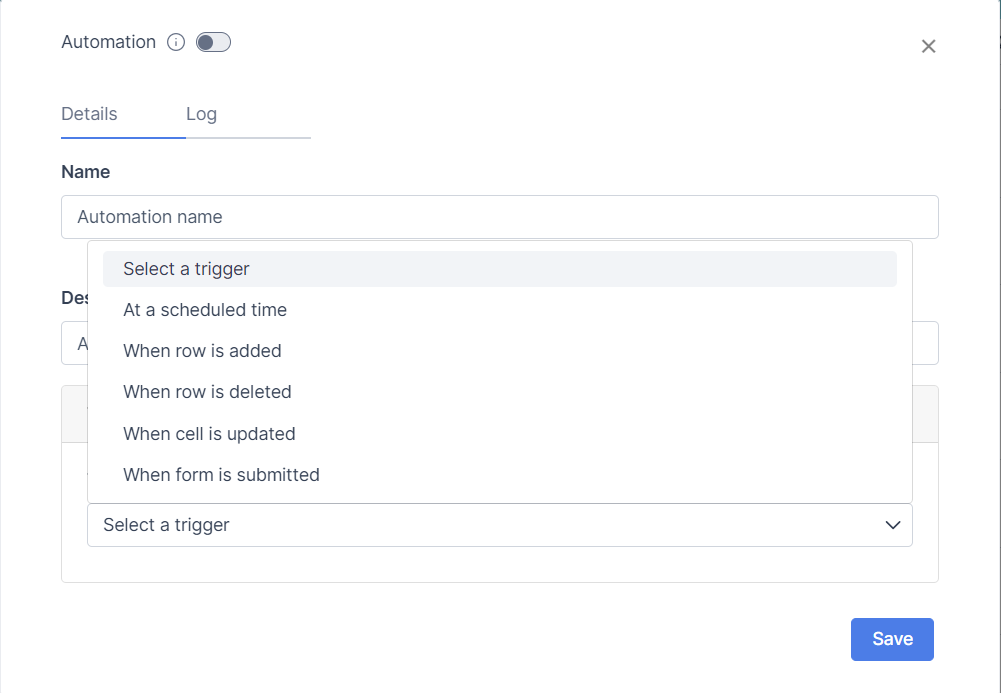
An automation consists of a trigger followed by one or more actions. A trigger is a specified event that initiates the automation. There are 5 triggers in Retable for now:

1. **At a scheduled time:** The "At a scheduled time" trigger takes action based on the conditions you set at specific days and times, whether it's **hourly, daily, or monthly**. For example, if you want to receive reminders on certain days or times to check a specific tables, you can use this automation.
2. **When a row is added:** The "When row is added" trigger is used to notify you when a row that meets the conditions you set is added to your table. If you don't add any conditions, this automation will notify you every time a row is added.
3. **When a row is deleted:** The "When row is deleted" trigger is used to notify you when a row that meets the conditions you set is deleted from your table. If you don't add any conditions, this automation will notify you every time a row is deleted.
4. **When a cell is updated:** The "When cell is updated" trigger is used to notify you when a cell that meets the conditions you set is updated in your table. If you don't add any conditions, this automation will notify you every time a cell is updated.
5. **When a form is submitted:** The "When form is submitted" trigger is used to notify you when a new form response is submitted. If you don't add any conditions, this automation will notify you every time a new form is submitted.

<figure><img src="https://1709022688-files.gitbook.io/~/files/v0/b/gitbook-x-prod.appspot.com/o/spaces%2F-MWwce7QQJjTB7U3RSKz%2Fuploads%2FkSzO1y4GkOIMzAWxQ9vu%2Fgitbook4.png?alt=media&amp;token=01078e22-f7aa-4d07-b4ca-12a39037a78a" alt=""><figcaption></figcaption></figure>

### **Action**

Once you define a trigger, you need to define an action. After setting up a trigger, you have the flexibility to select from two different actions: Send a notification via email and Send records via email. With the ability to mix and match various triggers, actions, and conditions, you can create customized automations that streamline your workflows perfectly. When the trigger runs and the subsequent actions are complete, the automation is said to be "executed" or "run".

Action types are as follows.

1. **Send a notification via email:** When building an Automation, you may choose the "Send an email" action. When the automation runs successfully, a corresponding email will be sent to selected email targets, containing the customizable information of your choosing during the automation configuration process.
2. **Send records via email:** When building an Automation, you may choose the “Find records” action. This will look for records matching specific conditions that you can specify within the action settings.
3. **Call webhooks:** Webhooks is a mechanism used in web development to enable one system or application to send real-time data to another system or application whenever a certain event occurs. It allows for the automatic transmission of information between systems without requiring constant polling or manual intervention.
4. **Send sms with Twilio:** The Twilio integration provides the ability to send bulk SMS directly from Retable, simplifying and streamlining your automated communication process. By linking your Retable projects with Twilio, you can effortlessly manage large-scale SMS campaigns, personalize messages using table data, and trigger SMS notifications automatically based on predefined conditions.
5. **Send email with SendGrid:** The SendGrid integration allows personalized emails to be sent directly from Retable projects, enhancing communication workflows and making audience outreach seamless. Whether for promotional campaigns, updates, or automated notifications, this integration enables efficient email management without leaving Retable.

#### **When will action run**

In your automation, choosing the 'Send records via email' action allows you to select between 'Always' or 'Run when records found' for the 'When will action run' setting.

If you choose **"Always"**; Even if a condition is specified for the Send records via email action, emails are also received for actions that do not meet the condition. In other words, even if your condition returns an empty value, you will continue to receive automation emails. If you select this option, your automation run count will decrease even if your condition is not met. "Always" sends an e-mail even if a null value is returned from the filter condition.

If you select **"Run when records found"**; You will only receive automation emails according to the condition specified for the "send records via email" action. In this way, you will save on your automation run count usage as you will only receive emails when your condition is met. "Run when records found" sends an automation e-mail only when it finds records according to the filter conditions.&#x20;

This selection can only be made for the "Send records via email" action. In other action types, only the "Always" option is active.<br>

### **Call webhooks**

Retable's Webhooks allows you to be notified in real-time about changes in your projects, from new records to a column being updated in an existing row, to a row moving in or out of a view.

Webhooks provide you with a streamlined approach to managing various API workflows. In essence, working with APIs entails one software system requesting specific information from another, typically through a GET request. This mechanism proves efficient when an application routinely retrieves data from Retable's APIs to gain insights into table or base statuses. However, the process can become somewhat laborious when aiming to maintain real-time information accuracy, especially as new records are added, existing ones updated, or some removed. Often, the act of fetching data via GET from Retable results in surplus calls that yield no substantive changes from previous requests.

Enter webhooks—an elegant solution. These enable the source application, like Retable in this context, to initiate a POST request to the destination application where the information will be utilized. This innovation circumvents unnecessary API calls since the POST request materializes solely based on the predefined specifications of the webhook.

#### Fundamentals of Retable's Webhooks

Webhooks are an action type that you can send an HTTP request in case automation is triggered.

#### Http Methods

HTTP methods are an integral part of the Hypertext Transfer Protocol (HTTP), which is the foundation of data communication on the World Wide Web. In the context of webhooks, HTTP methods determine the type of action to be performed on the resource located at the URL endpoint provided by the listener (subscriber) when an event occurs. Here are 4 HTTP methods used in Retable's webhooks:

<figure><img src="https://1709022688-files.gitbook.io/~/files/v0/b/gitbook-x-prod.appspot.com/o/spaces%2F-MWwce7QQJjTB7U3RSKz%2Fuploads%2FPQDB67RPoIx2pl09X3yg%2Fgitbook6.png?alt=media&amp;token=67803a86-df77-4ad8-a815-c02cd0ad94a9" alt="Http Methods in webhooks"><figcaption></figcaption></figure>

**GET:** While less common in webhooks, some systems might use GET requests to deliver event information. However, using GET requests for webhooks can have limitations in terms of security and data size, as GET requests typically expose data in the URL and are subject to length restrictions. If you use the GET method in Retable's webhooks, the 'Body' field will be inactive.

**POST:** The most frequently used method in webhooks is POST. When a webhook event is triggered, the sender (publisher) sends an HTTP POST request to the listener's URL endpoint. The POST request typically carries data related to the event in its payload. The listener's server processes this data and performs the necessary actions based on the event.

**DELETE:** The DELETE method is used to request the removal of a resource at the specified URL. While not commonly used in webhooks, it could be employed to trigger actions that remove data or resources based on a specific event.

**UPDATE:** The UPDATE method is used to update or create a resource at a specific URL. It is often used to update an existing resource or create a new one if it doesn't already exist. The UPDATE could potentially be used in some scenarios where the event data needs to update an existing resource on the listener's side.

When designing a webhook system, it's essential to choose the appropriate HTTP method based on the nature of the event and the action required on the listener's side. Typically, POST is the preferred method for webhooks since it allows for the transmission of event-specific data and actions.

#### Params

"Params" is a shortened term for "parameters." Parameters, often referred to as "query parameters," are key-value pairs of data that are included in the URL of an HTTP request. These parameters provide additional information to the server about the request being made. Webhooks may use parameters to communicate specific details about an event or to customize the behavior of the webhook request.

Query parameters are typically added to the URL after a question mark (?) and are separated by ampersands (&). Each parameter consists of a key and a corresponding value, like this:

> <https://example.com/webhook?**param1=value1\\&param2=value2>\*\*

#### Headers

Headers refer to the metadata included in the request or response that provides additional information about the communication between the client (sender) and the server (receiver). Headers convey various details about the data being exchanged, the nature of the request or response, and instructions for how the communication should be handled.

In Retable webhooks, the header section contains two values; **Header Name and Header Value**. The Header Name is **"User-Agent"** by default and Header Value is **"Retable"** by default. If you want, you can add new header values.

<figure><img src="https://1709022688-files.gitbook.io/~/files/v0/b/gitbook-x-prod.appspot.com/o/spaces%2F-MWwce7QQJjTB7U3RSKz%2Fuploads%2FOaIMLo7QrT0X8PyaxwLN%2Fgitbook7.png?alt=media&amp;token=ac4a2348-c361-405f-8752-905e596cdd6a" alt=""><figcaption></figcaption></figure>

Headers are an important part of webhooks, especially when it comes to security, authentication, and conveying relevant details about the event or request. Properly configuring and utilizing headers can enhance the reliability and security of webhook communications.

#### Body

The "body" refers to the main content of the request that is sent from the client (sender) to the server (receiver). The body of an HTTP request typically carries the payload or data associated with the request. This payload can be in various formats such as JSON, XML, plain text, HTML, or other types depending on the nature of the communication. In Retable's webhooks, payloads are currently only in JSON format.

When a webhook is triggered, the data related to the event is often included in the body of the HTTP request. The body contains the information that the listener (subscriber) needs to process and act upon in response to the event.

For example, let's say you have a webhook that sends notifications whenever a new user submits your Retable form. The body of the webhook request might contain a JSON payload like this:

`{`\
&#x20;`"event": "form_submission",`\
&#x20;`"user": {`\
&#x20;  `"id": "12345",`\
&#x20;  `"name": "John Doe",`\
&#x20;  `"email": "john@example.com"`\
&#x20;`}`\
`}`

It's important to note that the body of an HTTP request is particularly relevant when using the POST method, as it's commonly used to transmit data from the client to the server. The body allows for more complex and structured data to be included compared to other parts of the request such as headers or query parameters.

In Retable webhooks, you can leave the body blank if you want. If you select "none" for the body field, your webhook's body will be empty. If you select the "application/json" option, you can select which columns you want to include information about in the body section.

**PS:** *If you enable more columns in the body section, data on those columns will be added to your body.*

To start the call webhook action, you must first select a trigger from the automation section. This trigger determines which action will trigger your call webhook action. Call webhooks action cannot be used with the *“at a scheduled time”* trigger.

When the "Simplify response" option is selected in the Body field, the row value added to the body in webhooks is simplified. Data is sent directly as key-value pairs without additional structures like columns. This reduces the request size and provides a more readable and straightforward structure.

#### How to Create a Webhook Call

You can access Webhooks from Retable's [automations](https://www.retable.io/faq/how-to-use-project-automations) section of your Retable projects.

Before creating your webhooks, you can check out this video to see how Retable's automation works. Thus, by understanding the basics of automation, you can create your webhooks more easily.

If you choose **"When row added"**, **"When row deleted"** or **"When form submitted"** trigger types, you need to select the table as well. If you choose the **"When cell updated"** trigger type, you need to select a table and a column.

After making all your trigger settings, you can continue to select the **"Call webhooks"** action from the "Action type" section.

{% embed url="<https://www.youtube.com/watch?v=gYr6JA208QQ>" %}

The steps simply should be as follows;

* **HTTP Method & URL:** You can choose a method from the list in the HTTP method field and enter a URL in the URL field. The web address to which the HTTP request will be made must be entered in the URL field.
* **Params:** Then, you can switch and edit the Params tabs. The parameters in the URL will automatically added to the Parameters list. Also, every parameter you add to the parameters list will be added to end of the URL.
* **Headers:** You can send the value of the triggered column by typing the name of this column in the Header field with curly braces. If you do not add anything to the Headers field, the headers information assigned by Retable by default will be used.
* **Body:** You must select POST, DELETE or UPDATE as the HTTP method to access the body field. This field forms the body of your HTTP request. If the Content Type field is "none" in this field, the body will not be sent in the request. **‍**
* **Save and Activate:** After you finish your webhook settings, you can save and activate the automation.

Retable Automations allow automating tasks with tools, and technology to achieve your goals efficiently, consistently and accurately. With Retable Automations you can build custom, automated workflows to generate reports or perform other repetitive steps.

The more you can automate data entry and data consumption, the more useful your work will become. To create your first automation with Retable, you just need to follow a few steps.

Below are the steps to add automation.

1. Click on the automation icon located at the top right.
2. In the automation window that opens, click on "+Add New."
3. In the opened automation pop-up, give a name to your automation from the "Name" field. You can also optionally add a description.
4. Select your trigger type.
5. Fill in the appropriate options based on the trigger type you selected. For example, if you choose the "When cell is updated" trigger, you should also select the table where this trigger will work and specify the column to which the trigger will be applied.
6. After making your trigger selections, you should choose your action.&#x20;
7. After completing all your settings, don't forget to click the "Save" button.
8. Once you have saved your automation, you can start running it by activating the toggle next to the name of your automation.

{% embed url="<https://www.youtube.com/watch?v=oGh3tImTPqU>" %}

#### How to Set Automation Parameters

You can now use your column names as parameters in the Mail Subject and Mail Content fields of the send mail and send records actions in your automations. For this, it is sufficient to write your column names in curly brackets. Example; {columnname}

1. Go to your project.
2. Click the automation button.
3. Add a new automation.
4. Set your trigger and action.
5. Select the 'To' for your automation email.
6. Type one or multiple {columnname} to your 'Subject' and 'Content' section.
7. Save it.

{% embed url="<https://www.youtube.com/watch?v=rx3iaHnhZIE>" %}

### Send sms with Twilio

Twilio integration enables sending bulk SMS directly from Retable for streamlined automated communication. Follow the steps below to set up and use the Twilio SMS integration:

1. Open the Retable project that contains the phone numbers of your recipients.
2. In the top right corner of your project, click on the "Automations" section.
3. Click on "Add New" to create a new automation.
4. Enter a name for your automation in the "Name" field.
5. Select the type of trigger that will activate the automation.
6. Select the table containing the phone numbers you want to send SMS to.
7. Choose "Send SMS with Twilio" as the action type for your automation.
8. Click the "New Connection" button to create a Twilio connection.
9. Provide a name for your connection. Optionally, you can add a description.
10. Enter Twilio Account Details;
    * In the 'Account SID' field, enter your Twilio Account SID.
    * In the 'Auth Token' field, enter your Twilio Auth Token.
    * You can reuse the same SID and Auth Token across multiple automations.
11. Click the ‘Save’ button to store your Twilio connection. Multiple connections can be created if needed.
    * Connections are user-specific. Other users in the project can’t edit your connections.
    * Connections added by other users are visible and usable if selected for automation, but you can’t see unselected connections from other users.
12. After saving, your Twilio-registered phone number will be automatically added to the From field. All SMS messages sent through this automation will use this Twilio phone number.
13. Specify Recipients (To Field);
    * If you have a "Phone Number" column in your table, you can use curly brackets {} to add the column name in the 'To' field. For example: {Phone Number}.&#x20;
    * This ensures that SMS is sent to the phone numbers in that column whenever the trigger is activated.&#x20;
    * You can also manually enter phone numbers in the 'To' field if needed. Separate multiple numbers with commas.
14. Write Your SMS Content;
    * In the ‘Content’ field, write the SMS message you want to send. To include data from a specific column in your table, use curly brackets `{}` to reference the column name.
    * For example, if your table has a "Name" column, you can write `{Name}` in the content field, and the SMS will include the recipient’s name in the message.

{% embed url="<https://youtu.be/TNWcfJu5wXQ>" %}

### Send email with SendGrid

Personalized emails can now be effortlessly sent from your Retable projects, streamlining communication workflows and enhancing audience engagement. Follow the steps below to set up and use the SednGrid integration:

1. Access your project: Open the Retable project that contains the email addresses of the people you want to send emails to.
2. In the top right corner of your project, click on the "Automations" section.
3. Click on "Add New" to create a new automation.
4. Enter a name for your automation in the "Name" field.
5. Select the type of trigger that will activate the automation.
6. Select the table that contains the email information you’ll be using.
7. Choose "Send Email with SendGrid" as the action type for your automation.
8. Click the "New connection" button to set up your SendGrid connection.
9. Provide a name for your connection. Optionally, you can add a description.
10. Enter Twilio Account Details;
    * Input your SendGrid API key in the API Key field.
    * The same API key can be used for multiple automations.
11. Click "Save" to store your SendGrid connection. Multiple connections can be added as needed.
    * Connections are user-specific and cannot be edited by other project users.
    * Connections added by others can be seen and used if selected for an automation, but unselected connections cannot be viewed or edited.
12. After saving, the email addresses registered with your SendGrid account will appear in the **From** field. Choose the address you want to use for sending emails.
13. Specify Recipients (To Field):&#x20;
    * If your table includes an "E-mail" column, use curly brackets `{}` to reference the column name in the ‘To’ field (e.g., `{E-mail}`).
    * This will ensure emails are sent to the addresses listed in that column when the trigger is activated.
    * Alternatively, manually enter email addresses in the ‘To’ field. To send to multiple addresses, separate them with commas.
14. Write Your Email Content;&#x20;
    * In the ‘Content’ field, compose the email message. Use curly brackets `{}` to pull data from specific columns.
    * For instance, to include the recipient’s name from a "Name" column, use `{Name}` in the content field, personalizing each email with the recipient’s name.
15. Use a Dynamic Template (Optional); Activate the ‘Use Template’ button to select from the dynamic templates available in your SendGrid account. To pull data from a specific column, use curly brackets `{}` to reference the column name.

For example, if your SendGrid template includes a variable called "userName" and you want to pull "Name" values from your Retable table, choose the SendGrid template with the "Use template" option, then enter "userName" in the Name field and use `{Name}` in the Value field.

You can also assign fixed values to SendGrid variables directly from Retable. For instance, if you have a variable named "couponCode," enter "couponCode" in the Name field and provide a fixed value in the Value field, without using curly brackets.

<figure><img src="https://1709022688-files.gitbook.io/~/files/v0/b/gitbook-x-prod.appspot.com/o/spaces%2F-MWwce7QQJjTB7U3RSKz%2Fuploads%2F6oyRo5LCvwPJ3OmDUMIF%2Fimage.png?alt=media&amp;token=dadd4c0e-d09d-4078-b461-a6090de2a972" alt=""><figcaption></figcaption></figure>

{% embed url="<https://youtu.be/RGm6KCiLyh4?si=y8p9UTNHx82uUaF1>" %}

### How to Access Automation Logs

You can now monitor all logs of your automations from the logs section in the automations window. &#x20;

1. Go to your project.
2. Click the automation button to open your automation window.
3. Click your existing automation.
4. Switch to the logs tab.

{% embed url="<https://www.youtube.com/watch?v=wIuM1UVbXdI>" %}

## File Upload to project

An attachment field is a type of field that allows you to attach one or more files directly to your Retable records.

A column is created by choosing the "Image" or "Attachment" column type from the column types. Once you've created the field, you can start uploading attachments to it.

To upload an attachment in the attachment field, click the plus (+) button on the cell to which you'd like to add an attachment, or click on the "Attach file" button in the expanded cell. This will bring up a file uploader dialog which will let you upload attachments from a variety of different sources.

You can also drag and drop attachments onto a cell, expanded cell, or into the file uploader dialog.

All files in the tables of the project are displayed in the project attachment field. You can use the file you use in a project in a different table under the same project.

You can download each individual attachment by clicking the Download icon. \
To remove an attachment, use the trash bin icon while in the expanded cell view.

<figure><img src="https://1709022688-files.gitbook.io/~/files/v0/b/gitbook-x-prod.appspot.com/o/spaces%2F-MWwce7QQJjTB7U3RSKz%2Fuploads%2FEuZj1wgOecCq6J7fb1fi%2Fimage.png?alt=media&amp;token=f6545baa-90e6-4605-ac40-17001735ca2c" alt=""><figcaption></figcaption></figure>


# Managing tables

Tables are like worksheets in a spreadsheet. Each table can hold a set of data concerning one subject area. \
You must use unique names for your tables.

## Adding a new table

<figure><img src="https://1709022688-files.gitbook.io/~/files/v0/b/gitbook-x-prod.appspot.com/o/spaces%2F-MWwce7QQJjTB7U3RSKz%2Fuploads%2F6dls7Pw4C3tXIYUf5Kze%2Fimage.png?alt=media&amp;token=492cb3e5-7bfe-4927-836d-623b5eceb2f1" alt=""><figcaption></figcaption></figure>

### Adding an empty table

Follow the steps below to create a table.

1. Click the "+Add new" icon on the top left side of the screen.
2. Click “Empty table” to create a Table.
3. "Give this table a name" and click "Create" button.
4. When you create an empty table, there is 4 columns and 3 rows in the table.

<figure><img src="https://1709022688-files.gitbook.io/~/files/v0/b/gitbook-x-prod.appspot.com/o/spaces%2F-MWwce7QQJjTB7U3RSKz%2Fuploads%2F6554xruYSBDeI0GpvhBn%2Fimage.png?alt=media&amp;token=a4bf6222-e458-4329-b560-297f1f7ba2c4" alt=""><figcaption></figcaption></figure>

### Importing a .csv or .xls(x)

Follow the steps below to import a .csv or .xls(x) files to Retable. &#x20;

1. Click the "+Add new" icon on the top left side of the screen.
2. Click on “Import a .csv or .xls(x)” to import excel sheet.
3. Click on “Select a .csv or .xls(x) File” and choose an excel file from local desktop.
4. If the first line is the header, you can choose "First row is header."
5. Click on “Upload”.

<figure><img src="https://1709022688-files.gitbook.io/~/files/v0/b/gitbook-x-prod.appspot.com/o/spaces%2F-MWwce7QQJjTB7U3RSKz%2Fuploads%2F6OF2W5FXth5mN74oW5rb%2Fimport_1.gif?alt=media&amp;token=6a52b4aa-e2bf-4739-9a77-7c82c9c7f3a7" alt=""><figcaption></figcaption></figure>

### Importing an Airtable sheet

{% hint style="info" %}
This feature is currently in beta so expect some feature additions and bug fixes. If you have any feedback, please [join our community ](https://discord.gg/3KtWYbgY7e)and brainstorm with other Retable enthusiasts.&#x20;
{% endhint %}

Retable can import an Airtable sheet. Within minutes, you can import all your Airtable sheet into Retable and start working.

Here is an introduction video:&#x20;

{% embed url="<https://www.youtube.com/watch?v=SXX8ygW4nkQ>" %}

To proceed with this operation, you must obtain Airtable tokens, which can be found [here](https://airtable.com/create/tokens). You must be logged into your account to access your tokens.

Follow the steps below to import an Airtable sheet into Retable.&#x20;

{% hint style="info" %}
This documentation has a short explanation for the technical savvy. If you would like to read a detailed, step by step explanation of how to migrate your data from Airtable to Retable, [see this documentation](https://www.retable.io/faq/import-from-airtable-to-retable)&#x20;
{% endhint %}

1. Click on the "Add new" button over the toolbar. Click 'Import from Airtable'.&#x20;

   <figure><img src="https://1709022688-files.gitbook.io/~/files/v0/b/gitbook-x-prod.appspot.com/o/spaces%2F-MWwce7QQJjTB7U3RSKz%2Fuploads%2F85yLNmAWx5gShfw8pM0p%2Fimage.png?alt=media&amp;token=573c5635-3f23-442b-90cc-70df31f61879" alt=""><figcaption></figcaption></figure>
2. You'll see a popup where you can insert the Airtable access token. To create a personal access token, [see this page on Airtable](https://airtable.com/create/tokens). Below you can see the most important sections to fill in.

<figure><img src="https://1709022688-files.gitbook.io/~/files/v0/b/gitbook-x-prod.appspot.com/o/spaces%2F-MWwce7QQJjTB7U3RSKz%2Fuploads%2FJxRcfhVJpDfRAXmZfbYE%2FScreenshot%202024-01-18%20at%201.21.44%E2%80%AFPM.png?alt=media&amp;token=8a582da7-9aec-4666-8290-446be3558d25" alt=""><figcaption></figcaption></figure>

3. When you see the "Import from Airtable" popup, use the token you created on Airtable end and paste it here.&#x20;

<figure><img src="https://1709022688-files.gitbook.io/~/files/v0/b/gitbook-x-prod.appspot.com/o/spaces%2F-MWwce7QQJjTB7U3RSKz%2Fuploads%2FuMHLC0yAseRHcQIS67hC%2FScreenshot%202024-01-18%20at%2012.15.00%E2%80%AFPM.png?alt=media&amp;token=ea60f2fb-d0db-49a4-9403-a038e99ca51e" alt="" width="563"><figcaption></figcaption></figure>

4. Click the "Next" button.
5. Select the Airtable sheet you want to import into Retable After completing all your selections, click the "Import" button.
6. Then, select the table you want to import into Retable among the tables in this base.
7. Select the view of the table you want to import into Retable.
8. You'll be notified via email when your import is completed. (Depending on your data size, it may take several minutes.)
9. Refresh your dashboard after receiving your email notification.&#x20;

Note that there are a few limitations when you import data from Airtable:

1. Filter is not applied - you need to filter after importing.
2. Sort is not applied- you need to sort after importing.
3. Group is not applied- you need to group after importing.
4. Formatting is not applied- you need to apply formats after importing.
5. Hide is not applied- you need to hide columns after importing.

**For a complete list, please see the** [**supported field types document.**](https://go.retable.io/projUK5xXUnNGcFSLi9M)

### Importing a Retable file

With Import Retable, you can import the files you exported in .retable format. So the formats in your project or table are not lost.

Follow the steps below to import a sheet.

1. Click the "+Add new" icon on the top left side of the screen.
2. Click on “Import Retable”.
3. Click on “Select a .retable File”&#x20;
4. Select a .retable format file that you downloaded to your device.
5. Click the "Upload" button.

<figure><img src="https://1709022688-files.gitbook.io/~/files/v0/b/gitbook-x-prod.appspot.com/o/spaces%2F-MWwce7QQJjTB7U3RSKz%2Fuploads%2FGzsLsj1yLlmfxl7PkKvT%2Fretable_import_1.gif?alt=media&amp;token=8f8ca690-cc00-454d-aadb-6cc915a64264" alt=""><figcaption></figcaption></figure>

{% hint style="info" %}
If you export your file with the ".retable" extension, you can import it with the same properties when you want to import your file.
{% endhint %}

### Importing Google Sheets

That allows you to import an entire Google Sheets file as a new base, or import one into an existing base. Note that once you import data into Retable, any changes made within Retable will not be reflected back to the original Google Sheets you used for importing.&#x20;

Follow the steps below to import a sheet.

1. Click the "+Add new" icon on the top left side of the screen.
2. Click on “Import Google Sheet”.
3. Connect to your Google account of the file you want to import from the screen that opens.
4. Select the relevant file from the "Choose File" field.
5. Click on “Select” button and choose the file.

<figure><img src="https://1709022688-files.gitbook.io/~/files/v0/b/gitbook-x-prod.appspot.com/o/spaces%2F-MWwce7QQJjTB7U3RSKz%2Fuploads%2FvBN7VQc0Ei36QzQ4JL1B%2Fgoogle_sheets_1.gif?alt=media&amp;token=32005b13-0509-477a-bfa1-d23f313c6fa7" alt=""><figcaption></figcaption></figure>

### Import file from URL

You can import .csv and .xlsx files into your projects directly with the URL. Thus, you can transfer any .xlsx or .csv file on the internet to Retable with just a URL without downloading them to your device.

Follow the steps below to import a sheet.

1. Click the "+Add new" icon on the top left side of the screen.
2. Click on “Import file from URL”.
3. Paste the URL of the file you want to import.

<figure><img src="https://1709022688-files.gitbook.io/~/files/v0/b/gitbook-x-prod.appspot.com/o/spaces%2F-MWwce7QQJjTB7U3RSKz%2Fuploads%2FloNtmZmeXohyT8Cuw9wo%2Fimage.png?alt=media&amp;token=3dde834b-a61c-44ff-a1a2-d55116a393d5" alt=""><figcaption></figcaption></figure>

### Synced table

Allows tables within the same workspace, whether in different projects or in the same project, to synchronize with each other.

Follow the steps below to synchronize the table.

1. Click the "+Add new" icon on the top left side of the screen.
2. Click on “Synced table”.
3. Choose the project where the table you want to sync is located.
4. Select the table you want to sync.
5. Select the view you want to sync.
6. After clicking the "Next" button, you can choose either "All columns in the source (Include columns to be added in the future)" or "Specific columns in the source," depending on your needs.\
   If you choose "**All columns in the source (Include columns to be added in the future),**" all existing columns in the table you want to sync, as well as any columns you add later, will automatically be synchronized.

   If you choose "**Specific columns in the source**," a list of columns from the table you want to sync will appear, and you can select the columns you wish to sync.

   Remember, in both options, every new data added to the synced columns will also be synchronized to your current table.
7. After making your choice, click the "Save" button.

* The table you add as a synced table will be created as a new table within your project and will reflect any changes made to the source table.
* You cannot make data changes to a table added to your project as a synced table; you can only modify its data from the source table. Essentially, this feature works like a lookup and shows you the data from your reference synced table.
* In summary, a synced table will copy its contents from another table. When the original table data changes, it will stay up to date in the synced table.

<figure><img src="https://1709022688-files.gitbook.io/~/files/v0/b/gitbook-x-prod.appspot.com/o/spaces%2F-MWwce7QQJjTB7U3RSKz%2Fuploads%2FJ1ia2Lh4ZRGGHMEJKJ8Z%2Ftable%20sync%20-%20GIF.gif?alt=media&amp;token=b387f6a9-9061-444e-a161-3a501a734f08" alt=""><figcaption></figcaption></figure>

## Renaming tables

Follow the steps below to rename a table.

1. Click on the 3 dots next to the table name.
2. Click on “Rename table”.

<figure><img src="https://1709022688-files.gitbook.io/~/files/v0/b/gitbook-x-prod.appspot.com/o/spaces%2F-MWwce7QQJjTB7U3RSKz%2Fuploads%2FcCqyjukwsXO88wU1KnQZ%2Fimage.png?alt=media&amp;token=e5158dfb-634e-4518-a118-05cdb0d663b8" alt=""><figcaption></figcaption></figure>

## Editing table description

Follow the steps below to edit a table description.

1. Click on the 3 dots next to the table name.
2. Click on “Description”.
3. Change the table name or edit the description of the table.

<figure><img src="https://1709022688-files.gitbook.io/~/files/v0/b/gitbook-x-prod.appspot.com/o/spaces%2F-MWwce7QQJjTB7U3RSKz%2Fuploads%2Fm1ji8FRCsqlHHKi9tfU4%2Fimage.png?alt=media&amp;token=4566680c-c580-481b-8eff-b215dc8e66a6" alt=""><figcaption></figcaption></figure>

## Locking a table

You can lock a table and prevent others from editing it. Only the person who locked the table can unlock it. When a table is locked, an e-mail is sent to inform all shared users. If one of those users wants the table to be unlocked, that user can send a request to the person who locked the table to unlock it.

Follow the steps below to lock a table.

1. Click on the 3 dots next to the table name.
2. Click on “Lock Table”.

Follow the steps below to unlock a table.

1. Click on the 3 dots next to the table name.
2. Click on “Unlock Table".

<figure><img src="https://1709022688-files.gitbook.io/~/files/v0/b/gitbook-x-prod.appspot.com/o/spaces%2F-MWwce7QQJjTB7U3RSKz%2Fuploads%2FFSuUo8qwTLtxYhnyeslg%2Fimage.png?alt=media&amp;token=a0253afe-a397-4fe0-9483-09ec73a80dae" alt=""><figcaption></figcaption></figure>

## Duplicating a table

Follow the steps below to duplicate a table.

1. Click on the 3 dots next to the table name.
2. Click on “Duplicate Table”.

<figure><img src="https://1709022688-files.gitbook.io/~/files/v0/b/gitbook-x-prod.appspot.com/o/spaces%2F-MWwce7QQJjTB7U3RSKz%2Fuploads%2FdaaAhbBgcj3SIVAANQr3%2Fimage.png?alt=media&amp;token=59074576-b59b-4ac8-82b7-c673b28a6106" alt=""><figcaption></figcaption></figure>

## Copying a table

Follow the steps below to copy a table.

1. Click on the 3 dots next to the table name.
2. Click on “Copy Table”.
3. Select the area you want to copy from the "Selected Project" area.
4. Click on the "Save" button.

<figure><img src="https://1709022688-files.gitbook.io/~/files/v0/b/gitbook-x-prod.appspot.com/o/spaces%2F-MWwce7QQJjTB7U3RSKz%2Fuploads%2FJpLzGMbHIJN7JFywNsbC%2Fimage.png?alt=media&amp;token=cf3932a0-14f5-473e-bd0d-645af44d0d76" alt=""><figcaption></figcaption></figure>

## Moving a table

Follow the steps below to move a Table;

1. Click on the 3 dots next to the table name.
2. Click on “Move Table”.
3. Select the area you want to move from the "Selected Project" area.
4. Click on the "Save" button.

<figure><img src="https://1709022688-files.gitbook.io/~/files/v0/b/gitbook-x-prod.appspot.com/o/spaces%2F-MWwce7QQJjTB7U3RSKz%2Fuploads%2F6L4RBVP2aN4dtdQUG9rj%2Fimage.png?alt=media&amp;token=17d7a809-4cac-4c98-ac1f-05c15ec7fdb2" alt=""><figcaption></figcaption></figure>

## Import an existing **a .csv or .xls(x)**

You can import an existing table with ""Import a .csv or .xls(x)" option.

Follow the steps below to import a table.

1. Click on the 3 dots next to table name.
2. Click on “Import a .csv or .xls(x)”.
3. Choose between "Insert Data" or "Replace Data".
4. Click on “Select a .csv or .xls(x) File” and choose an excel or .csv file from local desktop.&#x20;

<figure><img src="https://1709022688-files.gitbook.io/~/files/v0/b/gitbook-x-prod.appspot.com/o/spaces%2F-MWwce7QQJjTB7U3RSKz%2Fuploads%2FrHEfImpOvJHHtvGzLBrw%2Fimage.png?alt=media&amp;token=baa91c47-2952-4748-8513-7e66b552ceed" alt=""><figcaption></figcaption></figure>

**If you select Insert Data;**

1. If the first line is the header, you can choose "First row is header, don't include this header." Match the "Imported Column" and "Table Column" fields in the pop-up. You can disable the columns you do not want to import with the "Import" button. \
   If the first line is not the header, you cannot choose "First row is a header, don't include this header."
2. Click on “Upload”.

**If you select Replace Data;**

1. All your data in this table is replaced with the data you imported. If the data has no equivalent in the imported file, this data is added to the end of your Retable table. So, all your data in the table is replaced with the data you imported.\
   It changes with the headers you import with the "Replace the headers as well" option.\
   Match the "Table Column" and "Imported Column" fields in the pop-up.
2. Click on “Upload”.

<figure><img src="https://1709022688-files.gitbook.io/~/files/v0/b/gitbook-x-prod.appspot.com/o/spaces%2F-MWwce7QQJjTB7U3RSKz%2Fuploads%2FBctD6mvDMtKuPQM5hi0M%2Fimage.png?alt=media&amp;token=eaaae896-e50c-4328-a693-a95bef0a8f8d" alt=""><figcaption></figcaption></figure>

## Exporting a table

Follow the steps below to export a table to your computer.

1. Click on the 3 dots next to table name.
2. Click on “Export table”.&#x20;
3. In the pop-up, drop-down shows a list of export format options.&#x20;
4. Select ".csv" or ".retable"&#x20;
5. Click on the "Export" button.

<figure><img src="https://1709022688-files.gitbook.io/~/files/v0/b/gitbook-x-prod.appspot.com/o/spaces%2F-MWwce7QQJjTB7U3RSKz%2Fuploads%2FaHAfzEM5jbj4zKgP4nFm%2Fimage.png?alt=media&amp;token=93dfc511-a6fd-4af7-8178-ac05eeb15be4" alt=""><figcaption></figcaption></figure>

{% hint style="info" %}
If you export your file with the ".retable" extension, you can import it with the same properties when you want to import your file to Retable again.

When you download the CSV file, it will be downloaded in your computer's default download directory.
{% endhint %}

## Deleting a table

Follow the steps below to delete a table.

1. Click on the 3 dots next to table name.
2. Click “Delete table”.

<figure><img src="https://1709022688-files.gitbook.io/~/files/v0/b/gitbook-x-prod.appspot.com/o/spaces%2F-MWwce7QQJjTB7U3RSKz%2Fuploads%2F9HOdGYNtgm22zAsZP5Oi%2Fimage.png?alt=media&amp;token=32e668f2-334b-412a-bfa3-0d6f8132e35b" alt=""><figcaption></figcaption></figure>

## Reordering table

A table can be reordered by simply dragging and dropping. Follow the steps below to reorder a table.&#x20;

1\. Hover the mouse over the table you want to move.

2\. Drag it to its new location.

3\. When you release the mouse, the contents are moved to the new location.

<figure><img src="https://1709022688-files.gitbook.io/~/files/v0/b/gitbook-x-prod.appspot.com/o/spaces%2F-MWwce7QQJjTB7U3RSKz%2Fuploads%2FHZmpRA12v5vUDRqOfUAO%2Freorder_1.gif?alt=media&amp;token=b7fb0c10-b321-4f73-86eb-d15990a63a15" alt=""><figcaption></figcaption></figure>

## Using table list

Instead of searching for table names, you can use the table names as a list to go directly to the tab you want to view. When the scroll icon appears on the screen (in case the tables do not fit on the screen), the “table list” icon appears. In this case, tabs of the project are listed and all tabs can be browsed quickly.

Check the video below for more information.

<figure><img src="https://1709022688-files.gitbook.io/~/files/v0/b/gitbook-x-prod.appspot.com/o/spaces%2F-MWwce7QQJjTB7U3RSKz%2Fuploads%2F9HxX3O4BRiJunuJQPggk%2Fimage.png?alt=media&amp;token=19e046c5-6df9-411a-83a5-c358b7548895" alt=""><figcaption></figcaption></figure>

## Organizing all columns

You can easily organize, order and hide all your columns in one place.&#x20;

Follow the steps below organize all columns;

1. Click the "Columns" icon from your toolbar.
2. You can add a new column from the "Add column" button.&#x20;
3. You can search to find the columns.
4. You can change the order of your columns by clicking and dragging the icon in front of your column name.&#x20;
5. You can show or hide a column, click the switch next to the name of that column name.&#x20;
6. You can rename your column with the "Rename this column" option from the menu that opens when three dots are clicked.&#x20;
7. You can customize your column with the "Customize column" option from the menu that opens when three dots are clicked.
8. You can duplicate your column with the "Duplicate column" option from the menu that opens when three dots are clicked.
9. You can delete your column with the "Delete column" option from the menu that opens when the three dots are clicked.
10. You can show or hide all columns with the "show columns" or "hide columns" buttons. When the "Hide columns" button is clicked, the first column is shown.
11. You can quickly switch between all your columns from the column list on the left of the column detail window. Thus, you can manage the type, default values and all other details of all your columns from a single window.

<figure><img src="https://1709022688-files.gitbook.io/~/files/v0/b/gitbook-x-prod.appspot.com/o/spaces%2F-MWwce7QQJjTB7U3RSKz%2Fuploads%2FNM4owH71qf9xk1jePl5E%2Fimage.png?alt=media&amp;token=c8a21fa7-44e7-4ec7-8378-221d5d4cb640" alt=""><figcaption></figcaption></figure>

## Column sorting&#x20;

Follow the steps below to sorting columns;

1. Click to “Sort” button.
2. Click to "Select" function.&#x20;
3. You can search to find the columns.
4. Select the columns you want to sort.
5. Then on the column name choose “order ascending” / “order descending”.
6. You can add multiple sort with "Add another sort".
7. The user can switch the sort from active to passive by clicking the eye icon. When the sort is passive and in the field, the sort is not applied.
8. If you want to abandon column sorting, you can click the trash icon in the "Sort" field.&#x20;
9. If you want to sort the sorts you add, you can sort them with the drag drop icon.

You can sort by right clicking on the column name and selecting sort ascending or sort descending.

<figure><img src="https://1709022688-files.gitbook.io/~/files/v0/b/gitbook-x-prod.appspot.com/o/spaces%2F-MWwce7QQJjTB7U3RSKz%2Fuploads%2F9I6Fvlo797JOqjbXYD29%2Fcolumn-sort.gif?alt=media&amp;token=8b745e25-07a2-4db2-b138-dd3aeef5ed83" alt=""><figcaption></figcaption></figure>

## Column filtering

A condition is a rule you set that records must follow to be visible in that particular view.

Try adding conditions when:

* You're trying to find a record or records that meet certain conditions quickly (e.g., records that have a due date after X date and before Y date).&#x20;
* You only need to focus on records that meet certain conditions (e.g., the records that have been assigned to me AND have not been marked as completed).&#x20;
* You need to prevent people from seeing certain records in a view share link.

A condition consists of three parts:

* A field - Any field in your table.&#x20;
* An operator - After selecting a field, choose an operator from the pre-populated dropdown menu. Which filter operators are available is determined by the field type.
* A value - This is the value you compare all of your records against

Follow the steps below to apply a filter to a column/columns;

1. Click “Filter” icon on the left top of the screen.
2. You can search to find the columns.
3. Choose column which needs to be applied filter.
4. Choose filter type which are below;

   * Contains -> Characters included in the value which will be filtered
   * Does not contains -> Characters not included in the value which will be filtered
   * Is -> Value is equal to column value
   * Is not -> Value is NOT equal to column value
   * Is empty -> Column value is blank (NULL)
   * Is not empty -> Column value is not blank (not NULL)
   * Is before -> Filtering returns before the entered value
   * Is after -> Filtering returns after the entered value
   * Between -> Returns the date data between the dates entered in the filtering
   * Difference -> Returns the filtered data that is different according to the hours/day selection after the date selection entered into the filtering or the now selection
   * Yesterday -> Filters records entered as yesterday in the calendar column, based on the current date
   * Today -> Filters records entered as today in the calendar column, based on the current date
   * Tomorrow -> Filters records entered as tomorrow in the calendar column, based on the current date
   * Last week -> Filters records entered as last week in the calendar column, based on the current date
   * This week -> Filters records entered as this week in the calendar column, based on the current date
   * Next week -> Filters records entered as next week in the calendar column, based on the current date
   * Last month -> Filters records entered as last month in the calendar column, based on the current date
   * This month -> Filters records entered as this month in the calendar column, based on the current date
   * Next month -> Filters records entered as next month in the calendar column, based on the current date
   * This quarter -> Filters records entered as this quarter in the calendar column, based on the current date
   * \= -> Returns the equals of the value entered in the filtering
   * ≠ -> Returns the unequals of the value entered in filtering
   * < -> Returns less than the value entered in filtering
   * \> -> Returns values ​​greater than the value entered in filtering
   * ≤ -> Returns less than or equal to the value entered in filtering
   * ≥ -> Returns greater than or equal to the value entered in filtering
   * Not authorized -> Filters the data from the form based on the Created by column

   All - Anonymous user and Unauthorized user \
   Form - Anonymous user \
   Other User - not Anonymous user and Unauthorized user
5. User can add more than one filter by clicking “Add Filter” button. Each added filter works as “OR”/”AND” option by selecting from operator dropdown.
6. The user can switch the filter from active to passive by clicking the eye icon. When the filter is passive and in the field, the filter is not applied.&#x20;
7. When you share views with the Lock icon enabled as editable, the people will not be able to modify the filters applied. Only the project owner with Owner authority can edit the filters within the project.
8. If you want to abandon filter, you can click the trash icon in the "Filter" field.

![](https://1709022688-files.gitbook.io/~/files/v0/b/gitbook-x-prod.appspot.com/o/spaces%2F-MWwce7QQJjTB7U3RSKz%2Fuploads%2FQlhKxfbFzUr30FlcWBzz%2Fcolumn-filter.gif?alt=media\&token=e7c315e7-17d4-4180-8cc5-3de0a6123d1c)

## Row grouping

Row grouping allows you to display your records grouped together based on first, second, or third-level groupings. Grouping is available only in Grid view. You can group columns of all types, and groups can also work with hide, sort, filter, and formatting.

Follow the steps below to apply grouping;&#x20;

1. Click the "Group" icon from your toolbar.
2. You can search to find the columns.
3. Select the field by which you'd like to group your records from the menu.
4. You can add a second and third level of grouping.
5. Once you've selected the field you want to group by, groups will automatically be created based on the unique values in that field.&#x20;
6. If you want to abandon group, you can click the trash icon in the "Group" field.

#### Expanding and collapsing groups&#x20;

You can view the groups in your tables more compactly with the expand and collapse structure. So, you can instantly view only the data you want to see.

Follow the steps below to Expand & Collapse groups;

1. Click on the "Grouping" button on the toolbar.
2. Apply a group to your table by picking a column or columns to group.
3. You can expand or collapse your groups by clicking the arrow near your group names.
4. To all groups You can apply "Expand all" and "Collapse all".

<figure><img src="https://1709022688-files.gitbook.io/~/files/v0/b/gitbook-x-prod.appspot.com/o/spaces%2F-MWwce7QQJjTB7U3RSKz%2Fuploads%2FPOUHPgMAuOG4NjPbW61B%2Fgroup%2Bsum%2B-%2Bgif%2B(1).gif?alt=media&amp;token=560877e5-e790-478c-b444-cc6379d65c1e" alt=""><figcaption></figcaption></figure>

## Summary bar

Summary bar helps you to easily calculate values for a set of records. Column summary bar's values are a type of metadata not currently accessible by formulas. Because Retable's formulas work on row level. In other words, when you create a formula column, this formula is run for each row. You can calculate summary data for each group created in your Retable grid view.

The column summary bar is located at the bottom of your table. Each column type offers a different summary option.

To select a different summarization function for a specific column, you click on the summary bar below that column. This will open up a menu of different summary functions. The types of summary functions available will depend on the column type.

Follow the steps below to add a summary bar to each group:

1. Navigate to a grid view.
2. Apply grouping from the toolbar
3. Click on the column you want to see summary information for
4. After clicking on the column, you will see that a summary field is accessible at the beginning of each group for the related column
5. Choose what you want your column's summary to be based on (for example: total, average, min, max, etc.)

<figure><img src="https://1709022688-files.gitbook.io/~/files/v0/b/gitbook-x-prod.appspot.com/o/spaces%2F-MWwce7QQJjTB7U3RSKz%2Fuploads%2F8wxtBku8vVlujI9rXr1H%2Fgroup%20sum%20-%20gif.gif?alt=media&amp;token=b22d33c6-2780-47af-ac20-73903426c915" alt=""><figcaption></figcaption></figure>

#### Summary functions for Numeric Columns

*Number, percent, currency, rating, formula, Rollup*

* Sum
* Average
* Min
* Max
* Filled
* Empty
* Count Numbers

#### Summary functions for Non-Calculated Columns

*Color, E-mail, Image, Attachment, Date & Time, Single/multi select, Checkbox, Reference Another Table, Lookup Values, URL, Geolocation, Collaborator, Created Time, Last Modified Time, Last Modified By, QR Code, GPT*

* Filled
* Empty

#### Summary functions for Special Columns

*Phone number, Autonumber, Unique Identifier*‍

* Filled
* Empty
* Count Numbers

## Formatting&#x20;

You can customize your tables with Retable's advanced formatting options. With the special formats that you can apply to your column, row or cell.&#x20;

You can easily see your column, row or cell more colourful, highlighted or striking.

### Formatting step by step

If you want to change the column style follow the steps below;&#x20;

1. Select the column, row or cell you want to change from the table.
2. Click “Format” icon on the left top of the screen.
3. Align the contents of certain column types to the left, right, or center by clicking on the alignment icon and selecting the desired option.
4. Choose "B" icon if you want bold styling.
5. Choose "I" icon if you want italic styling.
6. Choose "U" icon if you want underline styling.
7. If you want to change of the cell fill color, choose "A" icon.
8. If you want to change of the cell font color, choose the icon on the right of "A".
9. If you want to delete the styles made, select the cells you want to delete and click the "Reset Style" icon.
10. Click on the last icon in the bar for row sizes and choose desired sizes.

    •    Short Row

    •    Medium Row

    •    Tall Row

![](https://1709022688-files.gitbook.io/~/files/v0/b/gitbook-x-prod.appspot.com/o/spaces%2F-MWwce7QQJjTB7U3RSKz%2Fuploads%2FbdisEMZ44P7zTzhipa2V%2Fformat-1.gif?alt=media\&token=5b193c06-ca67-4108-a22f-f38de5c80ff4)

### Conditional formatting

You can use this if you want to format according to the conditions given in the table.

If you want to add the conditional formatting follow the steps below;

1. Click “Format” icon on the left top of the screen.
2. Open the "Conditional formatting" field.
3. Choose column which needs to be applied format.
4. Choose format type which are below;
   * Contains -> Characters included in the value which will be formatted
   * Does not contains -> Characters not included in the value which will be formatted
   * Is -> Value is equal to column value
   * Is not -> Value is NOT equal to column value
   * Is empty -> Column value is blank (NULL)
   * Is not empty -> Column value is not blank (not NULL)
   * Is before -> Formatting returns before the entered value
   * Is after -> Formatting returns after the entered value
   * Between -> Shows the date data between the dates entered in the formatting
   * Difference -> Shows the formatted data that is different according to the hours/day selection after the date selection entered into the formatting or the now selection
   * \= -> Shows the equals of the value entered in the formatting
   * ≠ -> Shows the unequals of the value entered in formatting
   * < -> Shows less than the value entered in formatting
   * \> -> Shows values ​​greater than the value entered in formatting
   * ≤ -> Shows less than or equal to the value entered in formatting
   * ≥ -> Shows greater than or equal to the value entered in formatting
5. Choose format type;
   * Choose "B" icon if you want bold formatting
   * Choose "I" icon if you want italic formatting
   * Choose "U" icon if you want underline formatting
   * If you want to change of the cell fill color, choose "A" icon
   * If you want to change of the cell font color, choose the icon on the right of "A"
6. If you want to add more than one format, click the "Add format" button.
7. You can give conditional format on the basis of row and cell.
8. If you want to delete the styles made, click the cross next to the filter you want to delete.

   Note: Conditional format actions override column shaping work.
9. If you want to abandon format, you can click the trash icon in the "Conditional formatting" field.

<figure><img src="https://1709022688-files.gitbook.io/~/files/v0/b/gitbook-x-prod.appspot.com/o/spaces%2F-MWwce7QQJjTB7U3RSKz%2Fuploads%2FHziV81d5Q2ZZS4h4WWYu%2Fformat.gif?alt=media&amp;token=569e6dfe-bc3b-446c-9045-583e46c4fe65" alt=""><figcaption></figcaption></figure>

### Using column styles

With the special formats that you can apply to your columns, you can easily see your columns more colorful, more highlighted or more striking. So, you don't need to reformat your cells every time you add new data. Any formatting you make for your column is automatically applied to all data in this column.

If you want to add the column formatting follow the steps below;

1. Click on the "Format" button from the toolbar.
2. Open the "Column Style" field.
3. Apply any of the formats on the right side to the column you want from the column list.
4. Choose format type;
   * Choose "B" icon if you want bold formatting
   * Choose "I" icon if you want italic formatting
   * Choose "U" icon if you want underline formatting
   * If you want to change of the cell fill color, choose "A" icon
   * If you want to change of the cell font color, choose the icon on the right of "A"
5. If you want to delete the styles made, select the cells you want to delete and click the "Reset Style" icon.

<figure><img src="https://1709022688-files.gitbook.io/~/files/v0/b/gitbook-x-prod.appspot.com/o/spaces%2F-MWwce7QQJjTB7U3RSKz%2Fuploads%2FdSbpudzTt5GXUNiSlpi1%2Fformat-3.gif?alt=media&amp;token=4fcc0fd7-0978-4890-9e7e-d6658751abb8" alt=""><figcaption></figcaption></figure>

## **Using the shortcut to repeat the last format action**

The last formatting action can be easily repeated to other cells with the **"F4"** shortcut.

Follow the steps below to repeat the last format;&#x20;

1. Format a cell
2. Then, go to another cell where you want to apply your last formatting
3. Click F4 (for Mac Fn+F4)

**Quick-Tip;** If you double-click the F4 you can undo your last change.

## Viewing table history&#x20;

<figure><img src="https://1709022688-files.gitbook.io/~/files/v0/b/gitbook-x-prod.appspot.com/o/spaces%2F-MWwce7QQJjTB7U3RSKz%2Fuploads%2FS2Uk37J6RFzzaso1cnUf%2Fimage.png?alt=media&amp;token=b415702c-f92b-47ca-a200-18f3539eb787" alt=""><figcaption></figcaption></figure>

### Undo/redo actions

Follow the steps below to undo/redo action

1. Click on the "Table History" icon at the top right of the table.
2. Click on “Undo” or "Redo".

## Sharing a view

### Create link to view

User can create a share link for the entire view will let anyone with the link see the entire view. Also, table owners may want to share a specific view instead by choosing specific filters and columns from the table. In other words, only the owner of a personal view can customize that view's filters, field visibility, field order/sorts, and export data.

Follow the steps below to set the visibility of a table.

1. Click on the "Share" button in the table bar.&#x20;
2. If you want to make the table make public, click the "Create link to view" switch. You can share your data with this link. Hidden fields are not visible.
3. If you want the view data to be edited, you can enable the **Make this table editable** switch. The "All" and "Only Data" options appear when the "Make this table editable" switch is enabled. If the user you are sharing with is logged in, the user can operate on the view according to the "All" or "Only Data" options you choose. If the user you are sharing with is not logged in, the user cannot operate on the view.
4. You can **Hide toolbar** in your Retable tables. Allows you to remove the Retable toolbar from tables embedded on your website or shared publicly. Viewers of your tables will be unable to execute any actions associated with the toolbar and will not be exposed to Retable's branding elements.
5. **Disable export** feature helps you to hide the export button of Retable tables that you share publicly or embed on your website.
6. If you want the table **data to be used**, you can enable the "Allow viewers to copy data" switch. If the user you shared with are logged in, user can create new table using this view data.
7. You can customize Retable branding and add your own branding components to Retable. This feature instead of Retable's logos and colors, you can design your organization's workspace in accordance with your own corporate identity. For this you have to add Organization workspace and turn on the "**Apply organization branding**" switch.
8. If you want, you can copy the link or open the link in a new page.\
   Click on the "Embed" icons next to the links. You can copy the code by double-click the Embed Code.
9. You can hide columns, multi-sort, filter, or group on via "Create link to view" and export the table. You can also share the view.

<figure><img src="https://1709022688-files.gitbook.io/~/files/v0/b/gitbook-x-prod.appspot.com/o/spaces%2F-MWwce7QQJjTB7U3RSKz%2Fuploads%2FDBzvui2lRyscJrUJOTO3%2Fimage.png?alt=media&amp;token=5ff5121a-18e5-4393-82e6-c3e5f5ad0b10" alt=""><figcaption></figcaption></figure>

#### Data masking with view

Keep your sensitive information safe and secure with our powerful column-based data masking tool. Whether you're sharing tables with colleagues or presenting data to clients, you can now confidently mask specific columns to protect confidential information. With Show "\*" instead of real data when publicly shared, your private data stays private, and you can focus on sharing insights and making informed decisions without any security concerns.

Follow the steps below to instead of real data when publicly shared;

1. Click “Customize Column”.
2. Activate the Show "\*" instead of real data when publicly shared" option.
3. &#x20;Save your column.
4. If you activate the "Show "\*" instead of real data when publicly shared" option, when you share your table publicly, the data in this column will be displayed as (\*\*\*).

<figure><img src="https://1709022688-files.gitbook.io/~/files/v0/b/gitbook-x-prod.appspot.com/o/spaces%2F-MWwce7QQJjTB7U3RSKz%2Fuploads%2FV4fFsKpn5jL9iwWXmU1n%2Fdata_masking.gif?alt=media&amp;token=150607d6-8fc9-4eb0-8e05-a8029ddac637" alt=""><figcaption></figcaption></figure>

#### Embedding a view

You can embed a Retable base (or just a view from a base) into any web page that supports iframes. Try embedding a base in a public-facing website or as part of an enterprise wiki (like Confluence).

Follow the step below to embed;

1. Start by clicking the "Share" button. This will open a window with "Share" options.&#x20;
2. You should open the view or form key.
3. Click on the "Embed" icons next to the links.
4. You can change the Width and Height.
5. You can hide the Retable logo with the "Hide Retable Logo" switch only view.
6. You can copy the code by double-click the Embed Code.
7. Ready to embed.

In the event that you change cell values, add records or fields, or otherwise change which fields and records are visible in the view, the link will automatically update in real-time to show the most up-to-date version of the view.

<figure><img src="https://1709022688-files.gitbook.io/~/files/v0/b/gitbook-x-prod.appspot.com/o/spaces%2F-MWwce7QQJjTB7U3RSKz%2Fuploads%2Fg0OM7y6otpEMCBcA6eIR%2Fembed%20view.png?alt=media&amp;token=30ea3ccd-4fa8-4302-9b1a-49baa0040747" alt=""><figcaption></figcaption></figure>

### Asking to update for a row&#x20;

If you want your row to be updated by your collaborator, follow the steps below;

1. Right click on row and select "Ask to update" function.
2. You must create or select a form view.&#x20;
3. You must enable the public form option.
4. To update the columns in the view, click on the "Go to view" field. The updates will be applied according to the options you've selected in the form view.
5. From the "**This row**" tab; In the "Email" field, write the email addresses of the users you want to send. In case of more than one account, between the accounts "," , ";" you can use. \
   You can also select your collaborators using the @ symbol.
6. From the "**All rows**" tab; If Collaborator and Email columns are included in the table, e-mail is sent to the user/email in the columns according to your selection.
7. Click the "Send" button, "Copy to clipboard," or "Open link in new tab."

{% hint style="info" %}
You can use the "Columns" switch to toggle all columns on or off. \
If the Columns key is on, all columns will be open. \
If the Columns switch is closed, all columns are closed. \
Remember that meta columns (Autonumber, Created time, Created by, Last modified time, Last modified by) are always turned off.
{% endhint %}

<figure><img src="https://1709022688-files.gitbook.io/~/files/v0/b/gitbook-x-prod.appspot.com/o/spaces%2F-MWwce7QQJjTB7U3RSKz%2Fuploads%2F58uvvVXVIcpCD499l4Dp%2Fimage.png?alt=media&amp;token=5b0d2977-a5be-41a8-a6a8-f25aaaff5cd9" alt=""><figcaption></figcaption></figure>

## Find and replace data&#x20;

You can easily search for the data you want to find in your Retable table and replace that data.&#x20;

If you want to do this, follow the steps below;

1. Click **"Find"** on the left of the top bar of the table.
2. Type the word you want to search.
3. With **"Replace"**, you can replace only the data you want.
4. With **"Replace All",** you can replace all data found after your search.

Cmd/CTRL + F = "Find" field open

The search results can be navigated with **"Enter"**

<figure><img src="https://1709022688-files.gitbook.io/~/files/v0/b/gitbook-x-prod.appspot.com/o/spaces%2F-MWwce7QQJjTB7U3RSKz%2Fuploads%2FT8nUJhbH7vV8kKDfabhi%2Fimage.png?alt=media&amp;token=2601ee14-2cb2-40b1-b01f-4985e9bd6a66" alt=""><figcaption></figcaption></figure>

Both English and Turkish characters can be searched in the Find field. In this way, you do not need to distinguish between English / Turkish characters when searching.

## Case-sensitive search

If you want to do a case-sensitive search in Retable, just check the case-sensitive box in the "Find" field. Thus, you will only see the same case-sensitive term as you directly write for the search.

If you want to do this, follow the steps below;

1. Click "Find" at the top bar of the Retable.
2. Type of the word you want to search
3. Check the "Case Sensitive" box and click "Find"

<figure><img src="https://1709022688-files.gitbook.io/~/files/v0/b/gitbook-x-prod.appspot.com/o/spaces%2F-MWwce7QQJjTB7U3RSKz%2Fuploads%2FJ1wGBfIJrLIoWDYaO8Mk%2Fimage.png?alt=media&amp;token=400bb99f-418b-470a-b7b5-73520c6d979d" alt=""><figcaption></figcaption></figure>

## Freezing columns

When multiple columns are added, if the columns are not visible on the screen, you can freeze - or lock - a field in order to always keep it in view when you're scrolling through a table horizontally.&#x20;

To freeze fields, start by hovering over the dividing line next to any field. You'll see a blue bar appear with the indicator to "drag to adjust the number of frozen columns".

Click and hold your mouse and drag this past the field(s) you want to freeze, and then unclick. Now, all the fields to the left of the frozen field divider will remain fixed when you scroll horizontally.&#x20;

Follow the steps below to apply a freeze to a column/columns;

1. Keep the freeze mark in the first column of the table.
2. Drag freeze up to the column you want.
3. Leave the freeze mark.
4. You can see the columns freeze as you scroll with the scroll. Note that freezing process can be done up to the middle of the screen.

<figure><img src="https://1709022688-files.gitbook.io/~/files/v0/b/gitbook-x-prod.appspot.com/o/spaces%2F-MWwce7QQJjTB7U3RSKz%2Fuploads%2F3fDioMpzVnuEuN2ZfuVj%2Ffreeze.gif?alt=media&amp;token=3780607f-c480-4a7d-a3e3-f7b7292d236e" alt=""><figcaption></figcaption></figure>

## Adding or deleting a row or cell

**There are three ways to add a row:**

* Click to plus (+) icon.
* Press Enter button on the keyboard when mouse cursor is on the last row of the table.
* Go to the beginning of the row and right click and click "Insert a new row before " and "Insert a new row after".

{% hint style="info" %}
Each cell has a limit of 10.000 characters.
{% endhint %}

<figure><img src="https://1709022688-files.gitbook.io/~/files/v0/b/gitbook-x-prod.appspot.com/o/spaces%2F-MWwce7QQJjTB7U3RSKz%2Fuploads%2FmHlTuOynoKxBv9A6VxYA%2Fimage.png?alt=media&amp;token=281c4469-8b4c-4a07-be69-b21ece5054f5" alt=""><figcaption></figcaption></figure>

<figure><img src="https://1709022688-files.gitbook.io/~/files/v0/b/gitbook-x-prod.appspot.com/o/spaces%2F-MWwce7QQJjTB7U3RSKz%2Fuploads%2FnHq5J9qmXbzS4rACnMzw%2Fimage.png?alt=media&amp;token=8e3e8a0a-49c6-4061-a9d8-b1087a3cdec7" alt=""><figcaption></figcaption></figure>

**Follow the steps below to delete a row(s):**

1. Select row(s) that are needed to delete.
2. Click right button on the mouse.
3. Select “Delete selected row(s)”

<figure><img src="https://1709022688-files.gitbook.io/~/files/v0/b/gitbook-x-prod.appspot.com/o/spaces%2F-MWwce7QQJjTB7U3RSKz%2Fuploads%2Fy5GCARGSdZyqNxDyrjuA%2Fimage.png?alt=media&amp;token=92e53f8c-0f46-4884-9872-a5a97eb064d7" alt=""><figcaption></figcaption></figure>

**Follow the steps below to delete a cell(s):**

1. Select cell(s) that are needed to delete
2. Click right button on the mouse.
3. Select “Delete selected cell(s)”

You can delete it by entering the cell with a double click, or you can delete it with a single click.

<figure><img src="https://1709022688-files.gitbook.io/~/files/v0/b/gitbook-x-prod.appspot.com/o/spaces%2F-MWwce7QQJjTB7U3RSKz%2Fuploads%2Fl76OrjhEVeQ1dbGgbMBv%2Fimage.png?alt=media&amp;token=310d3fbe-e88f-49aa-a20f-7522cad0f84e" alt=""><figcaption></figcaption></figure>

### Deleting duplicate rows

The "Delete duplicate rows" feature allows you to efficiently clean up duplicate records in your tables. You can apply this feature across entire rows or specific columns.

To delete duplicates across the entire table, select the table, right-click, and choose "Delete duplicate rows." Retable will identify and remove all rows with identical values, preserving only the first instance of each record.

If you want to delete duplicates based on specific columns, select the columns, right-click, and choose "Delete duplicate rows."

<figure><img src="https://1709022688-files.gitbook.io/~/files/v0/b/gitbook-x-prod.appspot.com/o/spaces%2F-MWwce7QQJjTB7U3RSKz%2Fuploads%2FgMaPNxjHbKbrWecZV7A7%2FRemove%20duplicates%20-%20GIF%20(1).gif?alt=media&amp;token=a23ecf25-6752-4baf-ba02-5f455301b886" alt=""><figcaption></figcaption></figure>

### Duplicating a row

Follow the step below to duplicate rows;&#x20;

1. Right-click the row and select the "Duplicate row" functions.&#x20;
2. Cmd/CTRL + D = Row duplicate directly to the next row.

<figure><img src="https://1709022688-files.gitbook.io/~/files/v0/b/gitbook-x-prod.appspot.com/o/spaces%2F-MWwce7QQJjTB7U3RSKz%2Fuploads%2FbOFCRXUaUIg6TqxS0txx%2Fimage.png?alt=media&amp;token=7cfb27fc-6d05-4692-b6ab-15b121395f2f" alt=""><figcaption></figcaption></figure>

## Adding or deleting a column

Follow the steps below to add a column:

1. Click to plus (+) icon next to column names.
2. Choose column type. You can search for column types.
3. Type the column title.
4. Click "Save" button.

You can also add columns by right-clicking on the column and using the "Insert a new column after" and "Insert a new column before" functions.

<figure><img src="https://1709022688-files.gitbook.io/~/files/v0/b/gitbook-x-prod.appspot.com/o/spaces%2F-MWwce7QQJjTB7U3RSKz%2Fuploads%2FbtnIuAQm5xHKqitfLDzP%2Fimage.png?alt=media&amp;token=dc72cbcc-f548-4ee6-b072-8f46e9c37fab" alt=""><figcaption></figcaption></figure>

You must use unique names for your columns.

To delete a column, simply select the column and right click on your mouse. From the menu, Select "Delete selected column(s)"

<figure><img src="https://1709022688-files.gitbook.io/~/files/v0/b/gitbook-x-prod.appspot.com/o/spaces%2F-MWwce7QQJjTB7U3RSKz%2Fuploads%2FSgh7nVm9Ccrhahqe9Lml%2Fimage.png?alt=media&amp;token=918d85ee-fb12-4f12-a98b-b3c4adc6b1dc" alt=""><figcaption></figcaption></figure>

### Duplicating a column

Follow the step below to duplicate columns;&#x20;

1. Right click the column and select "Duplicate column" function.

<figure><img src="https://1709022688-files.gitbook.io/~/files/v0/b/gitbook-x-prod.appspot.com/o/spaces%2F-MWwce7QQJjTB7U3RSKz%2Fuploads%2FhoJ4TVgrhIBOud71foO4%2Fimage.png?alt=media&amp;token=64e273a3-f8e7-4969-bc7e-ca3d0e4576a8" alt=""><figcaption></figcaption></figure>

## Column ID

Get the ID of the column by selecting "Copy column ID" from the right-click menu of the column, or copy it from the Column ID field next to the Customize column field.

<figure><img src="https://1709022688-files.gitbook.io/~/files/v0/b/gitbook-x-prod.appspot.com/o/spaces%2F-MWwce7QQJjTB7U3RSKz%2Fuploads%2FgImnYpy304KypgE6o9Dc%2Fimage.png?alt=media&amp;token=68f7d370-49f9-4e93-b164-6f1df3a0ca7d" alt=""><figcaption></figcaption></figure>

<figure><img src="https://1709022688-files.gitbook.io/~/files/v0/b/gitbook-x-prod.appspot.com/o/spaces%2F-MWwce7QQJjTB7U3RSKz%2Fuploads%2FpqTrL5WJy7Rq6WbcDnNa%2Fimage.png?alt=media&amp;token=63bf7537-2e1a-4460-a4c0-26601dff0b01" alt=""><figcaption></figcaption></figure>

## Column types

There are 31 different column types.

<figure><img src="https://1709022688-files.gitbook.io/~/files/v0/b/gitbook-x-prod.appspot.com/o/spaces%2F-MWwce7QQJjTB7U3RSKz%2Fuploads%2F1esHlq3SeV81FBvtgfVB%2Fimage.png?alt=media&amp;token=22b2c0cf-2108-412c-bce5-5696383cdd5a" alt=""><figcaption></figcaption></figure>

#### The basics

* **Text:** ‍Text column type in Retable serves as a multidirectional space where users can input and store alphabetic characters. This fundamental column provides a single and multiline for textual data, making it suitable for various purposes such as names, descriptions, or any alphanumeric entries.
* **Calendar (date\&time):** Providing a structured approach to temporal data, the Date & Time column allows users to input specific dates and times using an interactive calendar. Users can choose from different date formats (EU, US, ISO, Friendly) and have the option to include time in their entries, adding precision to their temporal data.\
  When you convert a text column with date entries to a calendar column, Retable will automatically adjust the values to match your calendar format.
* **Number:** The Number column allows users to input numeric values, facilitating the organization of quantitative data. If the "Allow negative numbers" option is selected, users can include negative values, expanding the flexibility of data entry within this column.
* **Single/multi select:**  Single/multi select column provides a structured approach to categorical data. Users can choose from predefined options listed in the column, facilitating the organization and consistent categorization of data across multiple rows.&#x20;
* **Checkbox:** Offering a straightforward binary option, the Checkbox column allows users to mark or unmark a box within the column. This simplicity makes it an ideal choice for creating fields for choosing a box for the specific need of the column.
* **Color:** Enhancing visual aesthetics, the Color column allows users to infuse their data with a spectrum of colors. Users can choose and assign colors to cells, providing an additional layer of information representation and categorization within the spreadsheet.
* **Rating:** The Rating column introduces a visual element to data assessment, allowing users to rate records using a star icon. This feature is particularly useful for subjective evaluations or feedback systems where a rating is needed.
* **Attachment:** The Attachment column elevates data management by enabling users to upload various file types, including images, documents, and more. This column expands beyond documents, accommodating a comprehensive range of file formats.\
  Attachment file types can be: .jpeg, .jpg, .gif, .png, .xlsx, .xls, .pdf, .gif, .rar, .zip, .svg, .doc, .docx, .csv, .tiff, .eps, .ai, .txt, .html, .htm, .css, .js, .wpd, .xhtml, .ppt, .pptx, .mp3, .mp4, .mov, .wma, .flv, .avi, .retable, .exe, .odt, .ods, .aif, .cda, .mid, .7z, .arj, .deb, .pkg, .rpm, .z, .bin, .dmg, .iso, .mdb, .sql, .xml, .email, .apk, .psd, .bmp, .tar.gz
* **Image:** In the Image column, users can enrich their data by incorporating visual elements. Supporting image file formats such as .png, .webp, .svg and .jpeg, this column enables users to upload and view images directly within their spreadsheet, enhancing the visual representation of associated data.
* **Email:** The Email column ensures the accurate capture of email addresses. By restricting entries to valid email formats (e.g., <user@example.com>), this column type is beneficial for storing and managing contact information and communication records. When clicking on the email address, Retable automatically opens the email provider app and allows you to send mail immediately.
* **Phone number:** Facilitating the organization of contact details, the Phone Number column adheres to a specific phone number format (e.g., (123) 456-7891). A feature including the ability to initiate a call directly by clicking on a valid phone number within the column.
* **Percent:** With the Percent column, users can input both integer and decimal numbers with the added convenience of automatically appending a percentage sign. This column type accommodates percentage-based data and calculations within the spreadsheet.
* **Currency:** The Currency column, building upon the Number column, is developed to format numeric entries as currency amounts. Users can customize the currency symbol and placement, ensuring an accurate representation of financial data within the spreadsheet. If the "Allow negative numbers" option is selected, users can include negative values, expanding the flexibility of data entry within this column.
* **Duration:** Enhances the ability to manage and track time. A specialized number field that automatically formats numbers as durations. Whether tracking project timelines, logging hours, or managing deadlines, this feature ensures data is clear and easy to interpret.

{% embed url="<https://www.youtube.com/watch?v=L0lcxC7lC0Q>" %}

#### Project related

* **Collaborator:** The Collaborator column allows users to add collaborators to specific cells. By enabling the “Add multiple collaborators” option, multiple users can be selected for a single cell. Additionally, the “Notify collaborators when they are added or the row they are added is changed” option keeps collaborators informed of any changes in the designated row.
* **Created Time:** The Created Time column provides users with the date and time information indicating when a record was initially created. This timestamp offers valuable insights into the chronological order of data entries within the spreadsheet.
* **Created By:** The Created By column reveals the user responsible for creating a specific record. This attribution is valuable for tracking and acknowledging contributors to the dataset, enhancing transparency and accountability in collaborative environments.
* **Last Modified Time:** The Last Modified Time column displays the date and time of the most recent modification to a record. Users can quickly assess the currency of data entries and identify the timing of the latest updates within the spreadsheet.
* **Last Modified By:** The Last Modified By column identifies the user who made the most recent modification to a particular record. This information aids in tracking changes, understanding data evolution, and assigning responsibility for recent updates within the spreadsheet.

#### Go advanced

* **Formula:** The Formula column in Retable simplifies the process of performing calculations within your spreadsheet. Whether you need to add, subtract, multiply, or divide values, the Formula column allows you to create straightforward calculations on a row-by-row basis. For a list of available formulas, refer to this [link](https://app.retable.io/view/9WsGLebOoyCrBvlo).
* **URL:** The URL column enhances data with clickable links, providing direct access to external web pages or resources. Users can customize the appearance by displaying URLs as buttons, offering an interactive.
* **Reference Another Table:** The Reference Another Table column establishes connections between tables, allowing users to display and utilize data from other tables within the current table. (Show other table's datas ​in this table.)
* **Lookup Values:** The Lookup Values column facilitates dynamic data retrieval by pulling information from another table based on references. When the referenced data changes, the Lookup Values column updates dynamically, ensuring real-time synchronization of data between tables.
* **Rollup:** The Rollup column eases the aggregation of data from multiple linked records within a single table or across multiple tables. This powerful feature allows users to generate customized views, and reports, and perform calculations like totals, averages, and percentages within seconds.
* **Autonumber:** The Autonumber column provides users with a unique and automatically incremented identifier for each record. Offering a reliable and sequential numbering system, this column type is useful for establishing distinct identification codes within the spreadsheet.&#x20;
* **Unique Identifier:** The Unique Identifier (UUID) column incorporates a powerful algorithm to generate unique codes for each record. Serving as strong identifiers, these codes can be applied to passwords, product codes, or user codes, ensuring their uniqueness and preventing manual changes. The UUID column type enhances data integrity by automatically generating distinct and unrepeatable codes for each record.
* **Geolocation:** The Geolocation column automatically displays location information, including street, neighborhood, city, state, and country, all within a single cell. Users can perform city searches, navigate on the map, copy the longitude and latitudes, and move pins to specific locations by dragging and dropping, providing a dynamic and interactive mapping experience.

{% embed url="<https://www.youtube.com/watch?v=UVzBwklKON4>" %}

#### Premium

* **Rich Text:** The Rich Text column accommodates formatted text with various styling options, including bold, italics, underline, headings, numerical, strikethrough and listicle formats. This column type is ideal for storing comprehensive textual content, such as essays, to-do lists, or any detailed information related to a specific row.
* **GPT:** The GPT (ChatGPT) column integrates OpenAI's ChatGPT directly into Retable spreadsheets. Users can input prompts directly into cells, treating columns as variables for ChatGPT responses. This powerful integration enables users to obtain ChatGPT outputs for thousands of rows with a single prompt. You prefer GPT 3.5, GPT 4, GPT 4o or GPT-4o mini.\
  You can update the outputs you want by clicking the refresh icon next to the ChatGPT outputs. This way, you can save on API usage and stay within ChatGPT's limits.
* **Vote:** The Vote column empowers users to participate in voting processes within the spreadsheet. Each user can cast a vote once, including in decision-making and opinion gathering. This column type streamlines the voting experience and enhances collaborative decision processes.
* **QR Code:** The QR Code column allows users to generate custom QR codes directly within the spreadsheet. By inputting desired values into the cell, a unique QR code is generated, offering a quick and convenient way to share information. This column supports various data formats, including URLs, phone numbers, and email addresses.

{% embed url="<https://www.youtube.com/watch?v=u32gbK095u0>" %}

## Converting to different column types

Follow the steps below for column replacement.

1. Right click on the column heading created.
2. Select "Customize Column" from the options.
3. You can change the column type from the type field.
4. Click “Save” button.

<figure><img src="https://1709022688-files.gitbook.io/~/files/v0/b/gitbook-x-prod.appspot.com/o/spaces%2F-MWwce7QQJjTB7U3RSKz%2Fuploads%2F0P6JbXBxFWRTQkVWcqxM%2Fconvert.gif?alt=media&amp;token=700ebc92-843f-4762-b7a8-419f020d1c1e" alt=""><figcaption></figcaption></figure>

## Row Detail

The row detail window or modal helps you view and manage the row. You can view and manage all the data related to your row by clicking Row Detail from the field that opens when you right-click on the row.&#x20;

With the help of the row detail window on the right side of your tables, you can view and manage all data related to your row in a vertical format. Row detail window or modal helps you quickly switch between rows, add new rows and columns, and easily edit data in your rows.

All activities, Comments, and Revision history options are available. \
**Revision history** provides an overview of the changes made to each record over time. When you check the row history, you can see which user made which changes and when. \
**Comments** allow you to leave feedback. You have the flexibility to edit and delete your comments on rows. Emojis are also supported, enabling you to express yourself more vividly in your comments. \
**All activities** combines the two fields into a single area.

Follow the steps below to display changes in the table.

1. Right click on a row and click on ”Row Detail” from the menu.
2. Or click on the row detail icon in the upper right corner of your table.
3. You can see all changes on the column, row and comments.
4. You can add a new row by clicking the "+Add" button in the upper left corner.
5. You can switch to the next row by clicking the "Next" icon.
6. You can switch to the previous row by clicking the "Previous" icon.
7. You can delete a row by clicking the "Delete" button in the upper right corner.
8. You can add a new column by clicking the "+Add another column" icon in the lower-left corner of the row detail.
9. Hidden columns are displayed by clicking on the "Show hidden column(s)" field at the bottom of the Row detail area.
10. You can also update data in this view.

You can adjust the width of the row detail window displayed on the right side of your view as you wish. View and manage both grid view and row detail on the same screen. The width you set is automatically saved and you can continue to use your row detail window with the same settings when you enter your view again. You can also open and close the row detail window at any time.

<figure><img src="https://1709022688-files.gitbook.io/~/files/v0/b/gitbook-x-prod.appspot.com/o/spaces%2F-MWwce7QQJjTB7U3RSKz%2Fuploads%2Fg0t7zKG4Ja7xR1PGmuBG%2Frow_detail.gif?alt=media&amp;token=867f32e7-24dc-420e-a038-48cce2a91c9d" alt=""><figcaption></figcaption></figure>

## Expanding a cell

Thanks to Retable's cell expand feature, you can easily expand your cells and view detailed information in the cells. It's especially helpful for multi-line texts. Each record can be expanded to show all of the information in the cell.

Cell expand icon directly next your cell in the Text, Image, Attachment, Email, Select, Reference Another Table, Lookup Values, Collaborator, URL, QR Code, Geolocation and GPT column types.

You can easily manage long texts inside your cells thanks to the text box that opens when you click on the Expand icon. In addition, you can easily work by dragging the opened text box to the place you want on the page.

Follow the steps to expand a cell.

1. Click the blue expand icon directly near your cell.&#x20;
2. Then, the text box will directly open.
3. &#x20;You can easily start to write anything in this text box and drag this text box anywhere on the page.

<figure><img src="https://1709022688-files.gitbook.io/~/files/v0/b/gitbook-x-prod.appspot.com/o/spaces%2F-MWwce7QQJjTB7U3RSKz%2Fuploads%2F01SrRVUWY1OqbeLTQfo8%2Fimage.png?alt=media&amp;token=8b896351-9bea-419b-8a84-17fb8418145c" alt=""><figcaption></figcaption></figure>

## Data validation&#x20;

There are four options for data validation which are Single Select, Multi Select, Text and Number column types.

### Text column validation

User can select multiple allowed values for specific columns.

1. Hover over the column name and right click.
2. Choose "Customize Column" function.
3. Choose “Text” in the column type option.
4. With "Fill cells with a default value" options each time add a row is that cell automatically fills in with the selected data.
5. Check "Use a validation rule for cells" and click "Add Validation Rule" from the screen.
6. There will be 3 options;

   •    Min character

   •    Max character

   •    Regex
7. If you enter min characters and click the "save" button, "Validation Error" is given next to the cells that do not meet this criterion in the relevant cells.
8. If you enter max characters and click the "save" button, "Validation Error" is given next to the cells that do not meet this criterion in the relevant cells.
9. If you enter regex code and click the "save" button, "error message" is given next to the cells that do not meet this criterion in the relevant cells. For examples;

   •    Email check: ^\[\w-.]+@(\[\w-]+.)+\[\w-]{2,4}$

   •    No whitespace character: \S

   •    Non alphanumeric: \W etc.
10. You can add up to 3 controls.
11. Cells that do not comply with the control are marked in red and the message given is: Validation Error: The value must follow these rule(s).

![](https://1709022688-files.gitbook.io/~/files/v0/b/gitbook-x-prod.appspot.com/o/spaces%2F-MWwce7QQJjTB7U3RSKz%2Fuploads%2FzPuWOJOxJIOtghgirtFV%2Ftext-valid.gif?alt=media\&token=567d847c-81cd-4027-b70a-f992bd9d04e9)

### Number column validation&#x20;

User can select multiple allowed values for specific columns.

1. Hover over the column name and right click.
2. Choose "Customize Column" function.
3. Choose “Number” in the column type option.
4. With "Fill cells with a default value" options each time add a row is that cell automatically fills in with the selected data.
5. Check "Use a validation rule for cells" and click "Add Validation Rule" from the screen.
6. There will be 2 options.
   * Min value
   * Max value
7. If you enter min value and click the "save" button, "Validation Error" is given next to the cells that do not meet this criterion in the relevant cells.
8. If you enter max value and click the "save" button, "Validation Error" is given next to the cells that do not meet this criterion in the relevant cells.
9. You can add up to 2 controls.
10. Cells that do not comply with the control are marked in red and the message given is: Validation Error: The value must follow these rule(s).

![](https://1709022688-files.gitbook.io/~/files/v0/b/gitbook-x-prod.appspot.com/o/spaces%2F-MWwce7QQJjTB7U3RSKz%2Fuploads%2FmBKiZLHPYsDQqHTvvxad%2Fnum-valid.gif?alt=media\&token=25d92833-cfc3-4f58-bfa8-448855ee22ee)

### Allowing one value for columns (single select)

User can select only one allowed value for specific columns.

1. Hover over the column name and right click.
2. Choose "Customize Column" function.
3. Choose “Select” in the column type option.
4. Choose "Single Select" from the screen.
5. Data is entered in the "Empty Option" field. New selections are added with "Add an options".
6. After adding an option, you can assign an emoji to it. Note that this feature is only visible in the List view of the Form field.
7. If you want to clear data, use the "Clear" button.
8. If you want to insert the data of another table, you can use the "Generate from table column" selection. You can generate data by selecting tables and columns.
9. You can search in option field with "Search in option(s)".
10. If you want to delete option, you can click the "x" icon.
11. Click on "Save".

![](https://1709022688-files.gitbook.io/~/files/v0/b/gitbook-x-prod.appspot.com/o/spaces%2F-MWwce7QQJjTB7U3RSKz%2Fuploads%2FfYeSEbz0xmTIrdc8wFqd%2Fsing-select.gif?alt=media\&token=d5a039d9-56d1-4b3d-b064-7dfa42be7190)

### Allowing multiple values for columns (multi select)

User can select multiple allowed values for specific columns.

1. Hover over the column name and right click.
2. Choose "Customize Column" function.
3. Choose “Select” in the column type option.
4. Choose "Multi Select" from the screen.
5. Data is entered in the "Empty Options" field.
6. New selections are added with "Add an options".
7. If you want to clear data, use the "Clear" button.
8. If you want to insert the data of another table, you can use the "Generate from table column" selection. You can generate data by selecting tables and columns.
9. You can search in option field with "Search in option(s)".
10. If you want to delete option, you can click the "x" icon.
11. Click "Save".

![](https://1709022688-files.gitbook.io/~/files/v0/b/gitbook-x-prod.appspot.com/o/spaces%2F-MWwce7QQJjTB7U3RSKz%2Fuploads%2Fl126f1Bv48VwLDHw3gko%2Fmulti-selec.gif?alt=media\&token=1f8be3f5-4ec7-4257-9829-7c8c67c3a1c6)

## Adding column uniqueness

Follow the steps below to apply a unique to a column/columns;

1. Right click on the column heading created.
2. Select "Customize Column" from the options.
3. In the pop-up that opens, mark the "Require entries to be unique" field. Each value will be unique across the table for this column.
4. Click “Save” button.

![](https://1709022688-files.gitbook.io/~/files/v0/b/gitbook-x-prod.appspot.com/o/spaces%2F-MWwce7QQJjTB7U3RSKz%2Fuploads%2F9bMiVLsxMJ1VRemNfw29%2Funiq-col.gif?alt=media\&token=3372ed51-7b39-4d57-a720-1f805331e593)

## Setting a required column <a href="#how-to-unique-column" id="how-to-unique-column"></a>

‌Follow the steps below to apply a required to a column/columns;‌

1. Right click on the column heading created.
2. Select "Customize Column" from the options.
3. In the pop-up that opens, mark the "Require an entry in this field" field. This column will be required in forms and table.
4. Click “Save” button.

![](https://1709022688-files.gitbook.io/~/files/v0/b/gitbook-x-prod.appspot.com/o/spaces%2F-MWwce7QQJjTB7U3RSKz%2Fuploads%2FHCFdHh976odijbCYDR7e%2Freq-entry.gif?alt=media\&token=a92cdb5c-55e3-4135-96aa-e4bedefe11a4)

## Column default values

Each time add a row is that cell automatically fills in with the selected data.&#x20;

Follow the steps below to fill cells with a default value;

1. Right click on the column heading created.
2. Select "Customize Column" from the options.
3. In the pop-up that opens, mark the "Fill cells with a default value " field.
4. Click “Save” button.

<figure><img src="https://1709022688-files.gitbook.io/~/files/v0/b/gitbook-x-prod.appspot.com/o/spaces%2F-MWwce7QQJjTB7U3RSKz%2Fuploads%2FgbUyuafBQv5IcFwi4xEX%2Fimage.png?alt=media&amp;token=2115d129-8399-4e31-bde5-63fe895a119f" alt=""><figcaption></figcaption></figure>

## Formatting in column types

If you want to use formatting on column types, follow the steps below.

### Formatting in number column type

When customizing your number field, the "Customize Column" menu contains a couple of options.

1. Click to plus (+) icon next to column names.
2. Select Number column from Column Types dropdown.
3. You can select whether you want your numbers to appear as integers (whole numbers) or as decimal numbers.
4. If you've chosen to format your numbers as decimals, you'll also have the option of selecting the precision, up to 8 decimal places.
5. You can also decide whether or not you want to allow negative numbers in this field.
6. Then click the "Save" button.

![](https://1709022688-files.gitbook.io/~/files/v0/b/gitbook-x-prod.appspot.com/o/spaces%2F-MWwce7QQJjTB7U3RSKz%2Fuploads%2F1s1AMZkW5Fxu3Mj0BIra%2Fformat-num.gif?alt=media\&token=350d06cc-e461-4edb-ba80-c360f1bb4f6b)

### Formatting in **calendar (date\&time)** column type

When customizing your date & time field, the "Customize Column" menu contains a couple of options.

1. Click to plus (+) icon next to column names.
2. Select calendar (date\&time) column from Column Types dropdown.
3. If you activate the Show "\*" instead of real data when publicly shared option, when you share your table publicly, the data in this column will be displayed as (\*\*\*).
4. You can choose "EU", "US", "ISO" and "Friendly" formats according to the date format.
5. If you want it to include the time, mark the "Include time" field. Your choice is between the 12-hour format, which includes AM and PM options, and the 24-hour format.
6. Then click the "Save" button.

{% hint style="success" %}
Adjust your Account settings in the "Settings" section to set the default Date format and make Sunday\&Monday the first day for your calendar columns and views in Retable.

Adjust your account settings in the "Settings" section to set the default time format and choose between 12-hour and 24-hour formats.
{% endhint %}

### Formatting in currency column type

When customizing your percent field, the "Customize Column" menu contains a couple of options.

1. Click to plus (+) icon next to column names.
2. Select Currency column from Column Types dropdown.
3. If you activate the Show "\*" instead of real data when publicly shared option, when you share your table publicly, the data in this column will be displayed as (\*\*\*).
4. You can select whether you want your percent to appear as integers (whole numbers) or as decimal numbers.
5. You can change your currency symbol from the "Currency Symbol" field.
6. Adjust the position of your currency icon in the cell. Thus, your icons are displayed on the right or left according to your choice by default.
7. Decimal separator for currencies, allowing for a presentation of currency values as raw values with Preset.
8. You can also decide whether or not you want to allow negative numbers in this field.
9. Then click the "Save" button.

{% hint style="success" %}
Adjust your Account settings in the "Settings" section to set the default Digit separator, Currency symbol Currency symbol placement and Preset in the Currency column type in Retable.
{% endhint %}

<figure><img src="https://1709022688-files.gitbook.io/~/files/v0/b/gitbook-x-prod.appspot.com/o/spaces%2F-MWwce7QQJjTB7U3RSKz%2Fuploads%2Fx1SCsVZBQ5MIJHdzAqFi%2Fimage.png?alt=media&amp;token=a67699fb-04d3-4948-b073-b643d15dc202" alt=""><figcaption></figcaption></figure>

### Formatting in percent column type

When customizing your percent field, the "Customize Column" menu contains a couple of options.

1. Click to plus (+) icon next to column names.
2. Select Percent column from Column Types dropdown.
3. If you activate the Show "\*" instead of real data when publicly shared option, when you share your table publicly, the data in this column will be displayed as (\*\*\*).
4. You can view the data you added to your percent column as a progress bar and better track the progress of your tasks.
5. Click the "Select this if you want to use a color progress bar" checkbox. You can start entering values into your column and the values on your cells will automatically be shown as a progress bar.
6. You can select whether you want your percent to appear as integers (whole numbers) or as decimal numbers.
7. If you've chosen to format your percent as decimals, you'll also have the option of selecting the precision, up to 8 decimal places.
8. Adjust the position of percentage icon in the cell. Thus, your icons are displayed on the right or left according to your choice by default.
9. You can also decide whether or not you want to allow negative numbers in this field.
10. Then click the "Save" button.

{% hint style="success" %}
Adjust your Account settings in the "Settings" section to set the default percent symbol placement in the Percent column type in Retable.
{% endhint %}

<figure><img src="https://1709022688-files.gitbook.io/~/files/v0/b/gitbook-x-prod.appspot.com/o/spaces%2F-MWwce7QQJjTB7U3RSKz%2Fuploads%2FZDJjfgocojkrjLXsqzyZ%2Fimage.png?alt=media&amp;token=32d59c54-434a-4ed3-8350-ebc12a40e16d" alt=""><figcaption></figcaption></figure>

### Formatting in formulas column type&#x20;

Formulas can be easily created in the column. You can easily create simple, row-basis formulas with Retable. Its formulation can be applied in number and text column type.

When customizing your formulation field, the "Customize Column" menu contains a couple of options.

1. Click to plus (+) icon next to column names.
2. Select Formula column from Column Types dropdown.
3. Click the formula area or Advanced Editor area and start to type your formula. You can check the examples to start writing the formula.
4. When you start to type our formula options will appear directly under the formula section, and you can select the formula you want to use.
5. Then all your columns will be listed directly under the formula section. You can select the column that you want to add to your formula.
6. You can add more than one column to your formula by separating the columns with a comma.
7. When you finish adding the columns you should close your parenthesis.
8. If you activate the Show "\*" instead of real data when publicly shared option, when you share your table publicly, the data in this column will be displayed as (\*\*\*).
9. Then click the "Save" button.
10. It is fully dynamic so, when you change any data in the columns that you used in your formula, the formula results will be automatically updated.

<figure><img src="https://1709022688-files.gitbook.io/~/files/v0/b/gitbook-x-prod.appspot.com/o/spaces%2F-MWwce7QQJjTB7U3RSKz%2Fuploads%2FUmkYARfvlvuV9783CNCY%2Fformulation%20-%20gif.gif?alt=media&amp;token=9649d379-a42f-48ae-9f03-143961373f8e" alt=""><figcaption></figcaption></figure>

Examples:

1. You can **COUNT** cells containing numbers with the Count function. \
   Example: =COUNT ({column\_name1}, {column\_name2})
2. You can **SUM** cells containing numbers with the sum function. \
   Example: =SUM ({column\_name1}, {column\_name2})
3. With the **AVERAGE** function, you can get the average of cells containing numbers. \
   Example: =AVERAGE ({column\_name1}, {column\_name2})
4. You can get the smallest of cells containing numbers with the **MIN** function. \
   Example: =MIN ({column\_name1}, {column\_name2})
5. You can get the largest number of cells containing numbers with the **MAX** function. \
   Example: =MAX ({column\_name1}, {column\_name2})
6. You can combine two cells with the **CONCATENATE** function. \
   Example: CONCATENATE ({column\_name1}, {column\_name2})
7. You can use **TODAY** function. \
   Example: TODAY()
8. You can use **NOW** function. \
   Example: NOW()
9. You can use **DAYS**(end\_date, start\_date, date\_format) function to find the days between two dates. \
   Example: DAYS({column\_name1}, {column\_name2})\
   DAYS(TODAY(), column\_name, US)
10. You can format it with the **DATEFORMAT**({date}, {current\_date\_format}, {new\_date\_format}) function. \
    Example: DATEFORMAT({column\_name}, 'MM.DD.YYYY')\
    DATEFORMAT({column\_name}, EU, US)
11. You can collect an integer field with **ADDDAYS**, the date column type and create a finish date.\
    Example: ADDDAYS({column\_name1}, {column\_name2}, US)\
    ADDDAYS({column\_name1}, number, EU)&#x20;
12. You can calculate working days with the **WORKDAYS**({start\_date}, {end\_date}) function. \
    Example: WORKDAYS({column\_name1}, {column\_name2}) \
    WORKDAYS({column\_name1}, {column\_name2}, ISO)
13. The percentage of completion of work between two dates is calculated with **COMPLETE**({enddate}, {startdate})\
    Example: COMPLETE({column\_name1}, {column\_name2})
14. The percentage of completion of work between two numbers is calculated with **PROGRESS**({column\_name1}, {column\_name2})\
    EXAMPLE: PROGRESS{column\_name1}, {column\_name2}
15. You can calculate the difference of "years", "months", "days", "hours", "minutes" and "seconds" between two dates with **DURATIONS**({column\_name1}, {column\_name2}, " ")\
    EXAMPLE: DURATIONS({end\_date},{start\_date},EU(),"day")\
    DURATIONS({end\_date},{start\_date},EU("time"),"hour,minute")
16. You can format a number to display a specified number of digits after the decimal point. Allowing you to customize the precision of numeric values as needed. **TOFIXED**(number, fractionDigits)

    EXAMPLE: TOFIXED(15.1289, 2) will result in 15.12, and TOFIXED(15, 3) will display as 15.000
17. You can include all the columns between the {Column1}:{ColumnN} function and the selected column in the formula.\
    EXAMPLE: SUM({column\_name1}:{column\_name2})
18. You can use the CONCATENATE formula in the formula column to combine data from multiple columns to create a URL, and you can generate these **URLs as clickable links** within the formula column.

{% hint style="success" %}
Formulas in Retable consist of a stripped down version of Excel formulas together with custom formulas developed by the Retable team. See this [link](https://go.retable.io/view9WsGLebOoyCrBvlo) to view a list of all formulas supported together with their descriptions.

<https://go.retable.io/view9WsGLebOoyCrBvlo>
{% endhint %}

<figure><img src="https://1709022688-files.gitbook.io/~/files/v0/b/gitbook-x-prod.appspot.com/o/spaces%2F-MWwce7QQJjTB7U3RSKz%2Fuploads%2FR5hcV8UBua03tEKsS4mf%2Fformula.gif?alt=media&amp;token=110f87b9-93e3-4900-8df7-278b48f0321c" alt=""><figcaption></figcaption></figure>

### Formatting in referencing another table column type&#x20;

You can use this column type when you have multiple tables and want to create links between them, known as references. You can create tables that represent relationships with reference tables and can easily get information from columns in another table.&#x20;

If you want to this, follow the steps below.

1. Click to plus (+) icon next to column names.
2. Select Reference Another Table column from Column Types dropdown.
3. In the window that opens, select the "Table" and "Lookup field" fields whose data you want to use from the "Reference table" field.
4. If you activate the Show "\*" instead of real data when publicly shared option, when you share your table publicly, the data in this column will be displayed as (\*\*\*).
5. Click the "Save" button.
6. Click the "+" icon on the cell of the referenced column and select the rows you want to use from the corresponding pop-up window.
7. You can search from the corresponding pop-up window and mark the "Case sensitive".

<figure><img src="https://1709022688-files.gitbook.io/~/files/v0/b/gitbook-x-prod.appspot.com/o/spaces%2F-MWwce7QQJjTB7U3RSKz%2Fuploads%2Fm2bRQT8Xeeyqm3ssXpm0%2Freference.gif?alt=media&amp;token=a3a9df5e-f596-46e1-8e60-702ecc74bd7b" alt=""><figcaption></figcaption></figure>

### Formatting in lookup values column type

This column type can be used when there are multiple tables and it is desired to create links between them, known as lookup values.

In order to use this column type, first a Referenced Another Table column must be created in the table.

Lookup column type allows you to pull data from from another table by referencing it. It fetches data and change the value of column if the reference column data changes.

If you want to this, follow the steps below;

1. Click to plus (+) icon next to column names.
2. Select Lookup Values column from Column Types dropdown.
3. In the window that opens, select the "Referenced Column" and "Lookup column" fields whose data you want to use from the "Lookup value" field.
4. If you activate the Show "\*" instead of real data when publicly shared option, when you share your table publicly, the data in this column will be displayed as (\*\*\*).
5. Then click the "Save" button.
6. By selecting data from the Reference column, the data is pulled into the Lookup Values column.

<figure><img src="https://1709022688-files.gitbook.io/~/files/v0/b/gitbook-x-prod.appspot.com/o/spaces%2F-MWwce7QQJjTB7U3RSKz%2Fuploads%2FZ0zPBJRZxHeBmCehk4oI%2Flookup_values.gif?alt=media&amp;token=340d95cc-2501-41f8-88c8-860d13bf4bf5" alt=""><figcaption></figcaption></figure>

### Formatting in rollup column type

You can now easily summarize and aggregate data from multiple linked records within a single table or across multiple tables. It allows you to create customized views of your data, generate reports, and calculate totals, averages, and percentages with ease.&#x20;

The Roll-up column is designed to be user-friendly and intuitive, with a range of aggregation functions to choose from, including sum, average, count, max, min, and more.

If you want to this, follow the steps below;

1. Click to plus (+) icon next to column names.
2. Select Rollup column from Column Types dropdown.
3. In the window that opens, select the "Referenced Column" and "Rollup column" fields whose data you want to use from the "Rollup" field. Choose a column that you want to rollup; this column will be used to bring in information from the other table you've linked to into the table where the rollup column is being created.
4. Select a way to aggregate the column values from the linked records. When you start editing the aggregation input, you will see suggestions for potential roll-up functions with a brief description.
5. You can insert various functions in this area; for a complete reference of rollup aggregation functions.
6. If you activate the Show "\*" instead of real data when publicly shared option, when you share your table publicly, the data in this column will be displayed as (\*\*\*).
7. Then click the "Save" button.
8. By selecting data from the Reference column, the data is pulled into the Rollup column. You'll see any values that can be rolled up from the linked table.

<figure><img src="https://1709022688-files.gitbook.io/~/files/v0/b/gitbook-x-prod.appspot.com/o/spaces%2F-MWwce7QQJjTB7U3RSKz%2Fuploads%2Fen6clAQiFRem8mociBIf%2Frollup.gif?alt=media&amp;token=771bbf04-1ad0-46ac-ac63-82d85caf56c7" alt=""><figcaption></figcaption></figure>

### Formatting in URL column type

When customizing your percent field, the "Customize Column" menu contains a option.&#x20;

1. Click to plus (+) icon next to column names.
2. Select URL column from Column Types dropdown.
3. You can give button text and button color to URLs with "Show As Button" option.&#x20;
4. Then click the "Save" button.&#x20;
5. Converts the URLs in the cell to the button text and button color in the customize column field.
6. &#x20;When the button is clicked, it will open the page.

<figure><img src="https://1709022688-files.gitbook.io/~/files/v0/b/gitbook-x-prod.appspot.com/o/spaces%2F-MWwce7QQJjTB7U3RSKz%2Fuploads%2FTDdZoDTVgRxx6uQLeTpj%2Furl.gif?alt=media&amp;token=c097fde5-2401-4adf-b14b-4481b933adb9" alt=""><figcaption></figcaption></figure>

### Formatting in unique identifier (UUID) column type&#x20;

UUID column type gives you a powerful algorithm to generate unique codes for each of your records. Thanks to the UUID column type, you can create unique codes aka identifiers and use these codes as passwords, product codes or user codes.

When customizing your unique identifier field, the "Customize Column" menu contains a couple of options.

1. Click to plus (+) icon next to column names.
2. Select Unique Identifier column from Column Types dropdown.
3. Customize your unique identifiers by selecting the length, uppercase, lowercase, numbers, and symbols options.
4. If you activate the Show "\*" instead of real data when publicly shared option, when you share your table publicly, the data in this column will be displayed as (\*\*\*).
5. Then click the "Save" button.
6. Unique identifier will be automatically created for all your records in accordance with the customizations you selected.

<figure><img src="https://1709022688-files.gitbook.io/~/files/v0/b/gitbook-x-prod.appspot.com/o/spaces%2F-MWwce7QQJjTB7U3RSKz%2Fuploads%2FL3TK3472MaXN4lcUfHsK%2Fimage.png?alt=media&amp;token=c3998854-8e32-4096-909e-be73a7b66b70" alt=""><figcaption></figcaption></figure>

### Formatting in Geolocation column type

It automatically shows you the street, neighborhood, city, state, and country in the same cell. Easily do city searches and easily navigate to the city you want to find on the map or easily move your pins around the map by simply dragging and dropping them.&#x20;

If you want to this, follow the steps below;

1. Click to plus (+) icon next to column names.
2. Select Geolocation column from Column Types dropdown.
3. If you activate the Show "\*" instead of real data when publicly shared option, when you share your table publicly, the data in this column will be displayed as (\*\*\*).
4. Turn on the "View as coordinates" switch view the address data in your geolocation column either in full address format or coordinate format.
5. Then click the "Save" button.
6. You can remove the pin by clicking the "Clear Pin" button. This action will clear the selected pin and disable its effect.
7. The "Find Pin" button locates your pin on the map, no matter where it is.
8. Click any cell in this column and select a location or click the "Find me" button to allow Retable to find your current location automatically.
9. You can also search using longitude and latitude data.

   You can also search by city, state, or country.

   You can also add a pin by right-clicking.

<figure><img src="https://1709022688-files.gitbook.io/~/files/v0/b/gitbook-x-prod.appspot.com/o/spaces%2F-MWwce7QQJjTB7U3RSKz%2Fuploads%2FGplj6uaJd493bASyCAtL%2Fgeolocation.gif?alt=media&amp;token=045de894-14a3-4516-835d-03096000a844" alt=""><figcaption></figcaption></figure>

### Formatting in QR column type

You can now create custom QR codes directly within your spreadsheet that can be easily scanned by any QR scanner. Simply input the desired value into the cell, and the QR Code column type will generate a unique QR code for that value, allowing you to quickly and conveniently share information with others.&#x20;

QR Code column type also supports a range of data formats, including Whatsapp, Skype, Phone Number, and Email. This means that you can easily create QR codes for your contact information, allowing others to quickly add you to their contact list. Or create QR codes for your business information, allowing potential customers to quickly and easily contact you.

If you want to this, follow the steps below;

1. Click to plus (+) icon next to column names.
2. Select QR Code column from Column Types dropdown.
3. Type a Whatsapp, Skype, Phone Number or Email data in your QR Code column’s cell.
4. If you activate the Show "\*" instead of real data when publicly shared option, when you share your table publicly, the data in this column will be displayed as (\*\*\*).
5. Then click the "Save" button.
6. The QR Code column will automatically generate a unique QR Code for your entry.
7. You can expand your cell by clicking the expand icon directly near your cell and see the QR Code.
8. You can also change the color and background color of your QR Code.

<figure><img src="https://1709022688-files.gitbook.io/~/files/v0/b/gitbook-x-prod.appspot.com/o/spaces%2F-MWwce7QQJjTB7U3RSKz%2Fuploads%2FzQYqJ7JyuSRcF7EpXp8A%2Fqr_code.gif?alt=media&amp;token=72628e5c-7030-453d-a83e-faf731ef4f9c" alt=""><figcaption></figcaption></figure>

### Formatting in GPT column type

Allow you to generate any data with ChatGPT directly in your Retable spreadsheets. Thanks to the GPT column it's now possible to use ChatGPT with Retable.

If you want to this, follow the steps below;

1. Go to <https://platform.openai.com/> and log in to your OpenAI account.&#x20;
2. From the right menu, select Settings, then select Your profile.
3. In the "User API keys" section of your profile, create a new secret API key.
4. Copy the API key.
5. Go to your tables.
6. Click to plus (+) icon next to column names.
7. Select GPT column from Column Types dropdown.
8. Select the model for GPT.  You prefer to use ChatGPT 4 or ChatGPT 3.5.
9. Paste your API key to the Secret Key field in your column customization area.&#x20;
10. Write a prompt.&#x20;
11. If you activate the Show "\*" instead of real data when publicly shared option, when you share your table publicly, the data in this column will be displayed as (\*\*\*).
12. Then click the "Save" button.
13. Every prompt you type in this column is applied to all your rows. You can get information for thousands of lines with a single prompt.

<figure><img src="https://1709022688-files.gitbook.io/~/files/v0/b/gitbook-x-prod.appspot.com/o/spaces%2F-MWwce7QQJjTB7U3RSKz%2Fuploads%2FGB9zv6GO4JBY54nlqzik%2Fgpt-col.png?alt=media&amp;token=7cf8aea8-8c26-4d32-be78-f1b6d10b84c9" alt=""><figcaption></figcaption></figure>

## Comments and mentioning other users

You can leave comments in different ways on Retable. Comments are useful to communicate changes, elaborate on issues, and collaborate with other people who have access to the base.

* If you want to leave a comment for the row, you can mention it by opening the row detail pop up and come to the comment tab and use the @ symbol in the relevant field and send it.
* If you want to leave a comment while chatting, you can open the chat window and use the @ symbol in the relevant field and send it.
* If you want to leave a comment for the editing of the row, you can right click on the row, click the "Ask to update" function, select the relevant person using the @ symbol in the relevant field and send it.

@mentioning them will send them notifications and email.

![](https://1709022688-files.gitbook.io/~/files/v0/b/gitbook-x-prod.appspot.com/o/spaces%2F-MWwce7QQJjTB7U3RSKz%2Fuploads%2FhJC8KnNyNeDTXSEeOi90%2Fcomment.gif?alt=media\&token=87e9817e-40f8-4a73-8d74-3c74177c3742)

## Set as header

If "First row is header" is not check while importing and the first row is a header, only the first row is made as a header with the "Set as header" option that appears on the right click of the first row.

If you want to this, follow the steps below;

1. Right click to your first row.
2. Click “Set as Header” option.

<figure><img src="https://1709022688-files.gitbook.io/~/files/v0/b/gitbook-x-prod.appspot.com/o/spaces%2F-MWwce7QQJjTB7U3RSKz%2Fuploads%2FuLrFMPrVvhkB9eOMmLqp%2Fimage.png?alt=media&amp;token=dabf1ced-532d-4b75-8b9d-1f502748d3c1" alt=""><figcaption></figcaption></figure>

## Splitting column data

To split a cell into multiple cells with delimeters, follow the steps below;

1. Select the column.&#x20;
2. Hover over the column name and right click.&#x20;
3. Choose "Split Column Data" function.&#x20;
4. Select the Delimiters for your data. For example, comma and space.&#x20;
5. Select "Preview", you can see a preview of your data in the Data preview window. Click "Save".

<figure><img src="https://1709022688-files.gitbook.io/~/files/v0/b/gitbook-x-prod.appspot.com/o/spaces%2F-MWwce7QQJjTB7U3RSKz%2Fuploads%2FO5iFHNa7QS7p0Ppjrv0d%2Fimage.png?alt=media&amp;token=bfad61de-ba41-4564-8749-a1e0297ef86c" alt=""><figcaption></figcaption></figure>

## Sending selected data as an email

If you want to send your selected data to collaborators via email, follow the steps below;

1. Select the cells you want to send on the table.
2. Right click on row and select "Send as an email" function.
3. In the "To" field, write the email addresses of the users you want to send. In case of more than one account, between the accounts , ; you can use.
4. You can also select your collaborators using the @ symbol.
5. Click the "Send" button.

<figure><img src="https://1709022688-files.gitbook.io/~/files/v0/b/gitbook-x-prod.appspot.com/o/spaces%2F-MWwce7QQJjTB7U3RSKz%2Fuploads%2FONZBDrn4x7duJAs2M29R%2Fimage.png?alt=media&amp;token=3c554945-973e-45a9-9156-acc4e3886352" alt=""><figcaption></figcaption></figure>

## Retable keyboard shortcuts&#x20;

By clicking on the user icon located at the top right of your project and select the "Shortcuts" option from the menu that appears.

| Shortcut         | Function                      |
| ---------------- | ----------------------------- |
| Ctrl/Cmd+C       | Copy                          |
| Ctrl/Cmd+X       | Cut                           |
| Ctrl/Cmd+V       | Paste                         |
| Ctrl/Cmd+S       | Save as csv                   |
| Ctrl/Cmd+Z       | Undo action                   |
| Ctrl/Cmd+Y       | Redo action                   |
| Ctrl/Cmd+B       | Bold                          |
| Ctrl/Cmd+U       | Underline                     |
| Ctrl/Cmd+I       | Italic                        |
| Ctrl/Cmd+F       | Find                          |
| Ctrl/Cmd+D       | Duplicate row                 |
| Ctrl/Cmd+Shift+D | Cell duplicate                |
| Ctrl/Cmd+A       | Select all cells              |
| Ctrl/Cmd+←       | Focus on the left cell        |
| Ctrl/Cmd+→       | Focus on the right cell       |
| Ctrl/Cmd +↑      | Focus on the cell above       |
| Ctrl/Cmd+↓       | Focus on the cell below       |
| Ctrl/Cmd+Shift+← | Select cells up to the left   |
| Ctrl/Cmd+Shift+→ | Select cells up to the right  |
| Ctrl/Cmd+Shift+↑ | Select cells up to            |
| Ctrl/Cmd+Shift+↓ | Select cells down to          |
| F4/ Fn+F4        | repeat the last format action |

&#x20;<br>


# Retable views

This article provides an overview of views within Retable - how to use the view switcher, search, and create new views.

## What is a view?

Views are specific to each individual table in your project. You can use views to show only specific fields or records, and apply other configurations to manage the information in that view.&#x20;

The important thing to understand is that a view is just a different way of looking at the same underlying data. This means that if you edit the data in a record while in one view, it will change that data for all views, since all views are looking at the same record.

Whenever you're looking at your data in Retable, you're always looking at your data through a view. As you click on the "Views" area on the top left side of the table, you will see the default view field in the relevant area.

<figure><img src="https://1709022688-files.gitbook.io/~/files/v0/b/gitbook-x-prod.appspot.com/o/spaces%2F-MWwce7QQJjTB7U3RSKz%2Fuploads%2F8qb1z4nrQcgSKnKBa4fL%2Fyy55.png?alt=media&amp;token=2aa7ffd0-7081-410c-a978-ad1adcc1f3eb" alt=""><figcaption></figcaption></figure>

{% embed url="<https://www.youtube.com/watch?v=m0JGnIVUnf8>" %}

## Grid view

Grid view is a view that displays your records as rows and your fields as columns. Grid views are very versatile and especially useful when you try to add new data to your table. Each table must have at least one grid view. Grid views can be customized and allow you to work with high performance.&#x20;

If you have a table with many rows or columns, you can create a view which will hide, sort, filter, group or format certain rows or columns and make the table a little easier to navigate.

#### More about the grid view

* By clicking on "Columns", you can easily organize, order and hide all your columns in one place.
* You can also sort, filter, group or format your data in the grid view.&#x20;
* You can group your rows according to a specific column.&#x20;
* You can apply formats to cells, rows, or columns.&#x20;
* You can apply conditional formatting on the basis of cells and rows according to the condition.
* You also can add a new row by clicking the "+" icon.&#x20;
* You can undo and redo from the Table history area.
* You can drag & drop your rows in the grid view.&#x20;
* You can Create link to view for your grid view like the other views.&#x20;
* Using Find, you can find your data in the table and update your cells with "Replace" or "Replace all" functions.

<figure><img src="https://1709022688-files.gitbook.io/~/files/v0/b/gitbook-x-prod.appspot.com/o/spaces%2F-MWwce7QQJjTB7U3RSKz%2Fuploads%2FUTvgq9ESaKgHPOGc94lp%2Fimage.png?alt=media&amp;token=da672308-2421-4020-b50c-8b188662c86d" alt=""><figcaption></figcaption></figure>

## Form View

You can manage and edit your online forms just like other Retable views. To create smart online forms from your spreadsheets, you can now easily switch between your spreadsheet and online form by creating a form view instead of activating your form view from the public form area.

Retable forms let you collect information from anyone and save it automatically to a Retable table. They're perfect for logging expenses, collecting RSVPs, creating polls and quizzes, collecting customer information, and many other purposes. Unlike other products, which require you to build a form from scratch, Retable forms are automatically generated from your existing tables and then give you the ability to rearrange and remove fields.

Click on the "**Share**" button in the table bar.If you want to make the form make public, click on the "**Enable public form**" switch.

When the "Enable public form" switch is opened, the "**Only logged in users can view and submit**" field button appears at the bottom. When this button is opened, only logged in users can view and submit the form. When you add "Created by" columns to your form, you can see who submitted the form.

You can customize Retable branding and add your own branding components to Retable. This feature instead of Retable's logos and colors, you can design your organization's workspace in accordance with your own corporate identity. For this you have to add Organization workspace and turn on the "**Apply organization branding**" switch.

If you want, you can copy the link or open the link in a new page. \
Click on the "Embed" icons next to the links. \
You can copy the code by double-click the Embed Code. You can share this link to get submissions from anyone.

#### More about the form view

* You can add an image to your form by selecting or dragging from the **"Drag and drop an image here, or select"** field.
* You can add form name and form description. Form name and form description entered in this field appear on the form. Edit your form description as you wish in the Markdown text editor. You can apply various formats to the texts in your form description area, insert links, or add images.
* When you click on a column name in the form field and toggle the **"Required"** option, those columns will then become mandatory. In this case, this field cannot be empty in the form.
* When you click on a column name in the form field, you have the option to either change the column name or add a column description. Column name and column description entered in this field appear on the form.
* The conditional form fields allow you to create questions based on the previous answer in Retable forms. Once you've completed the setting up your conditions, the submitters can only see the form questions linked to those conditions if they fulfill the specified requirements.
  * &#x20;Create a form view
  * Click on the form question you want to add a condition to
  * Activate the "Show field when previous conditions are met" toggle
  * Determine your conditions. In this area, you can add multiple conditions and select and/or, just like in Retable filters
* You can rearrange the position of columns by dragging and dropping them or by hovering over the column name with your mouse and clicking on it.
* There are two different color options for the form name - you can choose one from here.
* With **"Extended cover image"** you can change the position of the cover images of your online forms to extended or fixed.
* With **"Hide Retable logo"** you can hide the Retable logo at the bottom of your form.
* With **"Users get a copy"** people who fill out the form receive a copy of their responses by email and can easily review their responses later. "Email me a copy of my responses" option should be selected from the form page. The user submitting the form must be logged in to select this option.
* With **"Redirect URL"** you can redirect people who submit your Retable forms to the sites you want. They will be redirected to the URL you specify after 5 seconds.
* With **"Enable editing responses"** option, respondents will have the ability to edit their form responses after submission. If you deactivate this option, they won't be able to make changes to their responses once they submit the form.
* With the **"Enable reusing previous form"** option, you can enable new form submission using the previous form data. So, once a form is submitted, this feature allows the reuse of previous form data to make a new submission.
* With the **"Thank you message"** option, you can customize the message that people who submit your form see on the thank you page after submission.
* Columns whose switches are turned off from the Columns field do not appear in the form.
* The automation field opens with the **"Get email notifications for new responses"** button located below the Columns area.
* You can customize the text of the **"Submit"** button in forms from your form customization screen. Go to the bottom of your form, click on the edit icon inside the Submit button, change your text.

<figure><img src="https://1709022688-files.gitbook.io/~/files/v0/b/gitbook-x-prod.appspot.com/o/spaces%2F-MWwce7QQJjTB7U3RSKz%2Fuploads%2FXPit0BUl9lPGnQi42t87%2Fimage.png?alt=media&amp;token=0d221c9c-9ada-451e-b068-ba7e73cd34dc" alt=""><figcaption></figcaption></figure>

* You can show the options of the select field in your form view in a list or dropdown format.
  * Navigate to the form view.
  * Click on one of your form fields that has the "Select" column type.
  * Choose between **list or dropdown** options.

## Calendar view

It is now possible to view your important tasks, meetings, goals, expenses and much more on the calendar. Retable calendar view is designed in a way that teams can get more insights from data records.

* You should have a date\&time column type to add a calendar view. After selecting the Calendar View, you will then be prompted to select one of the table's date\&time columns to use to place dates on the calendar.
* If you do not have date\&time column, you will be required to add a new one using the "Add a new date\&time column" option.

#### More about the calendar view

* After selecting the date\&time column, the date\&time column can be changed with "Using column" field.
* By clicking "Columns", you can easily organize, format, order and hide all your columns in one place.
* You can also sort & filter your data in the calendar view.
* You can add new records to your table directly from the calendar by clicking the "+" icon. The records you add through the calendar are directly reflected in your table.
* You can drag & drop your rows in the calendar view.
* You can undo and redo from the Table history area.
* You can Create link to view for your calendar view like the other views. &#x20;
* You can also convert your list view into a form view.
* You can continue to organize your records on the calendar. If you click on any record in your calendar, the item detail field will open, so you can edit other columns or rows of your record.
* If the Today button is clicked, it will take you to today.
* You can change the view of your calendar based on month, week or day.
* Using Find, you can find your data in the table and update your cells with "Replace" or "Replace all" functions.

{% hint style="success" %}
You can set Sunday or Monday as the default first day for your calendar columns and views in Retable by adjusting the settings in the "Settings" section of your Account settings.
{% endhint %}

#### Formatting calendar records&#x20;

You can apply any color or various formats to your data in calendar view. This way, you can quickly view the data that is important to you on the calendar at a glance.

1. Create a calendar view.
2. Click the “Columns” button on the toolbar.
3. Apply any of the formats on the right side to the column from the column list.

<figure><img src="https://1709022688-files.gitbook.io/~/files/v0/b/gitbook-x-prod.appspot.com/o/spaces%2F-MWwce7QQJjTB7U3RSKz%2Fuploads%2FPIAWXjdNIS0Xw4Ia3Pu7%2Fimage.png?alt=media&amp;token=e0aa2e54-ef71-431e-a086-0150a05d104c" alt=""><figcaption></figcaption></figure>

#### Date range in calendar view&#x20;

Retable’s Calendar view feature provides you with a date range view for you to have an insightful view of your data. You must have at least two date\&time column types for the date range view. After selecting the "Date\&Time" column types, view will automatically generate a calendar view based on your date\&time columns data.&#x20;

If you have  tasks that have start and end date, Retable’s calendar view shows you these dates in a date range format. Records with values in both fields will show up on the calendar as ranges.

To define a date range:

* When the "Set an end date field" option is requested to be added to the previously added Calendar view, it is selected from the "Set an end date field" field next to the Date column by clicking on the "Using column" field.
* After selecting the Calendar view "Using column" to be added, the "Set an end date field" option is selected.

Tips about the date range:

* You can drag & drop your date range in the calendar view.
* To remove range, click the "Using data range" and click the "X" next to the range.

## Kanban view

Kanban view provides a more visually optimized way to update and display records in your table. It is used for a project or task management process. If project management is part of your job, you need Kanban view. Briefly, Kanban boards provide a visual data management system for your workflows and data.

Kanban boards categorize the tasks, and these tasks are organized in columns to show the status of the tasks in the project flow. You can move cards between columns as the status of your tasks changes. This way you can easily manage all the progress of a task through a single dashboard.

* You should have a collaborator or single select column type to add a Kanban view. After selecting the Kanban View option, choose your collaborator or single select column.
* If you select the "Collaborator" column type, Retable will automatically generate a kanban board based on your collaborator column data. It means your kanban cards will classify your collaborators.
* If you select the "Single select" column type, Retable will automatically generate a kanban board based on your select column data. It means your kanban cards will classify your select options.
* If you do not have a collaborator or single select column type, you will be required to add a new one using the "Add a new single select column" or "Add a new collaborator column" option.

#### More about the kanban view

* After selecting the collaborator or single select column, the column can be changed from the "Stacked by" field.
* By clicking "Columns", you can easily organize, format, order and hide all your columns in one place.
* Display the data on your cards more clearly by hiding your column names in Retable's Kanban View. Thus, you can have data cards that are easier to read and have a better interface. Click the “Columns” section on the toolbar. Activate the “Hide all column names” toggle.
* You can also sort & filter your data in the kanban view.
* You can add new records to your table directly from the kanban by clicking the "+" icon. The records you add through the kanban are directly reflected in your table.
* You can drag & drop your cards on the kanban view.
* You can undo and redo from the Table history area.
* You can Create link to view for your kanban view like the other views.&#x20;
* You can also convert your kanban view into a form view.
* With Find, you can find your data in the table and update your cells with Replace or Replace all.
* You can continue to organize your records on the kanban. If you click on any record in your kanban, the item detail field will open, so you can edit other columns or rows of your record.
* If the collaborator or single select data is not selected, it is redirected to the Uncategorized stack.
* You also can collapse the Kanban cards by clicking the collapse button directly at the bottom of the kanban cards.
* If you click the "Add new stack" option icon at the top right of the Kanban cards, you can add a new option to your single select column. This way, you can add a new option to your Kanban.
* Instead of adding a new select option, you can create a new stack by simply dragging and dropping the records in your Kanban board and quickly giving it a name.
* If the item is drag and drop to the Add new stack field, a new stack is created.

<figure><img src="https://1709022688-files.gitbook.io/~/files/v0/b/gitbook-x-prod.appspot.com/o/spaces%2F-MWwce7QQJjTB7U3RSKz%2Fuploads%2F0LcT0YEXkAmTuvzhdDBm%2Fimage.png?alt=media&amp;token=bd87d24c-6b7b-4b7b-80a1-e70d7bce20f1" alt=""><figcaption></figcaption></figure>

## Chart view

Chart view is one of the most convenient ways if you're looking to build a colorful chart and get a big-picture overview of a table.

The chart app summarizes a table of records and turns it into an interactive bar, line, pie, or area chart. This way, you can make your chart pop by choosing from a set of colors.

The chart lets you visualize records in multiple chart types including bar chart, line chart, area chart and pie chart.

Choosing a chart type:

* **Line** charts are most often used to track changes over time, but they can also be used for when there is a sequence, like stages in a pipeline.
* **Area** chart displays graphically quantitative data. It is based on the line chart. The area between axis and line are commonly emphasized with colors, textures and hatchings.
* **Bar** charts are generally used to compare specific X-axis values, like the number of assignments each collaborator has.&#x20;
* **Pie** charts are both useful in situations where you want to compare the relative proportions of a data set's constituent subsets.

### Configuring X & Y axis

Once you've picked a chart, you'll need to pick a field for your chart's X-axis. Pick a field then choose “order ascending” / “order descending”.

Certain field types offer additional customization choices for the X-axis. \
You can also choose to whether or not to include data from cells that are empty in the specified field by selecting the "Include empty cells" option.

Once you've set up the X-axis, you'll need to set up the Y-axis.

By default, the Y-axis is configured to show Count. This means that the chart will plot the number of records that have each X value on the Y-axis. To use one of your other fields for the Y-axis, click the Field option.&#x20;

Note that you have to pick a numeric field. You can either plot all of the values in the field, which is useful for a scatter plot, or you can select the values to show the sum, average, minimum or maximum of all of the values. You can also make it more distinctive by giving colors.

Turn on "show percentage" switch,you can view pie chart data in percentage format in your Retable chart view. Turn on "show value" switch,you can view pie chart data in value format in your Retable chart view.&#x20;

#### More about the chart view

* Once you're done configuring the chart, you can hover over points on the chart to get more information about the underlying data.&#x20;
* You can also filter your data in the chart view.&#x20;
* You can undo or redo from the Table history area.
* You can Create link to view for your chart view like the other views.&#x20;

<figure><img src="https://1709022688-files.gitbook.io/~/files/v0/b/gitbook-x-prod.appspot.com/o/spaces%2F-MWwce7QQJjTB7U3RSKz%2Fuploads%2FUjxfgNHCKqLHh3vqnzNM%2Fimage.png?alt=media&amp;token=da95e976-b68e-471a-b2c8-a72f50ebebc8" alt=""><figcaption></figcaption></figure>

## Map View

Map View, display all the locations selected in the Geolocation column type on the map. Retable's Map View easily shows you the locations you selected in the Geolocation column type on the map and gives you the density of the records by location. Colors on the map, you can easily see the density and the number of records in the regions. You can also view the details of these records by clicking on the pins on the map.

* You should have a geolocation column type to add a Map view. After selecting the Map View option, choose your geolocation column.
* If you do not have a location column type, you will be required to add a new one using the "Add a new location column".
* Remove the pin by clicking the "Clear Pin" button. This action will clear the selected pin and disable its effect.
* The "Find Pin" button locates your pin on the map, no matter where it is.
* Click any cell in this column and select a location or click the "Find me" button to allow Retable to find your current location automatically. All your location records will show in your Map View.
* "Disable the Clustering" allows you to view individual pins on the map without automatic clustering. To disable the auto-clustering feature, you can activate the "Disable clustering" toggle in the toolbar of your map view.

#### More about the map view

* After selecting thelocation column, the column can be changed from the "Mapped by" field.
* By clicking "Columns", you can easily organize, order and hide all your columns in one place.
* You can access the map view of certain records by applying filters on the map view.
* You can add new records to your table directly from the map by clicking the "+" icon. The records you add through the map are directly reflected in your table.
* You can relocate your pin on the map view. Click the pin and click the relocate botton.
* You can undo or redo from the Table history area.
* You can continue to organize your records on the map. If you click on any pin in your map, the detail field will open. Click row detail so you can edit other columns or rows of your record.
* You can Create link to view for your map view like the other views.&#x20;
* You can also convert your map view into a form view.
* You can zoom in and out with your mouse on the map, so you can see the detailed locations on the map.
* You can also easily have insights about the density in the regions thanks to the colors.

<figure><img src="https://1709022688-files.gitbook.io/~/files/v0/b/gitbook-x-prod.appspot.com/o/spaces%2F-MWwce7QQJjTB7U3RSKz%2Fuploads%2FJoQKXdd1qxJa8hBT5iTH%2Fimage.png?alt=media&amp;token=6c03bcb6-8ef1-41db-aae7-645a6ce4c517" alt=""><figcaption></figcaption></figure>

## Card View

The ultimate solution for visually organizing your information like never before. Retable's Card View allows you to seamlessly present your content in a clean and easily digestible format. Whether you're displaying products, articles, or contacts, Card View is the perfect solution for delivering a stunning user experience.You can now showcase your information in an organized and visually appealing way, making it easier for users to navigate and explore.

* You can highlight your image, QR and color columns in Retable's Card view. Thus, you can more easily view your imagei QR and color data in Card views.  It's not mandatory, if you don't want to select it, click the Done button.\
  Click the “Customize Cards” button on the toolbar. Select the column that you want to highlight between your image, QR or color columns
* If you do not have a image, QR and color column type, you can add a new one using the "Add a new image column" or "Add a new color column" or "Add a new QR column" option.

#### More about the card view

* After selecting the image, QR and color column, the column can be changed from the "Customize Cards" field.
* By clicking "Columns", you can easily organize, format, order and hide all your columns in one place.
* Display the data on your cards more clearly by hiding your column names in Retable's Card View. Thus, you can have data cards that are easier to read and have a better interface. Click the “Columns” section on the toolbar. Activate the “Hide all column names” toggle.
* You can also sort & filter your data in the card view.
* You can add new records to your table directly from the card by clicking the "+" icon. The records you add through the card are directly reflected in your table.
* You can drag & drop your cards on the card view.
* You can undo or redo from the Table history area.
* You can Create link to view for your card view like the other views.&#x20;
* You can also convert your card view into a form view.
* With Find, you can find your data in the table and update your cells with Replace or Replace all.
* You can continue to organize your records on the card. If you click on any record in your card, the item detail field will open, so you can edit other columns or rows of your record.

  <figure><img src="https://1709022688-files.gitbook.io/~/files/v0/b/gitbook-x-prod.appspot.com/o/spaces%2F-MWwce7QQJjTB7U3RSKz%2Fuploads%2FYxjvUonRF3uGW6EqdJSZ%2Fimage.png?alt=media&amp;token=e496c1bb-7815-43a3-a852-a5afc7524cf3" alt=""><figcaption></figcaption></figure>

## **List view**

List view is a special type of view which represents your records as cards. With the "Change view type" button, you can instantly switch to between List view and Retable view.

If the screen width is below 540px, the Retable view automatically converts into a list view.

#### More about the list view

* By clicking "Columns", you can easily organize, format, order and hide all your columns in one place.
* You can also sort & filter your data in the list view.&#x20;
* You also can add a new row by clicking the "+" icon.&#x20;
* You can drag & drop your rows in the list view.&#x20;
* You can undo or redo from the Table history area.
* You can Create link to view for your list view like the other views.&#x20;
* You can also convert your list view into a form view.&#x20;
* With Find, you can find your data in the table.
* If you click any data in the list view the row detail area will be open and you can change your row details from this area.&#x20;

<figure><img src="https://1709022688-files.gitbook.io/~/files/v0/b/gitbook-x-prod.appspot.com/o/spaces%2F-MWwce7QQJjTB7U3RSKz%2Fuploads%2F9XqSDMgV3srVS2lKAKXJ%2Fimage.png?alt=media&amp;token=b6ad3959-8179-4f54-8ec9-8bcc1a89d2f0" alt=""><figcaption></figcaption></figure>

## Adding a view

Follow the steps below to add a new view:

1. Click the "Views" area in the top left of the table.
2. Click the "+" icon from the views in the "Add a view" field.

<figure><img src="https://1709022688-files.gitbook.io/~/files/v0/b/gitbook-x-prod.appspot.com/o/spaces%2F-MWwce7QQJjTB7U3RSKz%2Fuploads%2FO0lBXD1Nxmj785Mie0Ue%2Fimage.png?alt=media&amp;token=a305badb-f21c-4f12-9fb7-baf07f6a650d" alt=""><figcaption></figcaption></figure>

## Reordering a view

A view can be reordered by simply dragging and dropping. Follow the steps below to reorder a view.

1\. Hover the mouse over the view you want to move.

2\. Drag it to its new location.

3\. When you release the mouse, the contents are moved to the new location.

<figure><img src="https://1709022688-files.gitbook.io/~/files/v0/b/gitbook-x-prod.appspot.com/o/spaces%2F-MWwce7QQJjTB7U3RSKz%2Fuploads%2FlXOQHODsp7Lrq5CQH8Jr%2Fimage.png?alt=media&amp;token=883baf33-60bf-4cf8-81cf-07c2894c7520" alt=""><figcaption></figcaption></figure>

## Renaming a view

Follow the steps below to rename view.

1. Click on the three dots next to the view name which needs editing.
2. Click “Rename view”.
3. Edit rename of the view.

<figure><img src="https://1709022688-files.gitbook.io/~/files/v0/b/gitbook-x-prod.appspot.com/o/spaces%2F-MWwce7QQJjTB7U3RSKz%2Fuploads%2F7JIsTjjDbCbe0dt4K6Ka%2Fimage.png?alt=media&amp;token=3759e862-6276-4843-a3a2-99d34282ef58" alt=""><figcaption></figcaption></figure>

## Adding and editing view description&#x20;

Follow the steps below to add or edit a description.

1. Click on the three dots next to the view name which needs editing.
2. Click “Description”.
3. Edit description of the view.

<figure><img src="https://1709022688-files.gitbook.io/~/files/v0/b/gitbook-x-prod.appspot.com/o/spaces%2F-MWwce7QQJjTB7U3RSKz%2Fuploads%2F4CNzkGzvrwTzJMS1sT4W%2Fimage.png?alt=media&amp;token=bc158f56-88ba-4241-9c25-b66819ca1eb3" alt=""><figcaption></figcaption></figure>

## Duplicating a view

Follow the steps below to duplicate view.

1. Click the three dots next to the view name.&#x20;
2. Click “Duplicate view”.&#x20;
3. Created duplicate of the view.

<figure><img src="https://1709022688-files.gitbook.io/~/files/v0/b/gitbook-x-prod.appspot.com/o/spaces%2F-MWwce7QQJjTB7U3RSKz%2Fuploads%2FZhhZiNoCMvt21bHMjIGM%2Fimage.png?alt=media&amp;token=35ee96bc-a6a1-406d-adad-96c7c1f68ec8" alt=""><figcaption></figcaption></figure>

## Exporting a view

Follow the steps below to delete a view.

1. Click the three dots next to the view name.&#x20;
2. Click “Export view”.&#x20;
3. View is exported in .csv format.

<figure><img src="https://1709022688-files.gitbook.io/~/files/v0/b/gitbook-x-prod.appspot.com/o/spaces%2F-MWwce7QQJjTB7U3RSKz%2Fuploads%2FpFluV0d89MSluyoxXpdK%2Fimage.png?alt=media&amp;token=5dab9832-e2b6-48c3-a70b-9b18db222ffe" alt=""><figcaption></figcaption></figure>

## Printing a view

You can print or export your Retable views as PDF/PNG.

Follow the steps below to print a view:

1. Click on the three dots next to the view name
2. Click “Print view”.&#x20;
3. View will be printed.

<figure><img src="https://1709022688-files.gitbook.io/~/files/v0/b/gitbook-x-prod.appspot.com/o/spaces%2F-MWwce7QQJjTB7U3RSKz%2Fuploads%2FswgJftIODV9eK3rzdjiL%2Fimage.png?alt=media&amp;token=789c1a5f-c5bc-4a96-916e-d0a963643d6a" alt=""><figcaption></figcaption></figure>

## Deleting a view

Follow the steps below to delete a view.

1. Click on the three dots next to the view name which needs editing.&#x20;
2. Click “Delete view”.&#x20;
3. View will be deleted.

<figure><img src="https://1709022688-files.gitbook.io/~/files/v0/b/gitbook-x-prod.appspot.com/o/spaces%2F-MWwce7QQJjTB7U3RSKz%2Fuploads%2FgxAwtdgWvHq246aYPc7A%2Fimage.png?alt=media&amp;token=10c9d291-50ed-4621-be2c-2afd6e2d5d19" alt=""><figcaption></figcaption></figure>


# Sharing with others

Collaborative working is all about sharing and bouncing off one another. So share your table to keep people involved. The share function has been designed to allow you to do so quickly and easily.

## Sharing a workspace with other users

You can invite other users to your workspace. This way they will be able to view or edit your work.\
User must be logged in and must have at least oe a workspace to display shared users.&#x20;

Follow the steps below to display or share users.

1. Click the share icon or click on Sharing Settings in three dots.
2. All shared users are shown under the Workspace Members on the pop-up screen.
3. Type the e-mail address you want to share the project. You can invite more than one collaborator, seperated with comma..
4. Choose either Owner, Editor or Viewer as the role.
5. Click on "Invite" button.
6. All shared users are shown under the "Workspace Members" on the pop-up screen.
7. If you want to remove users from the workspace, with the user cross, you can remove the user from the "Workspace Members" area.

{% hint style="info" %}
"Owner" users have all kinds of privileges. \
"Editor" user can rename and edit in the relevant project. It cannot delete the workspace, project, table or view. \
"Viewer" user can only display.

You can add, delete, or update users according to your role.
{% endhint %}

<figure><img src="https://1709022688-files.gitbook.io/~/files/v0/b/gitbook-x-prod.appspot.com/o/spaces%2F-MWwce7QQJjTB7U3RSKz%2Fuploads%2FfHrxPLL9gEIMqmxq5a9W%2Fimage.png?alt=media&amp;token=45b0c000-ab45-40d5-9bf7-8fd7ba84feba" alt=""><figcaption></figcaption></figure>

## **Sharing a workspace with teams**

If you buy an organization plan, you can share your workspaces with your teams.

Follow the steps below to share a workspace with a team

1. Click the share icon or click on Sharing Settings in three dots.
2. Write **@ symbol** in the field *"E-mail address or a team by @"*. When you write @, your teams are listed, and you can select any teams from this list to share your workspace.
3. When you click the **"Invite"** button the authorization area is opened.
4. For each member, one of three different authorizations is selected as Owner, Editor or Viewer.
5. After the authorizations are selected, the team is shared when you click the **"Update"** button.

<figure><img src="https://1709022688-files.gitbook.io/~/files/v0/b/gitbook-x-prod.appspot.com/o/spaces%2F-MWwce7QQJjTB7U3RSKz%2Fuploads%2FXsdFqDsAljDRKQ9mKNt2%2Fimage.png?alt=media&amp;token=6a5f231b-0e53-4398-9e70-766a5a9d0af2" alt=""><figcaption></figcaption></figure>

<figure><img src="https://1709022688-files.gitbook.io/~/files/v0/b/gitbook-x-prod.appspot.com/o/spaces%2F-MWwce7QQJjTB7U3RSKz%2Fuploads%2FAQWsdZOJskqOkBjqUsEw%2Fimage.png?alt=media&amp;token=e15af488-8076-457f-b83f-52a933ef97fe" alt=""><figcaption></figcaption></figure>

## Inviting users to a workspace

Follow the steps below to invite users to a workspace.

1. Click the share icon or click on Invite collaborators in three dots.
2. Click on the "Invite by link" tab in the pop-up.
3. When you activate the "Invite link" switch, you can share the workspace using this link.

People who will join to workspace with this link will have Editor role. This link is personal. Only you and people who you will invite can see this link.

<figure><img src="https://1709022688-files.gitbook.io/~/files/v0/b/gitbook-x-prod.appspot.com/o/spaces%2F-MWwce7QQJjTB7U3RSKz%2Fuploads%2FaAgbQ8WJuZIQteg9utkQ%2Fimage.png?alt=media&amp;token=a7991eab-8e8a-4053-9663-13fed06b1388" alt=""><figcaption></figcaption></figure>

## Inviting collaborators to a project

User must be logged in and must have at least one workspace and project to display shared users.\
You can invite other users to your project. This way they will be able to view or edit your work.

Follow the steps below to display or share users.

1. Click the share icon or click on Sharing Settings in three dots.
2. All shared users are shown under the Workspace Members and Project Members on the pop-up screen.
3. Type the e-mail address you want to share the project. You can invite more than one collaborator, seperated with comma..
4. Choose either Owner, Editor or Viewer as the role.
5. Click on "Invite" button.
6. All shared users are shown under the "Project Members" on the pop-up screen.

If you want to remove users from the workspace, with the user cross, you can remove the user from the "Workspace Members" area.

{% hint style="info" %}
"Owner" users have all kinds of privileges. \
"Editor" user can rename and edit in the relevant project. It cannot delete the project, table or view. \
"Viewer" user can only display.

You can add, delete, or update users according to your role.
{% endhint %}

<figure><img src="https://1709022688-files.gitbook.io/~/files/v0/b/gitbook-x-prod.appspot.com/o/spaces%2F-MWwce7QQJjTB7U3RSKz%2Fuploads%2Ftl9HBfCnzw1tJUu1Eyn4%2Fimage.png?alt=media&amp;token=edbf75c8-2b4e-4ec2-bd5c-f79e99e4cd92" alt=""><figcaption></figcaption></figure>

## Display other users using project link

You can also display your project with your collaborator using a link specific to that project. In this case, user can see the tables in your project without logging in. Users won't be able to edit the project.&#x20;

Follow the steps below to send the project link to a user.

1. Click on the share icon of the project, or click on three dots and click on "Sharing Settings".
2. Click on the "Project Link" tab in the popup.
3. When you activate the "Project link" switch, you can share your project with a unique link.
4. You can copy the link with "Copy link", or open in a new tab with "Open link to new tab".
5. If you share your Retable projects by activating the "Use Data" option, the people you share can easily copy all the tables and views in your project to their Retable dashboard and use this project as a template for themselves without making any changes to your data. When the project link switch is opened, the public view switches of all views in the project are opened automatically.

{% hint style="info" %}
In case the project link is shared, shared people won't be added to the collaborators list as they are not signed up. They will be able to view your tables and views in the project.
{% endhint %}

6. You can customize Retable branding and add your own branding components to Retable. This feature instead of Retable's logos and colors, you can design your organization's workspace in accordance with your own corporate identity. For this you have to add Organization workspace and turn on the Organization switch.

<figure><img src="https://1709022688-files.gitbook.io/~/files/v0/b/gitbook-x-prod.appspot.com/o/spaces%2F-MWwce7QQJjTB7U3RSKz%2Fuploads%2FW19YOyhHG76A1a88Ihfr%2Fimage.png?alt=media&amp;token=6c726a67-9935-449f-9055-ae7602df6d89" alt=""><figcaption></figcaption></figure>

## Viewing online collaborators

When there are more than 3 people viewing a file, the number next to the chat icon can be clicked and all online collaboratives can be seen.&#x20;

Click on "Show cell" to see in which cell the relevant collaborator is working.

## Sharing a table

### Public view

User can create a share link for the entire view will let anyone with the link see the entire view. Also, table owners may want to share a specific view instead by choosing specific filters and columns from the table. In other words, only the owner of a personal view can customize that view's filters, field visibility, field order/sorts, and export data.

Follow the steps below to set the visibility of a table.

1. Click on the "Share" button in the table bar.&#x20;
2. If you want to make the table make public, click the "Create link to view" switch. You can share your data with this link. Hidden fields are not visible.
3. If you want the view data to be edited, you can enable the "Editable" switch. The "All" and "Only Data" options appear when the "Editable" switch is enabled. If the user you are sharing with is logged in, the user can operate on the view according to the "All" or "Only Data" options you choose. If the user you are sharing with is not logged in, the user cannot operate on the view.
4. If you want the table data to be used, you can enable the "Use Data" switch. If the user you shared with are logged in, user can create new table using this view data.
5. You can customize Retable branding and add your own branding components to Retable. This feature instead of Retable's logos and colors, you can design your organization's workspace in accordance with your own corporate identity. For this you have to add Organization workspace and turn on the Organization switch.
6. If you want, you can copy the link or open the link in a new page.\
   Click on the "Embed" icons next to the links. You can copy the code by double-click the Embed Code.
7. You can hide columns, multi sort, filter or group on via "Public view" and export the table. You can also share the public view.

#### Data Masking with Public View

Keep your sensitive information safe and secure with our powerful column-based data masking tool. Whether you're sharing tables with colleagues or presenting data to clients, you can now confidently mask specific columns to protect confidential information. With Mask Data, your private data stays private, and you can focus on sharing insights and making informed decisions without any security concerns.

Follow the steps below to mask data;

1. Click “Customize Column”.
2. Activate the “Mask Data” option.
3. &#x20;Save your column.
4. If you activate the Mask Data option, when you share your table publicly, the data in this column will be displayed as (\*\*\*).

<figure><img src="https://1709022688-files.gitbook.io/~/files/v0/b/gitbook-x-prod.appspot.com/o/spaces%2F-MWwce7QQJjTB7U3RSKz%2Fuploads%2FX32NkExqRoFyyHtM4k6g%2Fimage.png?alt=media&amp;token=e02c5082-0d64-4a41-b646-3c0695cdf26b" alt=""><figcaption></figcaption></figure>

### Public form

Retable forms let you collect information from anyone and save it automatically to a Retable table.

They're perfect for logging expenses, collecting RSVPs, creating polls and quizzes, collecting customer information, and many other purposes.

Unlike other products, which require you to build a form from scratch, Retable forms are automatically generated from your existing tables and then give you the ability to rearrange and remove fields.

When the "Public Form" switch is opened, the "Only logged in users can view and submit" field button appears at the bottom. When this button is opened, only logged in users can view and submit the form. When you add "Created by" columns to your form, you can see who submitted the form.

Follow the steps below to enable the Public Form of a Table;

1. Click on the "Share" button in the table bar.&#x20;
2. If you want to make the table make public, click on the "Public Form" switch.
3. Turn on the "Only logged in users can view and submit" switch so that only logged in users can view and submit the form.
4. The custom branding that you created for your organization will now also be displayed on the "Thank You" page of your Retable forms. Thus, the people you share your Retable forms with will be greeted with a thank you page directly designed with your custom branding after submitting your form. For this you have to add Organization workspace and turn on the Organization switch.
5. If you want, you can copy the link or open the link in a new page. \
   Click on the "Embed" icons next to the links. You can copy the code by double-click the Embed Code.
6. You can share this link to get submissions from anyone.

#### Customizing public form

If you want to customize your public form, follow the steps below.

1. Click on the “Share" button in the table bar.&#x20;
2. If you want to make the table make public, click the "Public Form" switch.&#x20;
3. Click on the "Edit and preview form" icon on the screen that opens.&#x20;
4. You can add an image to your form by selecting or dragging from the **"Click to upload or drag and drop"** field. In other way, you can add a cover image by clicking on the **"Cover Image"** field on the right hand side.
5. You can add form name and form description. Form name and form description entered in this field appear on the form. Edit your form description as you wish in the Markdown text editor. You can apply various formats to the texts in your form description area, insert links, or add images.
6. If you turn on **"Required"**, the columns become required. In this case, this field cannot be empty in the form.
7. You can change the column name or add a column description. Column name and column description entered in this field appear on the form.
8. There are two different color options for the form name - you can choose one from here.
9. With **"Extended Cover Image"** you can change the position of the cover images of your online forms to extended or fixed.
10. With **"Hide Retable Logo"** you can hide the Retable logo at the bottom of your form.
11. With **"Send Mail"**  people who fill out the form receive a copy of their responses by email and can easily review their responses later. "Email me a copy of my responses" option should be selected from the form page.
12. With **"Redirect URL"** you can direct people who fill out your Retable forms to the sites you want.
13. Columns whose switches are turned off from the Columns field do not appear in the form.
14. The automation field opens with the **"Get email notification for new response"** button.
15. If you want to preview the customized form, click on the **"Preview"** button.
16. Click on the "Save" button.
17. At the bottom of the form; You can clear your form with **"Clear form".**

<figure><img src="https://1709022688-files.gitbook.io/~/files/v0/b/gitbook-x-prod.appspot.com/o/spaces%2F-MWwce7QQJjTB7U3RSKz%2Fuploads%2FtyKwpLyZLm6v5lLSqAsZ%2Fimage.png?alt=media&amp;token=0d2f2f04-f8f0-4e39-9955-c430001fa133" alt=""><figcaption></figcaption></figure>


# Addons

Retable add-ons are available for you to enjoy productivity without being stuck with limits! 🚀

Retable add-ons are essentially packages that you can install to bring some extra functionality into your spreadsheet app. For example, you can use add-ons to increase your row limits and attachment limits or have more automations. Add-ons for Retable can be a game-changer for your data management operations. If you’ve ever felt frustrated that Retable can’t do that one specific thing you need it to do, there might just be an add-on to help you with that.

Each addon has its own specific feature and its own usage area and is applied to various areas in your Retable account. While you can apply some add-ons to your entire workspace, you can apply some add-ons to specific projects. In addition, some add-ons are also applied to your entire Retable account.

Retable has the option to extend the limits where you can use different [free and paid addons](https://www.retable.io/faq/how-to-use-addons). Some of those addons include, but not limited to: Automation count, automation run count, upload limit and storage limit.&#x20;

To install an add-on, click on the Add-ons icon in the top right corner of your project screen or click on the Add-ons button in the top left corner of your dashboard screen.

<figure><img src="https://1709022688-files.gitbook.io/~/files/v0/b/gitbook-x-prod.appspot.com/o/spaces%2F-MWwce7QQJjTB7U3RSKz%2Fuploads%2FJZ859WHQNqywkpPjPn30%2Fimage.png?alt=media&amp;token=2d7699ac-80ce-4a7c-8be3-71396bc13b22" alt=""><figcaption></figcaption></figure>

For more information about Retable addons, [please see this faq](https://www.retable.io/faq/how-to-use-addons).

### Addon management panel

You can access the add-ons you've applied to your workspaces and projects from the add-on management panel located on your Retable dashboard. This allows you to manage the add-ons you've purchased from a single location, and easily apply new add-ons to the workspaces or projects of your choice through this panel.

1. Go to your Retable dashboard
2. Click on the "add-ons" icon located in the left panel
3. Once you click, the add-on management panel will open
4. After selecting the add-on you wish to purchase, you can choose which workspace or project you want to apply this add-on to
5. Additionally, you can manage the add-ons you've purchased by clicking on the "Purchased add-ons" tab located in this panel.

{% hint style="success" %}
Users with the Owner role can purchase add-ons for Projects and Workspaces.
{% endhint %}

<figure><img src="https://1709022688-files.gitbook.io/~/files/v0/b/gitbook-x-prod.appspot.com/o/spaces%2F-MWwce7QQJjTB7U3RSKz%2Fuploads%2Fli1Qh3ztoUzZfocyAHp0%2Faddons%20-%20gif.gif?alt=media&amp;token=ad7a4387-85a5-4968-ad7e-abc29a8298e1" alt=""><figcaption></figcaption></figure>


# Project chat

Use the chat icon in the upper left corner of the table to track conversation history from a single place and add comments.

By making full use of the chat facility, you can keep on top of your project, add comments when necessary, and easily review activity at any stage.&#x20;

Use it to spot where things could be improved or to acknowledge and recognize a good piece of work to help keep staff motivated.

<figure><img src="https://1709022688-files.gitbook.io/~/files/v0/b/gitbook-x-prod.appspot.com/o/spaces%2F-MWwce7QQJjTB7U3RSKz%2Fuploads%2FfImz68sMSsXryQMQ44I5%2Fimage.png?alt=media&amp;token=80edf388-587e-4983-9f3a-caf8001f2742" alt=""><figcaption></figcaption></figure>


# Organization management

With Retable's organization features, you can collaborate with your teammates, and manage organization members.

You can create multiple teams, authorize your colleagues for relevant teams, and provide fast and easy organization management. Instead of dealing with separate authorizations for each workspace or project, you can create special collaborative workspaces for your teams. Rather than typing in each team member's name, you can type your team's name.

[Quick Organization Set-up](https://www.youtube.com/watch?v=ann6nrKWEDo)

## **Creating an organization**

Follow the steps below to create organization.

1. Click on the name of the user which is on the right top of the screen.
2. Click on “Organization” tab.
3. Click on “Add organization” button.
4. Fill the “Organization name” and click on “Add” button.

<figure><img src="https://1709022688-files.gitbook.io/~/files/v0/b/gitbook-x-prod.appspot.com/o/spaces%2F-MWwce7QQJjTB7U3RSKz%2Fuploads%2FiDWogYVXzAGrpqjldfAx%2Fimage.png?alt=media&amp;token=7d96afb0-8290-40aa-b944-7cf73f477828" alt=""><figcaption></figcaption></figure>

## **Adding a member to the organization**

Follow the steps below to add member;

1. Click on the "Members" tab.
2. Click the "Invite user" button.
3. Enter the e-mail addresses in the "Email address" field and select one of the Lead/Member options.
4. Click on the "Invite" button.

PS: If the invited member is in another organization, a warning message is given.

People who have not yet accepted or rejected the organization invitation are included in the "Invited members" field.

<figure><img src="https://1709022688-files.gitbook.io/~/files/v0/b/gitbook-x-prod.appspot.com/o/spaces%2F-MWwce7QQJjTB7U3RSKz%2Fuploads%2FzQQhBTXjUTCL1dDHkFLm%2Fimage.png?alt=media&amp;token=ce9d0740-428f-4c0c-8752-3b01b1a9b2ef" alt=""><figcaption></figcaption></figure>

## Invitation with organization link

You can invite your teammates to your organization by an invitation link. It means you do not need to write the email addresses one by one to add each member to your organization.&#x20;

Follow the steps.

1. Click on the "Members" tab.
2. Enable the "Invite by link" switch.
3. Share the link.

<figure><img src="https://1709022688-files.gitbook.io/~/files/v0/b/gitbook-x-prod.appspot.com/o/spaces%2F-MWwce7QQJjTB7U3RSKz%2Fuploads%2FivjXrCrbzA2WXZy4kFgD%2Fimage.png?alt=media&amp;token=93e48258-09d8-479b-9751-e0b2be3baa22" alt=""><figcaption></figcaption></figure>

## **Deleting a user from organization**

Follow the steps below to delete a member.

1. Tap on the "Members" tab.
2. The member is deleted from the organization by clicking the trash can next to the authority of the member you want to delete.

<figure><img src="https://1709022688-files.gitbook.io/~/files/v0/b/gitbook-x-prod.appspot.com/o/spaces%2F-MWwce7QQJjTB7U3RSKz%2Fuploads%2FQB5uPoKjjURV9918ndO9%2Fimage.png?alt=media&amp;token=dbf4fc4c-70fb-4aee-b4c4-05f8bb14bccb" alt=""><figcaption></figcaption></figure>

## **Managing your organization**

If you are an organization admin, you can manage the organization and team.

If you are a lead, you can add and remove team members, as well as manage team members' roles. You can remove team members by clicking the 'X' to the right of their contact information.

If you are a member, you can only view the Members and Teams screen.

{% hint style="info" %}
**Share Workspace with Team;**\
The workspace authority of the user who has Admin and Lead authority in the organization is assigned as Owner and cannot be changed. \
The workspace authority of the user who has Member authority in the organization can be changed.

If the "For use in organization" workspace is shared with a Personal user, Owner privilege cannot be assigned.
{% endhint %}

Follow the steps below to make a change of authority.

1. Click on the "Members" tab.
2. Select either Lead or Member for the corresponding person.

<figure><img src="https://1709022688-files.gitbook.io/~/files/v0/b/gitbook-x-prod.appspot.com/o/spaces%2F-MWwce7QQJjTB7U3RSKz%2Fuploads%2FLpxqG7t5hUjUawgefmwV%2Fimage.png?alt=media&amp;token=7e925d30-320c-4836-8ef7-a2810777438c" alt=""><figcaption></figcaption></figure>

## Adding a team

Follow the steps below to add a team.

1. Click on the "Teams" tab in the menu and click "Add team".
2. "Add team" popup window will ask you to add your “Team name”.
3. Click "Add" and created a team.

<figure><img src="https://1709022688-files.gitbook.io/~/files/v0/b/gitbook-x-prod.appspot.com/o/spaces%2F-MWwce7QQJjTB7U3RSKz%2Fuploads%2FPaKdukLmONf9v83TbBKu%2Fimage.png?alt=media&amp;token=919871e4-32c7-4dc1-91bf-2a1ab9bf8cf5" alt=""><figcaption></figcaption></figure>

## **Adding members to a team**

Follow the steps below to add a member.

1. Click the "Teams" tab in the menu and click on the team you want to add people to.
2. People in your organization are listed in the "Select" field. To select a member, click this field and select a member.
3. Click the "Add member" button.

<figure><img src="https://1709022688-files.gitbook.io/~/files/v0/b/gitbook-x-prod.appspot.com/o/spaces%2F-MWwce7QQJjTB7U3RSKz%2Fuploads%2FhSjg7h6kRbe1OmwoCUvr%2Fimage.png?alt=media&amp;token=4824a617-9e0d-491e-9aec-780239d958eb" alt=""><figcaption></figcaption></figure>

## **Deleting a member of the team**

Follow the steps below to delete a member.

1. Click on the “Teams” tab.
2. Click on the 3 dots and select Detail.
3. The member is deleted from the team by clicking the trash can next to the authority of the member you want to delete.

<figure><img src="https://1709022688-files.gitbook.io/~/files/v0/b/gitbook-x-prod.appspot.com/o/spaces%2F-MWwce7QQJjTB7U3RSKz%2Fuploads%2FFFJnijqRVCG25jtlKPb6%2Fimage.png?alt=media&amp;token=c134ad0f-2964-47fb-90b3-de494fe728b4" alt=""><figcaption></figcaption></figure>

## **Accessing team settings**

Follow the steps below to team's settings.

1. Click on the "Teams" tab in the menu and click on the 3 dot of the team you want to edit.
2. Detail, Rename team and Delete options appear according to your authority.
3. Members can be added or removed from the Detail. The list of team members is displayed in the Detail.
4. The team name can be changed with the "Rename".
5. Team can deleted using "Delete team" button.

<figure><img src="https://1709022688-files.gitbook.io/~/files/v0/b/gitbook-x-prod.appspot.com/o/spaces%2F-MWwce7QQJjTB7U3RSKz%2Fuploads%2FKfDW8CjJVJqIviGZ6mBo%2Fimage.png?alt=media&amp;token=77345c57-4e17-49bb-abe1-d8f32dd460c3" alt=""><figcaption></figcaption></figure>

## **Organization customization**

You can customize Retable with your own colors, logos and icons. When you make a change in this section, public views, form views, public project views and Retable header is affected.

Follow the steps below to edit organization customization.

1. Write your brand name in the **Brand title** field.
2. Upload the image to the **Brand logo** and **Brand icon.**
3. Select **Primary color** and **Secondary color**
4. Click Save.
5. Check how it will look in the Preview area.
6. You can easily reset the branding you created for your organization with Reset button.

{% hint style="info" %}
Kindly note that organization customization features are exclusively applicable to Workspaces categorized under the 'For use in organization' type. Please ensure that the 'Apply organization branding' switch is turned on.
{% endhint %}

<figure><img src="https://1709022688-files.gitbook.io/~/files/v0/b/gitbook-x-prod.appspot.com/o/spaces%2F-MWwce7QQJjTB7U3RSKz%2Fuploads%2FPzCaWgfcAXvy3Zc52lmy%2Fimage.png?alt=media&amp;token=549e8f24-a47a-418b-9f00-11646cccd4bb" alt=""><figcaption></figcaption></figure>

## **Editing organization settings**

Follow the steps below to edit organization settings.

1. Click on the "Settings" tab.
2. Edit the Organization name field and click the Save button.
3. If you check "Hide organization info for members", organization admins can hide organization info for other organization members. Thus, organization members cannot view the teams and other members in the organization, they can only view summary information about the organization.
4. Delete the organization with the Delete button.

<figure><img src="https://1709022688-files.gitbook.io/~/files/v0/b/gitbook-x-prod.appspot.com/o/spaces%2F-MWwce7QQJjTB7U3RSKz%2Fuploads%2FqSd0C8ndQNfmhPssSJg4%2Fimage.png?alt=media&amp;token=a84ac6b4-d50b-4b67-98d4-eef009f03ad8" alt=""><figcaption></figcaption></figure>


# Retable templates

Not sure how to get started? The Retable team has put together a number of pre-made template bases for our template gallery. They cover a wide variety of general use cases and serve as a good starting

## Using templates

There are three ways to get to the template gallery:

1. One way is to click the "Templates" button at the top of the dashboard.
2. Another way is to click "Start with a template" under the "Add new project" function.
3. You can also go directly to retable.io/templates

After entering the template gallery, you can search with the "Search" at the top.

Clicking on a template's card will bring you to that particular template's page, from which you can preview the template. When you've found a template that suits your needs, click the "Use template" button.&#x20;

You'll then be asked to pick which workspace you'd like to add your base to. After adding the new template to a workspace, you can clear the instance records and you can use the template.

<figure><img src="https://1709022688-files.gitbook.io/~/files/v0/b/gitbook-x-prod.appspot.com/o/spaces%2F-MWwce7QQJjTB7U3RSKz%2Fuploads%2FLzbXTryKPRHhZuuX9eVh%2Fimage.png?alt=media&amp;token=aae2dd98-e524-4768-b0f9-5d04d72f2285" alt=""><figcaption></figcaption></figure>


# Notifications

Actions performed like add, update or delete, table and view can be seen in notification area.

This way, when the user shares a Workspace, the recipient receives an automatic email.

### Viewing notifications

The actions are performed on a table basis and record the actions of the user.\
\
When there is a notification you can view it as follows.

1. Click on the bell icon in the upper right corner of the screen.&#x20;
2. View user's action on the view, table and project.
3. Notifications of data operations on the table are instantly visible to all users working in the table.

<figure><img src="https://1709022688-files.gitbook.io/~/files/v0/b/gitbook-x-prod.appspot.com/o/spaces%2F-MWwce7QQJjTB7U3RSKz%2Fuploads%2FvVTRSHZr7BaoQPXuR4JC%2Fimage.png?alt=media&amp;token=b0f96741-d302-409f-b954-32aefcb15cfb" alt=""><figcaption></figcaption></figure>

###


# History and audit logs

## Project history

To access the history of your project, click on the Project history icon on the right sidebar. Project history is an overview of the changes made on each cell over time. In project history view, you can see which user made which changes and when. Project history tab shows last 20 changes.

Follow the steps below to view the project history.

1. Click on the three dots next to the project name.
2. Click on “Project history”.
3. View changes made on a cell basis in the project.&#x20;
4. When you click on a change, the row history section of the relevant row opens.

<figure><img src="https://1709022688-files.gitbook.io/~/files/v0/b/gitbook-x-prod.appspot.com/o/spaces%2F-MWwce7QQJjTB7U3RSKz%2Fuploads%2FWXd7qltK3sWE0mul84JD%2Fimage.png?alt=media&amp;token=2ac547a1-7dd7-4939-bffe-bd9c12cbcf3e" alt=""><figcaption></figcaption></figure>

<figure><img src="https://1709022688-files.gitbook.io/~/files/v0/b/gitbook-x-prod.appspot.com/o/spaces%2F-MWwce7QQJjTB7U3RSKz%2Fuploads%2F1g4bdOyeaavKNsZGK8sK%2Fimage.png?alt=media&amp;token=3c6b6139-a4f7-4aae-b80c-f4fd8c67f984" alt=""><figcaption></figcaption></figure>

## Row detail

The row detail window or modal helps you view and manage the row. You can view and manage all the data related to your row by clicking Row Detail from the field that opens when you right-click on the row.&#x20;

With the help of the row detail window on the right side of your tables, you can view and manage all data related to your row in a vertical format. Row detail window or modal helps you quickly switch between rows, add new rows and columns, and easily edit data in your rows.

Row detail also contains history, an overview of the changes made to each record over time. If you look in the row history, you can see which user made which changes and when. You can also leave comments.

Follow the steps below to display changes in the table.

1. Right click on a row and click on ”Row Detail” from the menu.
2. Or click on the row detail icon in the upper right corner of your table.
3. You can see all changes on the column, row and comments.
4. You can add a new row by clicking the "+Add" button in the upper left corner.
5. You can switch to the next row by clicking the "Next" icon.
6. You can switch to the previous row by clicking the "Previous" icon.
7. You can add a new column by clicking the "+Add another column" icon in the lower-left corner of the row detail.
8. You can delete a row by clicking the "Delete" button in the upper right corner.
9. Hidden columns are displayed by clicking on the "Show hidden column(s)" field at the bottom of the Row detail area.
10. You can also update data in this view.

You can adjust the width of the row detail window displayed on the right side of your view as you wish. View and manage both grid view and row detail on the same screen. The width you set is automatically saved and you can continue to use your row detail window with the same settings when you enter your view again. You can also open and close the row detail window at any time.

<figure><img src="https://1709022688-files.gitbook.io/~/files/v0/b/gitbook-x-prod.appspot.com/o/spaces%2F-MWwce7QQJjTB7U3RSKz%2Fuploads%2FVHKAl3gqpBOzM2QwxgWa%2Fimage.png?alt=media&amp;token=08184983-3162-4cde-89ef-4cc27b9e01a2" alt=""><figcaption></figcaption></figure>

## Audit logs

At times you may need to perform an audit of which users have had access or have made changes to certain workspaces or projects.&#x20;

Follow the steps below to view audit logs.

1. Login to your account.
2. Click on the name of the user which is on the right top of the screen.
3. Click on “Audit logs”.
4. You are now able to see all account base changes.
   1. **Activity:** Which component is edited? What is the action (update, delete, create etc)? Which components are edited?
   2. **Date:** What is the date of the action?

<figure><img src="https://1709022688-files.gitbook.io/~/files/v0/b/gitbook-x-prod.appspot.com/o/spaces%2F-MWwce7QQJjTB7U3RSKz%2Fuploads%2FZClNx0ETW6k7TUlPoEUb%2Fimage.png?alt=media&amp;token=e8a50a64-4ca4-4f2f-977d-3c13a7a20c6c" alt=""><figcaption><p>You can reach out to Audit logs from the user menu</p></figcaption></figure>


# Audit logs

At times you may need to perform an audit of which users have had access or have made changes to certain workspaces or projects.&#x20;

Follow the steps below to view audit logs.

1. Login to your account.
2. Click on the name of the user which is on the right top of the screen.
3. Click on “Audit logs”.
4. You are now able to see all account base changes.
   1. **Activity:** Which component is edited? What is the action (update, delete, create etc)? Which components are edited?
   2. **Date:** What is the date of the action?

<figure><img src="https://1709022688-files.gitbook.io/~/files/v0/b/gitbook-x-prod.appspot.com/o/spaces%2F-MWwce7QQJjTB7U3RSKz%2Fuploads%2FkK9v2gsPhcHqQ5Mdvyer%2Fimage.png?alt=media&amp;token=1d6891bb-c1ec-46e7-89b4-04eb4d5319c8" alt=""><figcaption></figcaption></figure>

<figure><img src="https://1709022688-files.gitbook.io/~/files/v0/b/gitbook-x-prod.appspot.com/o/spaces%2F-MWwce7QQJjTB7U3RSKz%2Fuploads%2FnJwwK4E0KyGvqu30tOfh%2Fimage.png?alt=media&amp;token=7bc3da26-e659-40af-8519-2b958b53e587" alt=""><figcaption></figcaption></figure>


# Integrate with Budibase

[Budibase](https://budibase.com/) is a modern, open-source low-code platform for building modern internal applications in minutes. It stands out as a robust no-code platform, enabling users to create dynamic applications without traditional coding skills.&#x20;

[Budibase](https://budibase.com/) provides a versatile solution for streamlining the application development process. What sets Budibase apart is its seamless integration with Retable as a data source, allowing users to easily tap into a user-friendly data repository and enhance the functionality of their applications.&#x20;

This collaboration ensures a reliable and efficient data management system, empowering users to leverage the potential of the no-code revolution and experience a more intuitive and efficient development journey.

<figure><img src="https://1709022688-files.gitbook.io/~/files/v0/b/gitbook-x-prod.appspot.com/o/spaces%2F-MWwce7QQJjTB7U3RSKz%2Fuploads%2FBCT1MDPtKfFirLXpdIpj%2FPicture1.png?alt=media&amp;token=43c19a97-e70b-4526-b9d6-f0a753142181" alt=""><figcaption><p>Budibase offers a REST API you can connect to Retable and use Retable as a backend</p></figcaption></figure>

### Use Retable as a data source or a 2-way workflow

Budibase users can utilize Retable's public APIs by selecting HTTP Request as their data source. This integration enables seamless access to all public APIs Retable provides within Budibase applications.

Using HTTP requests, users can effortlessly make requests and retrieve data from Retable's APIs, facilitating the creation of dynamic and data-driven applications without usage constraints.

<figure><img src="https://1709022688-files.gitbook.io/~/files/v0/b/gitbook-x-prod.appspot.com/o/spaces%2F-MWwce7QQJjTB7U3RSKz%2Fuploads%2FwL58sT1OVZPtLTEo8FQE%2FPicture1.png?alt=media&amp;token=f3bb4be9-261d-48fa-b42d-52cdb7cb620d" alt=""><figcaption></figcaption></figure>

### Adding authentication

First, we need to create API keys on the Retable end so we can connect Budibase with Retable, using Retable APIs. To do this, follow the steps below:&#x20;

1. From the "Account overview" section, go to API and create an API key.&#x20;
2. Ensure that the API status is "enabled".&#x20;
3. Copy the API key.&#x20;

This serves as the authentication method for accessing the Retable account and its associated data.

<figure><img src="https://1709022688-files.gitbook.io/~/files/v0/b/gitbook-x-prod.appspot.com/o/spaces%2F-MWwce7QQJjTB7U3RSKz%2Fuploads%2FtYk9KtGh3I12Snuz24zE%2FPicture1.png?alt=media&amp;token=d939f6af-b027-4a2d-8074-fb5340347b1f" alt=""><figcaption><p>Creating and using the Retable API key</p></figcaption></figure>

### Using the Retable API&#x20;

The Retable API can be used through two methods.&#x20;

1. The first (and suggested) approach involves using the "Import" feature. If you would like to go with this approach, just read on.
2. The second method is creating queries manually, which is [explained here](#create-query-manually-optional).&#x20;

To import Retable API to Budibase, simply click on "Import," choose the Retable Open API 3.0 files, and the import process will be seamlessly completed.&#x20;

The required files are accessible in the [Budibase API Files](#budibase-api-files) section. Simply download them and use them in the next section.

<figure><img src="https://1709022688-files.gitbook.io/~/files/v0/b/gitbook-x-prod.appspot.com/o/spaces%2F-MWwce7QQJjTB7U3RSKz%2Fuploads%2FVHQFUiBOHdUIveD2iEWJ%2FPicture1.png?alt=media&amp;token=cd2e2e2a-6a05-4c7c-ae96-c49e563aeb93" alt=""><figcaption></figcaption></figure>

### Add Budibase parameter to the API

Once you download the Budibase API files and import them, the majority of the setup is complete. Simply append the "**budibase**" to "**platform**" within the specified parameters under the Bindings section. This addition ensures that all the required APIs are included. Proceed to the "Params" and "Body" sections, and populate the data part accordingly.

<figure><img src="https://1709022688-files.gitbook.io/~/files/v0/b/gitbook-x-prod.appspot.com/o/spaces%2F-MWwce7QQJjTB7U3RSKz%2Fuploads%2F9c6EaZ9aPGddvC0glDha%2FPicture1.png?alt=media&amp;token=1796e3cc-1bda-4189-b36b-799aa925ae00" alt=""><figcaption></figcaption></figure>

{% hint style="info" %}
If the "**budibase**" parameter is not included, the response will precisely mirror the examples provided in the Retable API guide. In this case, individual object responses will be encapsulated within an array, and the "created\_by" and "updated\_by" sections will be modified to display email information instead of an object. Hence, adding the platform key and budibase value shouldn't be skipped.
{% endhint %}

### Create query manually (optional)

For manual inclusion of requests and the addition of external APIs without utilizing files, click the "**Create New Query**" button. Proceed to fill in the essential components as needed. This allows for the direct creation and customization of queries without reliance on pre-existing files.

<figure><img src="https://1709022688-files.gitbook.io/~/files/v0/b/gitbook-x-prod.appspot.com/o/spaces%2F-MWwce7QQJjTB7U3RSKz%2Fuploads%2FwPWvsIsSd87nBGL0ClAC%2FPicture1.png?alt=media&amp;token=d98f0170-11f8-4c94-a458-b1553d19b6fb" alt=""><figcaption></figcaption></figure>

Now that this section is complete, you are ready to build your own apps with Budibase, using Retable as a backend.&#x20;

Head over to the great [Budibase documentation](https://docs.budibase.com/docs/what-is-budibase) filled with lots of information to start your next app project.

### Budibase API Files

The zip file includes several Json files that represent Retable API specification. You can download this file, extract it, and then import it into Budibase so that Busibase can work with Retable REST APIs.&#x20;

{% file src="/files/5OPQhlu6eIzsW1CHqBJd" %}
All files can be found in RetableBudibaseFiles.zip
{% endfile %}


# Using the API

## Retable public API documentation

Welcome to Retable's public API documentation. This documentation gives you broad information about how to use Retable API with your organization.

There are four different sections that you can use.&#x20;

* Data
* Workspace
* Project
* Retable

To use Retable Public API, you have to obtain an API key from [Retable.io](https://app.retable.io)&#x20;

#### How to find my Retable API key?

<figure><img src="https://1709022688-files.gitbook.io/~/files/v0/b/gitbook-x-prod.appspot.com/o/spaces%2F-MWwce7QQJjTB7U3RSKz%2Fuploads%2FueSia0DYIm6SNBKTmOiw%2Fimage.png?alt=media&amp;token=2fbfed26-9dc3-482e-8f65-a1acf7e832af" alt=""><figcaption></figcaption></figure>

* Login to your Retable account
* Click on the name of the user which is on the right top of the screen. &#x20;
* Click API tab
* Enable and copy your API Key

User limitations are directly applied to API endpoints.

{% hint style="info" %}
Retable API is in **public beta**. Several functionalities work perfectly, and there are a few that we are still working on. Hence, there might be some unstable conditions, and you'll see constant changes to the API. Feel free to send us any questions regarding our API, preferably to our [Discord channel](https://discord.com/invite/3KtWYbgY7e)**.** Have fun!
{% endhint %}

#### Retable Make Integration

You can design, build, and automate anything for your work by integrating Retable with any of your apps in just a few clicks with [Retable Make (Integromat) Integration](https://www.make.com/en/integrations/retable).

#### Retable Web App URL Structure

While you are on a table you will see a URL in the browser address bar, similar to this: <https://app.retable.io/retable/2BIeQnYjn1EPOITr/s6zbj6a0sfqZMpkh/6C1z5kFwY7uR5D3O>

* The first part after "retable" prefix is **Workspace Id**
* The second part after Workspace Id is **Project Id**
* The third part after Project Id is **Retable Id**

Hence, the overall URL structure is like this:&#x20;

\*\*<https://app.retable.io/retable/{workspace\\_id}/{project\\_id}/{retable\\_id}**&#x20>;

Within the project menu, there is an information field that displays all relevant IDs for the current table. This field is helpful if you want to establish an API connection to your table.&#x20;

Through this menu, you can effortlessly access your workspace ID, project ID, table ID, and the total number of rows in the table.

<figure><img src="https://1709022688-files.gitbook.io/~/files/v0/b/gitbook-x-prod.appspot.com/o/spaces%2F-MWwce7QQJjTB7U3RSKz%2Fuploads%2F36ez5QEPXSInPoWopkUR%2Fimage.png?alt=media&amp;token=93986a56-d074-4ae6-87b8-bef83c145d09" alt=""><figcaption></figcaption></figure>

**Column ID**

You can obtain the column ID by using the "Copy column ID" option in the column's right-click menu or by copying column IDs from the Customize Column screen.&#x20;

<figure><img src="https://1709022688-files.gitbook.io/~/files/v0/b/gitbook-x-prod.appspot.com/o/spaces%2F-MWwce7QQJjTB7U3RSKz%2Fuploads%2FFP9gXVaz0FUCTKPoXJEA%2Fimage.png?alt=media&amp;token=25a7d872-833a-49e7-9aea-7c0eac761a2a" alt=""><figcaption></figcaption></figure>

You can use either the column ID or the column name in API connections.

## API key

Your API requests are authenticated using API keys. Any request that doesn't include an API key will return an error.

You can generate and delete an API key from your user page at any time on Retable.io.

This generated API key is constant - when it is generated, it never changes. However, you can change its usable state or add a new one on the same page. Team members can have 2 API keys.

{% hint style="info" %}
Retable API has a rate limit of 12 API calls/second. It returns an error if you exceed this limit.
{% endhint %}

After obtaining your API Key (starts with **RTBL-v1** prefix) you have to add an ApiKey header to every request. Otherwise, you will get an Unauthorized Error and if your API key is disabled, a "423 locked" response will be returned.

{% hint style="warning" %}
For the Beta version, we have not implemented any libraries. However, we are planning to add libraries in the coming versions.&#x20;
{% endhint %}

## General Objects

Requests expect a **JSON** body.

All responses come in a **JSON** object inside of a **data** field:&#x20;

```
{
    "data": {
    ...
    }
}
```

Almost all responses contain **created\_by, updated\_by** and **deleted\_by** objects called basic user objects. These objects contain information about the user who made the create, update and delete operations. They have four basic fields:&#x20;

* **id** (string)**:** Unique Id of the user
* **name** (string)**:** Name of the user
* **surname** (string): Surname of the user
* **email** (string): Unique email address of the user&#x20;

If the response contains a basic user object, the **created\_by** user object always contains a non-null value. **updated\_by** and **deleted\_by** can return null values.

In Addition to basic user objects, responses return **created\_at, updated\_at** and **deleted\_at** date fields. These fields indicate when the component is created, updated or deleted in **UTC**. **created\_at** always contains a non-null date value. Other date fields (**updated\_at** and **deleted\_at**) can contain null values.

In the public API, the column orders correspond to those in your Default view.

## Data

This endpoint is for data related API operations.

#### Returns data of a specific Retable <a href="#returns-data-of-a-specific-retable" id="returns-data-of-a-specific-retable"></a>

## Get selected or all rows

<mark style="color:blue;">`GET`</mark> `https://api.retable.io/v1/public/retable/{retable_id}/data`

<mark style="color:blue;">`GET`</mark> `https://api.retable.io/v2/public/retable/{retable_id}/data`

**Body**

You can get the all the rows or specific rows that you want by adding row\_id query param.&#x20;

Even though v1 and v2 return same data, format is different. Could be choose to best suit for need.

All the rows must be separate with comma like ...**data?row\_id**=1,2,3 when row\_id query used.  (Query limited with 50 rows.)

#### Path Parameters

| Name                                          | Type   | Description       |
| --------------------------------------------- | ------ | ----------------- |
| retable\_id<mark style="color:red;">\*</mark> | String | Id of the Retable |
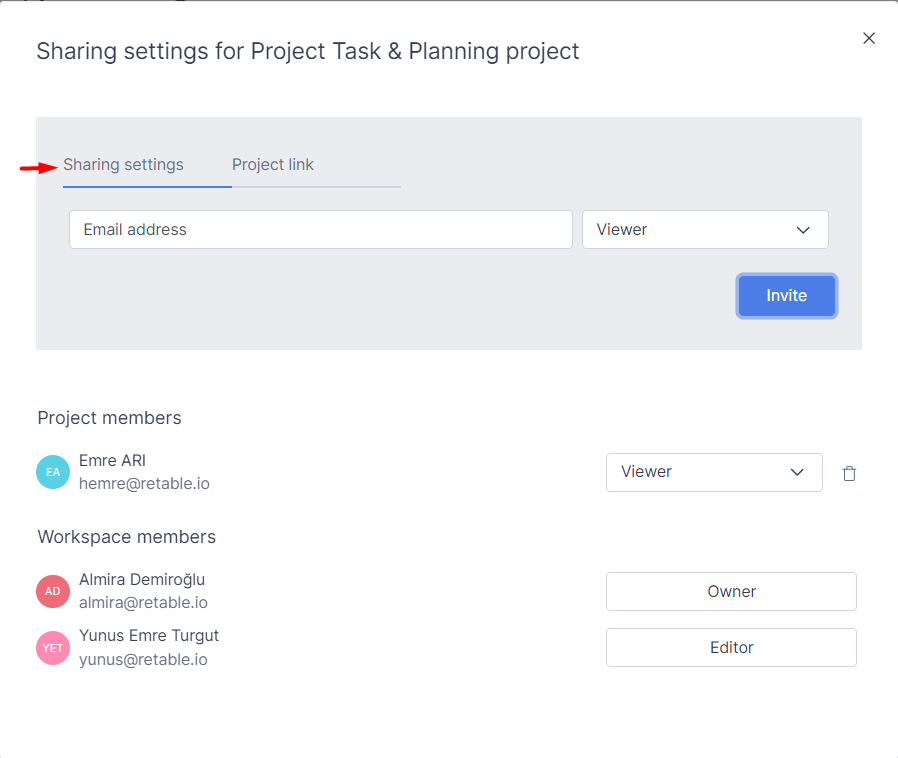
#### Query Parameters

| Name    | Type   | Description   |
| ------- | ------ | ------------- |
| row\_id | String | Rows of table |
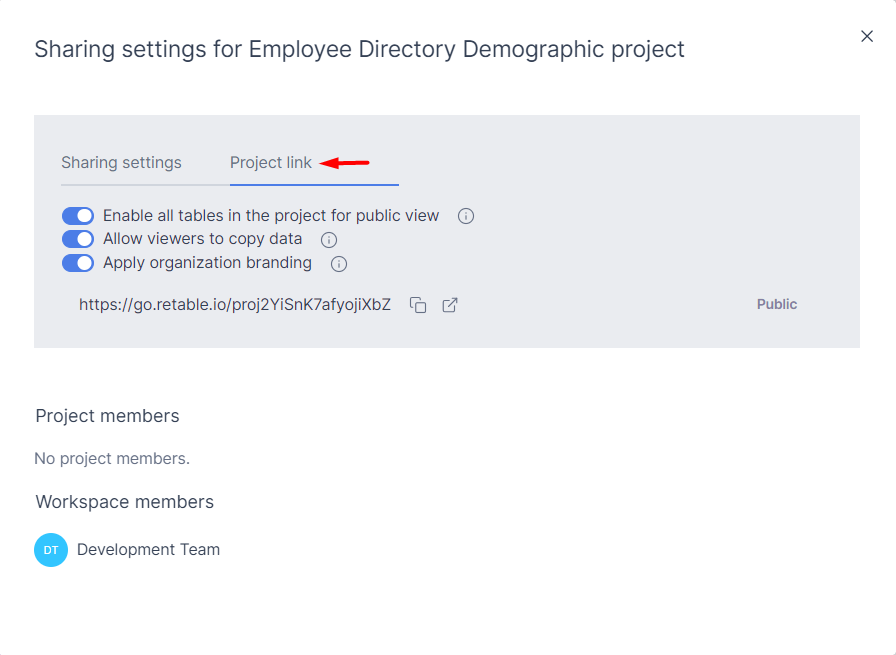
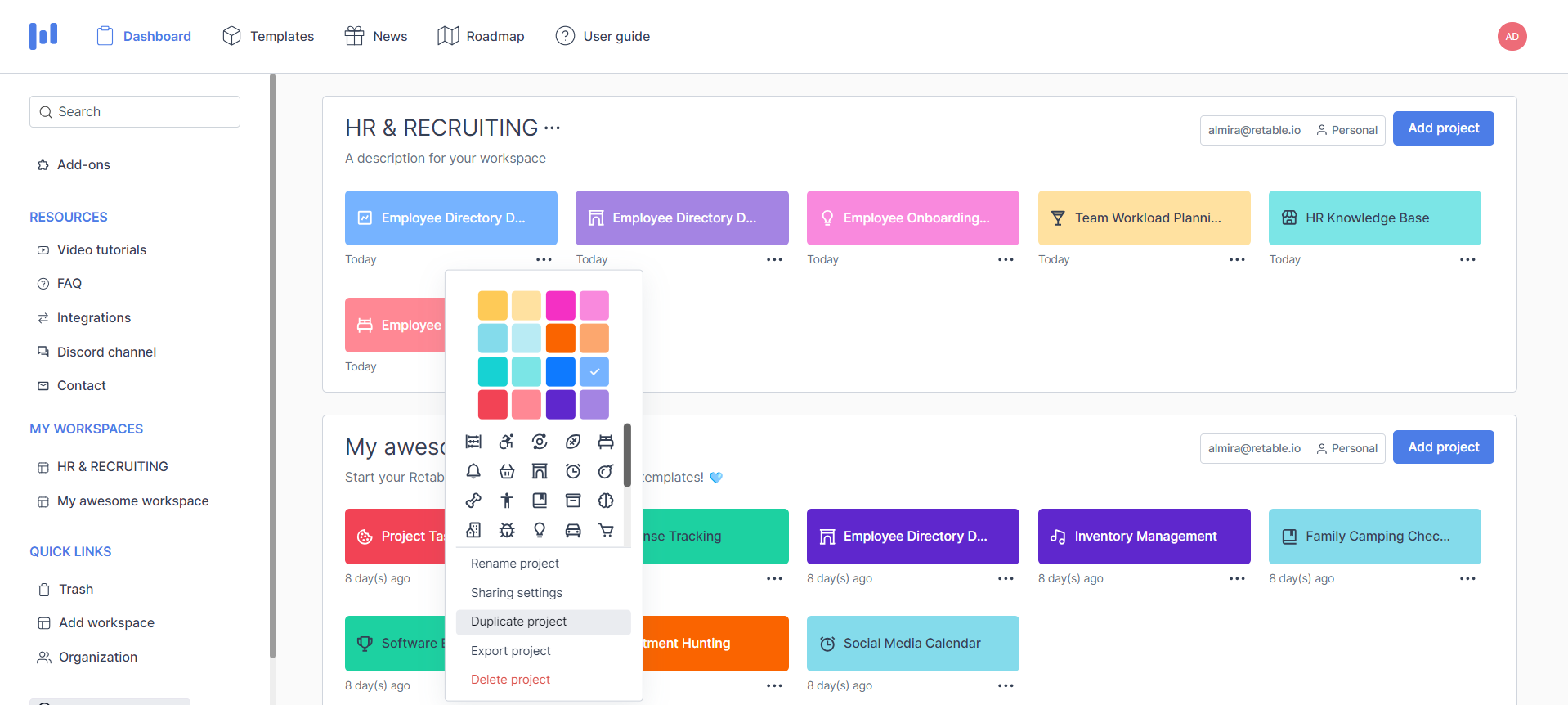
{% tabs %}
{% tab title="200: OK (v1) " %}

```javascript
{
    "data": {
        "rows": [
            {
                "row_id": 1,
                "created_at": "2022-04-04 17:47:03",
                "updated_at": null,
                "created_by": {
                    "id": "PuNXWNo8nVWDSUrE",
                    "name": "Emre",
                    "surname": "ARI",
                    "email": "hemre@retable.io"
                },
                "updated_by": null,
                "columns": [
                    {
                        "column_id": "Wlks9I8iZy1wj2KV",
                        "title": "Name",
                        "cell_value": null
                    }
                ]
            }
        ]
    }
}
```

{% endtab %}

{% tab title="200: OK (v2)" %}

```
{
    "rows": [
        {
            "row_id": 1,
            "created_at": "2024-02-28 16:26:09",
            "updated_at": "2024-02-29 16:38:34",
            "created_by": "retable@retable.io",
            "updated_by": "retable@retable.io",
            "fields": {
                "Name": "Hello",
                "Text": "Retable",
                "Text (1)": "User"
            }
        },
        {
            "row_id": 2,
            "created_at": "2024-02-28 16:26:12",
            "updated_at": "2024-02-29 16:38:34",
            "created_by": "retable@retable.io",
            "updated_by": "retable@retable.io",
            "fields": {
                "Name": "V2",
                "Text": "Response",
                "Text (1)": "Here"
            }
        }
    ]
}
```

{% endtab %}

{% tab title="403: Forbidden User does not have authorization to perform this operation" %}

```javascript
{
    "statusCode": 403,
    "message": "Not Allowed"
}
```

{% endtab %}

{% tab title="404: Not Found Table not found with the given Id" %}

```javascript
{
    "statusCode": 404,
    "message": "Table not found",
    "error": "Not Found"
}
```

{% endtab %}
{% endtabs %}

{% tabs %}
{% tab title="cURL (v1)" %}

```bash
curl --request GET 'https://api.retable.io/v1/public/retable/<retable_id>/data' \
--header 'ApiKey: <RTBLv1-YourAPIKey>'
```

{% endtab %}

{% tab title="cURL (v2)" %}

```bash
curl --request GET 'https://api.retable.io/v2/public/retable/<retable_id>/data' \
--header 'ApiKey: <RTBLv1-YourAPIKey>'
```

{% endtab %}
{% endtabs %}

#### Response objects

In this request's response, there is an object array called **rows**. This object contains information about a row.

An example row object:

```json
{
    "id": 1,
    "created_at": "2022-04-04 17:47:03",
    "updated_at": null,
    "created_by": {
        "id": "PuNXWNo8nVWDSUrE",
        "name": "Gandalf",
        "surname": "The White",
        "email": "gandalf@retable.io"
   },
   "updated_by": null,
   "columns": [
       {
           "kPpvPLIH66L2DecQ": ""
       }
   ]
}
```

* **id** (integer): Id of the row
* **created\_at** (string): UTC date-time when the row is created&#x20;
* **updated\_at** (string): UTC date-time when the row is updated
* **created\_by** (basic user object): User info that created the row
* **updated\_by** (basic user object): User info that updated the row
* **columns** (column cell data object): A simple object that contains the column names as key and cell data as value

#### Insert row to a specific Retable

Only the owner or the editor roles can insert a row. Otherwise, you will get a "Not Allowed" error.

## Insert Row

<mark style="color:green;">`POST`</mark> `https://api.retable.io/v1/public/retable/{retable_id}/data`

#### Path Parameters

| Name                                          | Type   | Description       |
| --------------------------------------------- | ------ | ----------------- |
| retable\_id<mark style="color:red;">\*</mark> | String | Id of the Retable |

#### Request Body

| Name                                         | Type         | Description                                     |
| -------------------------------------------- | ------------ | ----------------------------------------------- |
| columns<mark style="color:red;">\*</mark>    | Object Array | An object with fields column\_*id & cell\_data* |
| column\_id<mark style="color:red;">\*</mark> | String       | Id of the column                                |
| cell\_data                                   | String       | Data that will be inserted into the new cell    |

{% tabs %}
{% tab title="201: Created Given Retable's all row data" %}

```javascript
{
    "data": {
        "rows": [
            {
                "row_id": 1,
                "created_at": "2022-04-05 21:26:35",
                "updated_at": null,
                "created_by": {
                    "id": "PuNXWNo8nVWDSUrE",
                    "name": "Gandalf",
                    "surname": "The White",
                    "email": "gandalf@retable.io"
                },
                "updated_by": null,
                "columns": [
                    {
                        "column_id": "Wlks9I8iZy1wj2KV",
                        "title": "Name",
                        "cell_value": null
                    }
                ]
            },
            {
                "row_id": 2,
                "created_at": "2022-04-05 21:31:17",
                "updated_at": null,
                "created_by": {
                    "id": "PuNXWNo8nVWDSUrE",
                    "name": "Gandalf",
                    "surname": "The White",
                    "email": "gandalf@retable.io"
                },
                "updated_by": null,
                "columns": [
                    {
                        "column_id": "Wlks9I8iZy1wj2KV",
                        "title": "Name",
                        "cell_value": null
                    }
                ]
            }
        ]
    }
}
```

{% endtab %}

{% tab title="400: Bad Request " %}

```javascript
{
    "statusCode": 400,
    "message": "description",
    "error": "Bad Request"
}
```

{% endtab %}

{% tab title="404: Not Found Retable is not found" %}

```javascript
{
    "statusCode": 404,
    "message": "Table not found",
    "error": "Not Found"
}
```

{% endtab %}

{% tab title="403: Forbidden User does not have authorization to perform this operation" %}

```javascript
{
    "statusCode": 403,
    "message": "Not Allowed"
}
```

{% endtab %}

{% tab title="402: Payment Required User has exceeded the row limitation" %}

```javascript
{
    "statusCode": 402,
    "message": "row",
    "error": "Payment Required"
}
```

{% endtab %}
{% endtabs %}

#### Example body

With the body example below, you will be inserting two rows with cell data 'Isengard' and 'Rivendell' to the column with Id 'Bvt1FQhTyAPjmDx'.&#x20;

Null values can be entered and will be displayed as null in your data when using null.

The response will be the inserted values.

{% hint style="info" %}
If you do not provide the **cell\_value** field in the body, you will get a "Bad Request" error.
{% endhint %}

```json
{
    "data": [
        {
            "columns": [
                {
                    "column_id": "Bvt1FQhTyAPjmDx",
                    "cell_value": "Isengard"
                }
            ]
        },
        {
            "columns": [
                { 
                    "column_id": "Bvt1FQhTyAPjmDx",
                    "cell_value": "Rivendell"
                }
            ]
        }
    ]
}
```

{% tabs %}
{% tab title="cURL" %}

```bash
curl --request POST 'https://api.retable.io/v1/public/retable/<retable_id>/data' \
--header 'ApiKey: <RTBLv1-YourAPIKey>' \
--header 'Content-Type: application/json' \
--data-raw '{
    "data": [
        {
            "columns": [
                {
                    "column_id": "Bvt1FQhTyAPjmDx",
                    "cell_value": "Isengard"
                },
                {
                    "column_id": "Bvt1FQhTyAPjmDx",
                    "cell_value": "Rivendell"
                }
            ]
        }
    ]
}'
```

{% endtab %}
{% endtabs %}

#### Update the row of a specific Retable

{% hint style="info" %}
Only the owner or the editor roles can update a row. Otherwise, you will get a "Not Allowed" error.
{% endhint %}

## Update row

<mark style="color:orange;">`PUT`</mark> `https://api.retable.io/v1/public/retable/{retable_id}/data`

#### Path Parameters

| Name                                          | Type   | Description       |
| --------------------------------------------- | ------ | ----------------- |
| retable\_id<mark style="color:red;">\*</mark> | String | Id of the Retable |

#### Request Body

| Name                                                  | Type         | Description                             |
| ----------------------------------------------------- | ------------ | --------------------------------------- |
| rows<mark style="color:red;">\*</mark>                | Object Array | An array of row objects                 |
| row\_id<mark style="color:red;">\*</mark>             | Integer      | Row Id of where the update will be done |
| columns<mark style="color:red;">\*</mark>             | Object Array | An array of column row data object      |
| column\_id<mark style="color:red;">\*</mark>          | String       | Id of the column                        |
| update\_cell\_value<mark style="color:red;">\*</mark> | String       | New cell value                          |

{% tabs %}
{% tab title="200: OK Array of updated row Ids" %}

```javascript
{
    "data": [
        2,
        3
    ]
}
```

{% endtab %}

{% tab title="404: Not Found Retable is not found" %}

```javascript
{
    "statusCode": 404,
    "message": "Table not found",
    "error": "Not Found"
}
```

{% endtab %}

{% tab title="403: Forbidden User does not have authorization to perform this operation" %}

```javascript
{
    "statusCode": 403,
    "message": "Not Allowed"
}
```

{% endtab %}

{% tab title="400: Bad Request " %}

```javascript
{
    "statusCode": 400,
    "error": "Bad Request"
}
```

{% endtab %}
{% endtabs %}

#### Example body

Null values can be entered and will be displayed as null in your data when using null.

```json
{
    "rows": [
        {
            "row_id": 2,
            "columns": [
                {
                    "column_id": "Bvt1FtQhTyAPjmDx",
                    "update_cell_value": "Mordor"
                }
            ]
        }
    ]
}
```

{% tabs %}
{% tab title="cURL" %}

```bash
curl --request PUT 'https://api.retable.io/v1/public/retable/<retable_id>/data' \
--header 'ApiKey: <RTBLv1-YourAPIKey>' \
--header 'Content-Type: application/json' \
--data-raw '{
    "rows": [
        {
            "row_id": 2,
            "columns": [
                {
                    "column_id": "Bvt1FtQhTyAPjmDx",
                    "update_cell_value": "Mordor"
                }
            ]
        }
    ]
}'
```

{% endtab %}
{% endtabs %}

#### Delete row from a specific Retable

{% hint style="info" %}
Only the owner of the Retable can delete a row. Otherwise, you will get a "Not Allowed" error.
{% endhint %}

## Delete row

<mark style="color:red;">`DELETE`</mark> `https://api.retable.io/v1/public/retable/{retable_id}/data`

#### Path Parameters

| Name                                          | Type   | Description       |
| --------------------------------------------- | ------ | ----------------- |
| retable\_id<mark style="color:red;">\*</mark> | String | Id of the Retable |

#### Request Body

| Name                                       | Type          | Description                       |
| ------------------------------------------ | ------------- | --------------------------------- |
| row\_ids<mark style="color:red;">\*</mark> | Integer Array | Row Ids that will be deleted rows |

{% tabs %}
{% tab title="400: Bad Request " %}

```javascript
{
    "statusCode": 400,
    "message": "Bad Request"
}
```

{% endtab %}

{% tab title="200: OK Count of deleted rows" %}

```javascript
{
    "data": {
        "deleted_row_count": 1
    }
}
```

{% endtab %}

{% tab title="404: Not Found Retable is not found" %}

```javascript
{
    "statusCode": 404,
    "message": "Table not found",
    "error": "Not Found"
}
```

{% endtab %}
{% endtabs %}

{% hint style="info" %}
If the given row Id does not exist in the Retable, delete row request returns Status Ok&#x20;

with deleted\_*row*\_count is 0.
{% endhint %}

#### Example Body

```json
{
    "row_ids": [
        1
    ]
}
```

{% tabs %}
{% tab title="cURL" %}

```bash
curl --request DELETE 'https://api.retable.io/v1/public/retable/<retable_id>/data' \
--header 'ApiKey: <RTBLv1-YourAPIKey>' \
--header 'Content-Type: application/json' \
--data-raw '{
    "row_ids": [
        1
    ]
}'
```

{% endtab %}
{% endtabs %}

#### Workspace

This includes workspace-related API operations.

#### Get user's workspaces

## Get all workspaces

<mark style="color:blue;">`GET`</mark> `https://api.retable.io/v1/public/workspace`

{% tabs %}
{% tab title="200: OK List of all workspaces" %}

```javascript
{
    "data": {
        "workspaces": [
            {
                "id": "Ouih48K5ZUeURf9K",
                "name": "asdf",
                "description": null,
                "created_by": {
                    "id": "PuNXWNo8nVWDSUrE",
                    "name": "Gandalf",
                    "surname": "The White",
                    "email": "gandalf@retable.io"
                },
                "updated_by": null,
                "deleted_by": null,
                "created_at": "2022-04-01T05:32:33.191Z",
                "updated_at": null,
                "deleted_at": null
            }
        ],
        "count": 1
    }
}
```

{% endtab %}
{% endtabs %}

{% tabs %}
{% tab title="cURL" %}

```bash
curl --location --request GET 'https://api.retable.io/v1/public/workspace' \
--header 'ApiKey: <RTBLv1-YourAPIKey>'
```

{% endtab %}
{% endtabs %}

#### Get a specific workspace and its projects

## Get a workspace

<mark style="color:blue;">`GET`</mark> `https://api.retable.io/v1/public/workspace/{workspace_id}`

#### Path Parameters

| Name                                            | Type   | Description         |
| ----------------------------------------------- | ------ | ------------------- |
| workspace\_id<mark style="color:red;">\*</mark> | String | Id of the workspace |

{% tabs %}
{% tab title="200: OK Given workspace's information" %}

```javascript
{
    "data": {
        "id": "Ouih48K5ZUeURf9K",
        "name": "Workspace 1",
        "description": null,
        "created_by": {
            "id": "PuNXWNo8nVWDSUrE",
            "name": "Gandalf",
            "surname": "The White",
            "email": "gandalf@retable.io"
        },
        "updated_by": null,
        "deleted_by": null,
        "created_at": "2022-04-01T05:32:33.191Z",
        "updated_at": null,
        "deleted_at": null,
        "projects": [
            {
                "id": "wAphXdpamG7Vmncg",
                "name": "Project 1",
                "description": null,
                "is_deleted": false,
                "created_by": {
                    "id": "kucnOLo3nxjpqUro",
                    "name": "Saruman",
                    "surname": "The Wise",
                    "email": "saruman@retable.io"
                },
                "updated_by": null,
                "deleted_by": null,
                "created_at": "2022-04-01T05:32:33.318Z",
                "updated_at": "2022-04-01T05:32:33.507Z",
                "deleted_at": null
            }
        ]
    }
}
```

{% endtab %}

{% tab title="404: Not Found There is not any workspace with the given Id" %}

```javascript
{
    "statusCode": 404,
    "message": "Not Found"
}
```

{% endtab %}

{% tab title="403: Forbidden User does not have authorization to perform this operation" %}

```javascript
{
    "statusCode": 403,
    "message": "Not Allowed"
}
```

{% endtab %}
{% endtabs %}

| Name                                            | Type   | Description  |
| ----------------------------------------------- | ------ | ------------ |
| workspace\_id<mark style="color:red;">\*</mark> | String | 4uKOsae419bI |

{% tabs %}
{% tab title="cURL" %}

```bash
curl --location --request GET 'https://api.retable.io/v1/public/workspace/<workspace_id>' \
--header 'ApiKey: <RTBLv1-YourAPIKey>'
```

{% endtab %}
{% endtabs %}

#### Create a new workspace with a default project

## Create a Workspace

<mark style="color:green;">`POST`</mark> `https://api.retable.io/v1/public/workspace`

If the name is not given in the body, an auto-generated name will be assigned.

#### Request Body

| Name        | Type   | Description                  |
| ----------- | ------ | ---------------------------- |
| name        | String | Name of the workspace        |
| description | String | Description of the workspace |

{% tabs %}
{% tab title="201: Created Information about created workspace" %}

```javascript
{
    "data": {
        "id": "AzfsFrcu4ofIgsns",
        "name": "Workspace 1",
        "description": "Ws Description",
        "created_by": {
            "id": "PuNXWNo8nVWDSUrE",
            "name": "Gandalf",
            "surname": "The White",
            "email": "gandalf@retable.io"
        },
        "updated_by": null,
        "deleted_by": null,
        "created_at": "2022-04-04T09:29:37.198Z",
        "updated_at": null,
        "deleted_at": null,
        "projects": [
            {
                "id": "9yOtbIrDGUhxl8zT",
                "name": "To-Do List",
                "description": null,
                "is_deleted": false,
                "created_by": {
                    "id": "PuNXWNo8nVWDSUrE",
                    "name": "Gandalf",
                    "surname": "The White",
                    "email": "gandalf@retable.io"
                },
                "updated_by": null,
                "deleted_by": null,
                "created_at": "2022-04-04T09:29:37.287Z",
                "updated_at": "2022-04-04T09:29:37.287Z",
                "deleted_at": null
            }
        ]
    }
}
```

{% endtab %}
{% endtabs %}

#### Example body

```json
{
    "name": "Workspace 1",
    "description": "Workspace Description"
}
```

{% tabs %}
{% tab title="cURL" %}

```bash
curl --location --request POST 'https://api.retable.io/v1/public/workspace' \
--header 'ApiKey: <RTBLv1-YourAPIKey>' \
--header 'Content-Type: application/json' \
--data-raw '{
    "name": "Workspace 1",
    "description": "Workspace Description"
}'
```

{% endtab %}
{% endtabs %}

#### How to find retable\_id <a href="#returns-data-of-a-specific-retable" id="returns-data-of-a-specific-retable"></a>

**retable\_id** is the last part of the table URL - the part after the last slash.

Example: app.retable.io/retable/{workspace\_id}/{project\_id}/{retable\_id}

#### Project  <a href="#returns-data-of-a-specific-retable" id="returns-data-of-a-specific-retable"></a>

This includes project-related API operations.

#### Get all projects that belong to a specific workspace

## Get workspace's projects

<mark style="color:blue;">`GET`</mark> `https://api.retable.io/v1/public/workspace/{workspace_id}/project`

#### Path Parameters

| Name                                            | Type   | Description         |
| ----------------------------------------------- | ------ | ------------------- |
| workspace\_id<mark style="color:red;">\*</mark> | String | Id of the workspace |

{% tabs %}
{% tab title="404: Not Found Workspace is not found with the given Id." %}

```javascript
{
    "statusCode": 404,
    "message": "Not Found"
}
```

{% endtab %}

{% tab title="200: OK Information about all projects that belongs to the given workspace." %}

```javascript
{
    "data": {
        "projects": [
            {
                "id": "FbytrkFrWUYf8OCP",
                "name": "Project 1",
                "description": null,
                "workspace_id": "Ouih48K5ZUeURf9K",
                "is_deleted": false,
                "created_by": {
                    "id": "PuNXWNo8nVWDSUrE",
                    "name": "Gandalf",
                    "surname": "The White",
                    "email": "gandalf@retable.io"
                },
                "created_at": "2022-04-01T05:33:05.691Z",
                "updated_at": "2022-04-01T05:33:05.778Z",
                "deleted_at": null
            }
        ],
        "count": 1
    }
}
```

{% endtab %}

{% tab title="403: Forbidden User does not have authorization to perform this operation." %}

```javascript
{
    "statusCode": 403,
    "message": "Not Allowed"
}
```

{% endtab %}
{% endtabs %}

{% tabs %}
{% tab title="cURL" %}

```bash
curl --request GET 'https://api.retable.io/v1/public/workspace/<workspace_id>/project' \
--header 'ApiKey: <RTBLv1-YourAPIKey>'
```

{% endtab %}
{% endtabs %}

#### Get a specific project with retables <a href="#get-a-specific-project-with-retables" id="get-a-specific-project-with-retables"></a>

## Get a project

<mark style="color:blue;">`GET`</mark> `https://api.retable.io/v1/public/project/{project_id}`

#### Path Parameters

| Name                                          | Type   | Description        |
| --------------------------------------------- | ------ | ------------------ |
| project\_id<mark style="color:red;">\*</mark> | String | Id of the project. |

#### Query Parameters

| Name   | Type   | Description                                        |
| ------ | ------ | -------------------------------------------------- |
| limit  | Number | Number of records.                                 |
| offset | Number | Indicates of where to start within the result set. |

{% tabs %}
{% tab title="200: OK Information about given project" %}

```javascript
{
    "data": {
        "id": "FbytrkFrWUYf8OCP",
        "name": "Project 1",
        "description": null,
        "is_deleted": false,
        "created_by": {
            "id": "PuNXWNo8nVWDSUrE",
            "name": "Gandalf",
            "surname": "The White",
            "email": "gandalf@retable.io"
        },
        "updated_by": null,
        "deleted_by": null,
        "created_at": "2022-04-01T05:33:05.691Z",
        "updated_at": "2022-04-01T05:33:05.778Z",
        "deleted_at": null,
        "retables": [
            {
                "columns": [],
                "id": "EU9TfCkD4iXJuCcs",
                "title": "Retable 1",
                "description": null,
                "created_by": {
                    "id": "PuNXWNo8nVWDSUrE",
                    "name": "Gandalf",
                    "surname": "The White",
                    "email": "gandalf@retable.io"
                },
                "updated_by": null,
                "deleted_by": null,
                "created_at": "2022-04-01T05:33:05.742Z",
                "updated_at": "2022-04-01T05:33:05.802Z",
                "deleted_at": null
            }
        ]
    }
}
```

{% endtab %}

{% tab title="404: Not Found Project is not found with the given Id." %}

```javascript
{
    "statusCode": 404,
    "message": "Not Found"
}
```

{% endtab %}

{% tab title="403: Forbidden User does not have authorization to perform this operation" %}

```javascript
{
    "statusCode": 403,
    "message": "Not Allowed"
}
```

{% endtab %}
{% endtabs %}

{% tabs %}
{% tab title="cURL" %}

```bash
curl --request GET 'https://api.retable.io/v1/public/project/<project_id>' \
--header 'ApiKey: <RTBLv1-YourAPIKey>'
```

{% endtab %}
{% endtabs %}

#### Create a project under the given workspace with a default retable

## Create Project

<mark style="color:green;">`POST`</mark> `https://api.retable.io/v1/public/workspace/{workspace_id}/project`

#### Path Parameters

| Name                                            | Type   | Description         |
| ----------------------------------------------- | ------ | ------------------- |
| workspace\_id<mark style="color:red;">\*</mark> | String | Id of the workspace |

#### Request Body

| Name                                   | Type   | Description                   |
| -------------------------------------- | ------ | ----------------------------- |
| name<mark style="color:red;">\*</mark> | String | Name of the project           |
| description                            | String | Description of the project    |
| color                                  | String | Hex color code of the project |

{% tabs %}
{% tab title="201: Created Information about created project" %}

```javascript
{
    "data": {
        "id": "W6lu54gG1ucP96cA",
        "name": "Project 1",
        "description": null,
        "is_deleted": false,
        "created_by": {
            "id": "PuNXWNo8nVWDSUrE",
            "name": "Gandalf",
            "surname": "The White",
            "email": "gandalf@retable.io"
        },
        "updated_by": null,
        "deleted_by": null,
        "created_at": "2022-04-04T09:51:27.614Z",
        "updated_at": "2022-04-04T09:51:27.614Z",
        "deleted_at": null,
        "retables": [
            {
                "columns": [
                    {
                        "column_id": "3OcxjMTNM3jOv8cS",
                        "title": "Name",
                        "type": "text"
                    }
                ],
                "id": "bUzRNCYsbPPw2tb3",
                "title": "Retable 1",
                "description": null,
                "created_by": {
                    "id": "PuNXWNo8nVWDSUrE",
                    "name": "Gandalf",
                    "surname": "The White",
                    "email": "gandalf@retable.io"
                },
                "updated_by": null,
                "deleted_by": null,
                "created_at": "2022-04-04T09:51:27.671Z",
                "updated_at": "2022-04-04T09:51:27.671Z",
                "deleted_at": null
            }
        ]
    }
}
```

{% endtab %}

{% tab title="400: Bad Request " %}

```javascript
{
    "statusCode": 400,
    "message": [
        "name should not be empty"
    ],
    "error": "Bad Request"
}
```

{% endtab %}

{% tab title="403: Forbidden User does not have authorization to perform this operation" %}

```json
{
    "statusCode": 403,
    "message": "Not Allowed"
}
```

{% endtab %}
{% endtabs %}

#### Example body

```json
{
    "name": "New Project 1",
    "description": "Project Description",
    "color": "#898cff"
}
```

{% tabs %}
{% tab title="cURL" %}

```bash
curl --request POST 'https://api.retable.io/v1/public/workspace/<workspace_id>/project' \
--header 'ApiKey: <RTBLv1-YourAPIKey>' \
--header 'Content-Type: application/json' \
--data-raw '{
    "name": "New Project 1",
    "description": "Project Description",
    "color": "#898cff"
}'
```

{% endtab %}
{% endtabs %}

#### Retable

In this section, you can see available Retable endpoints and Retable related API operations.

Every endpoint returns a column array object which contains current column information.

**An example column object**:

```json
{
    "column_id": "vgcDsxT8NX5zFimQ",
    "type": "text",
    "title": "A",
    "created_at": "2022-04-04 17:30:33.947000"
}
```

* **name** (string): A unique identifier, different for every column.
* **type** (string): Type of the column.
* **title** (string): Title of the column.
* **created\_at** (string): UTC date when the column is created.

The **column\_id** property is used for deleting column(s) from a Retable.

## Get project's tables

<mark style="color:blue;">`GET`</mark> `https://api.retable.io/v1/public/project/{project_id}/retable`

#### Path Parameters

| Name                                          | Type   | Description       |
| --------------------------------------------- | ------ | ----------------- |
| project\_id<mark style="color:red;">\*</mark> | String | Id of the project |

{% tabs %}
{% tab title="404: Not Found Project not found with the given Id." %}

```javascript
{
    "statusCode": 404,
    "message": "Not Found"
}
```

{% endtab %}

{% tab title="200: OK Given Project's Retable information" %}

```javascript
{
    "data": {
        "retables": [
            {
                "id": "EU9TfCkD4iXJuCcs",
                "title": "Retable 1",
                "description": null,
               "columns": [
                    {
                        "column_id": "Wlks9I8iZy1wj2KV",
                        "title": "Name",
                        "type": "text",
                        "created_at": "2023-03-23 11:48:13.886000"
                    },
                "project_id": "FbytrkFrWUYf8OCP",
                "workspace_id": "Ouih48K5ZUeURf9K",
                "created_by": {
                    "id": "PuNXWNo8nVWDSUrE",
                    "name": "Gandalf",
                    "surname": "The White",
                    "email": "gandalf@retable.io"
                },
                "deleted_by": null,
                "created_at": "2022-04-01T05:33:05.742Z",
                "updated_at": "2022-04-01T05:33:05.802Z",
                "deleted_at": null
            }
        ],
        "count": 1
    }
}
```

{% endtab %}

{% tab title="403: Forbidden User does not have authorization to perform this operation" %}

```javascript
{
    "statusCode": 403,
    "message": "Not Allowed"
}
```

{% endtab %}
{% endtabs %}

{% tabs %}
{% tab title="cURL" %}

```bash
curl --request GET 'https://api.retable.io/v1/public/project/<project_id>/retable' \
--header 'ApiKey: <RTBLv1-YourAPIKey>'
```

{% endtab %}
{% endtabs %}

#### Upload file to project

## Upload file to project

<mark style="color:green;">`POST`</mark> `https://api.retable.io/v1/public/data/file/upload/{project_id}`

#### Path Parameters

| Name                                          | Type   | Description            |
| --------------------------------------------- | ------ | ---------------------- |
| project\_id<mark style="color:red;">\*</mark> | String | id of project          |
| title                                         | String | title of uploaded file |

#### Request Body

| Name                                   | Type      | Description                                 |
| -------------------------------------- | --------- | ------------------------------------------- |
| file<mark style="color:red;">\*</mark> | form-data | file with various extension and < 20mb size |

{% tabs %}
{% tab title="cURL" %}

```bash
curl --request POST 'https://api.retable.io/v1/public/data/file/upload/<project_id>' \
--header 'ApiKey: <RTBLv1-YourAPIKey>' \
--header 'Content-Type: multipart/form-data' \
--form "file=@/path/to/your/file" \
```

{% endtab %}
{% endtabs %}

#### Get information about a specific Retable

## Get a Retable

<mark style="color:blue;">`GET`</mark> `https://api.retable.io/v1/public/retable/{retable_id}`

#### Path Parameters

| Name                                          | Type   | Description       |
| --------------------------------------------- | ------ | ----------------- |
| retable\_id<mark style="color:red;">\*</mark> | String | Id of the retable |

{% tabs %}
{% tab title="200: OK Information about given Retable" %}

```javascript
{
    "data": {
    "columns": [
            {
                "column_id": "Wlks9I8iZy1wj2KV",
                "title": "Name",
                "type": "text",
                "created_at": "2023-03-23 11:48:13.886000"
            },
        ],
        "id": "6EgxjV2PsLu2a41b",
        "title": "Retable 1",
        "description": null,
        "created_by": {
            "id": "PuNXWNo8nVWDSUrE",
            "name": "Gandalf",
            "surname": "The White",
            "email": "hemre@retable.io"
        },
        "updated_by": null,
        "deleted_by": null,
        "created_at": "2022-04-01T05:33:05.742Z",
        "updated_at": "2022-04-01T05:33:05.802Z",
        "deleted_at": null
    }
}
```

{% endtab %}

{% tab title="403: Forbidden User does not have authorization to perform this operation" %}

```javascript
{
    "statusCode": 403,
    "message": "Not Allowed"
}
```

{% endtab %}

{% tab title="404: Not Found There is not any Retable with the given retable Id." %}

```javascript
{
    "statusCode": 404,
    "message": "Not Found"
}
```

{% endtab %}
{% endtabs %}

{% tabs %}
{% tab title="cURL" %}

```bash
curl --request GET 'https://api.retable.io/v1/public/retable/<retable_id>' \
--header 'ApiKey: <RTBLv1-YourAPIKey>'
```

{% endtab %}
{% endtabs %}

#### Get information about a specific Retable with JSON, XML, YAML, HTML format

You can receive the Retable response in JSON, YAML, XML and HTML formats by using a public share id. After copying the sharing link, any supported format is added to the end of the URL.

```
https://go.retable.io/<retable_share_id>/<format>
```

```
https://go.retable.io/4dvhJpM6LVTtjBG7/json

https://go.retable.io/4dvhJpM6LVTtjBG7/yaml

https://go.retable.io/view4dvhJpM6LVTtjBG7/xml

https://go.retable.io/view4dvhJpM6LVTtjBG7/html
```

#### Get specific information about a specific retable

Response will be the row data which is the same as a term. Term parameter accepts input with space. An example request and response is given below.

```
 https://api.retable.io/v1/public/retable/jKN7x47LLjHZcXAv/search?columnID=eLfL2NyPMPrviXbn&term=Red%Rose% 

```

```json
{
    "data": {
        "rows": [
            {
                "row_id": 4,
                "created_at": "2023-08-03 10:08:01",
                "updated_at": "2023-08-15 11:01:47",
                "created_by": {
                    "id": "lQ2vhlFYlgrXkAGe",
                    "name": "John",
                    "surname": "Doe",
                    "email": "johndoe@retable.io"
                },
                "updated_by": {
                    "id": "lQ2vhlFYlgrXkAGe",
                    "name": "John",
                    "surname": "Doe",
                    "email": "johndoe@retable.io"
                },
                "columns": [
                    {
                        "column_id": "eLfL2NyPMPrviXbn",
                        "title": "Name",
                        "cell_value": "Red Rose"
                    }
                ]
            },
            {
                "row_id": 5,
                "created_at": "2023-08-03 16:08:01",
                "updated_at": "2023-08-15 17:01:47",
                "created_by": {
                    "id": "lQ2vhlFYlgrXkAGe",
                    "name": "John",
                    "surname": "Doe",
                    "email": "johndoe@retable.io"
                },
                "updated_by": {
                    "id": "lQ2vhlFYlgrXkAGe",
                    "name": "John",
                    "surname": "Doe",
                    "email": "johndoe@retable.io"
                },
                "columns": [
                    {
                        "column_id": "eLfL2NyPMPrviXbn",
                        "title": "Name",
                        "cell_value": "Red Rose"
                    }
                ]
            }
        ]
    }
}
```

## Search for a string in Retable

<mark style="color:blue;">`GET`</mark> `https://api.retable.io/v1/public/retable/{retable_id}/search?columnID={columnID}&term={term}`

#### Path Parameters

| Name                                          | Type   | Description       |
| --------------------------------------------- | ------ | ----------------- |
| retable\_id<mark style="color:red;">\*</mark> | String | Id of the retable |

#### Query Parameters

| Name                                       | Type   | Description                                        |
| ------------------------------------------ | ------ | -------------------------------------------------- |
| columnID<mark style="color:red;">\*</mark> | String | Id of the column                                   |
| term<mark style="color:red;">\*</mark>     | String | Search term                                        |
| limit                                      | Number | Number of records                                  |
| offset                                     | Number | Indicates of where to start within the result set. |
| columnIDs                                  | String | Search columns                                     |

{% tabs %}
{% tab title="200: OK " %}

```json
{
    "data": {
        "rows": [
            {
                "row_id": 3,
                "created_at": "2024-03-29 12:18:32",
                "updated_at": "2024-03-31 18:43:19",
                "created_by": {
                    "id": "rAX2bsbNbxMi28sD",
                    "name": "John",
                    "surname": "Doe",
                    "email": "johndoe@retable.io"
                },
                "updated_by": {
                    "id": "rAX2bsbNbxMi28sD",
                    "name": "John",
                    "surname": "Doe",
                    "email": "johndoe@retable.io"
                },
                "columns": [
                    {
                        "column_id": "coZzjlzdf0SK8LIi",
                        "title": "EMPLOYEE ID",
                        "cell_value": "102362"
                    },
                    {
                        "column_id": "82zVQDihAc34z47S",
                        "title": "NAME",
                        "cell_value": "Harry"
                    },
                    {
                        "column_id": "7pTINVlnlURTJhyF",
                        "title": "SURNAME",
                        "cell_value": "Sanders"
                    },
                    {
                        "column_id": "WN4Yk7IXw5hhqc3p",
                        "title": "DEPARTMENT NAME",
                        "cell_value": "Manager"
                    },
                    {
                        "column_id": "5VKe1xpSIGxbjTgx",
                        "title": "BIRTHDAY",
                        "cell_value": "6/30/1958"
                    },
                    {
                        "column_id": "zI2iOMOxiliHuanm",
                        "title": "SALARY",
                        "cell_value": "50155"
                    },
                    {
                        "column_id": "FIbB1gyoIPqYHhKz",
                        "title": "Text",
                        "cell_value": null
                    },
                    {
                        "column_id": "ZOImbJjcNY1xl2eC",
                        "title": "Age in Company (Years)",
                        "cell_value": "0.98"
                    }
                ]
            }
        ]
    }
}
```

{% endtab %}

{% tab title="403: Forbidden " %}

```
{
    "statusCode": 403,
    "message": "Not Allowed"
}
```

{% endtab %}

{% tab title="404: Not Found " %}

```
{
    "statusCode": 404,
    "message": "Not Found"
}
```

{% endtab %}
{% endtabs %}

{% tabs %}
{% tab title="cURL" %}

<pre class="language-bash"><code class="lang-bash"><strong>curl --request GET 'https://api.retable.io/v1/public/retable/&#x3C;retable_id>/search?columnID=&#x3C;columnID>&#x26;term=&#x3C;term>' \
</strong>--header 'ApiKey: &#x3C;RTBLv1-YourAPIKey>'
</code></pre>

{% endtab %}
{% endtabs %}

#### Create a new Retable under a specific project

## Create new Retable

<mark style="color:green;">`POST`</mark> `https://api.retable.io/v1/public/project/{project_id}/retable`

This request does not need a body.

#### Path Parameters

| Name                                          | Type   | Description       |
| --------------------------------------------- | ------ | ----------------- |
| project\_id<mark style="color:red;">\*</mark> | String | Id of the Project |

{% tabs %}
{% tab title="404: Not Found There is not any Retable with the given Id" %}

```javascript
{
    "statusCode": 404,
    "message": "Not Found"
}
```

{% endtab %}

{% tab title="201: Created Information about created Retable" %}

```javascript
{
    "data": {
        "columns": [
            {
                "column_id": "V7RhuZTSN5Rqe3sp",
                "title": "Name",
                "type": "text"
            }
        ],
        "id": "K00aZ6F3W0ZhlOKC",
        "title": "Retable 3",
        "description": null,
        "created_by": {
            "id": "PuNXWNo8nVWDSUrE",
            "name": "Gandalf",
            "surname": "The White",
            "email": "hemre@retable.io"
        },
        "updated_by": null,
        "deleted_by": null,
        "created_at": "2022-04-04T11:47:03.026Z",
        "updated_at": "2022-04-04T11:47:03.026Z",
        "deleted_at": null
    }
}
```

{% endtab %}

{% tab title="403: Forbidden User does not have authorization to perform this operation" %}

```javascript
{
    "statusCode": 403,
    "message": "Not Allowed"
}
```

{% endtab %}
{% endtabs %}

{% tabs %}
{% tab title="cURL" %}

```bash
curl --request POST 'https://api.retable.io/v1/public/project/<project_id>/retable' \
--header 'ApiKey: <RTBLv1-YourAPIKey>' \
--data-raw ''
```

{% endtab %}
{% endtabs %}

#### Creates a new column on the specific Retable

## Add column

<mark style="color:green;">`POST`</mark> `https://api.retable.io/v1/public/retable/{retable_id}/column`

As a response returns all existing columns and newly created columns.

Created columns are always appended to the end of the Retable's column array according to the given order in the body.&#x20;

For this version, you can not change the order of the columns.

#### Path Parameters

| Name                                          | Type   | Description       |
| --------------------------------------------- | ------ | ----------------- |
| retable\_id<mark style="color:red;">\*</mark> | String | Id of the Retable |

#### Request Body

| Name                                      | Type   | Description             |
| ----------------------------------------- | ------ | ----------------------- |
| columns<mark style="color:red;">\*</mark> | Array  | Array of column object  |
| title<mark style="color:red;">\*</mark>   | String | Title of the new column |
| type<mark style="color:red;">\*</mark>    | String | Type of the new column  |

{% tabs %}
{% tab title="403: Forbidden User does not have authorization to perform this operation" %}

```javascript
{
    "statusCode": 403,
    "message": "Not Allowed"
}
```

{% endtab %}

{% tab title="400: Bad Request " %}

```javascript
{
    "statusCode": 400,
    "message": "description",
    "error": "Bad Request"
}
```

{% endtab %}

{% tab title="201: Created Information about all columns in the given Retable" %}

```javascript
{
    "data": {
        "columns": [
            {
                "column_id": "Wlks9I8iZy1wj2KV",
                "title": "Name",
                "type": "text",
                "created_at": "2023-03-23 11:48:13.886000"
            },
            {
                "column_id": "cHm9UKL5zeaKAK9T",
                "title": "hello",
                "type": "text",
                "created_at": "2023-03-23 11:48:13.887000"
            }
        ]
    }
}
```

{% endtab %}

{% tab title="404: Not Found There is not any Retable with the given Id" %}

```javascript
{
    "statusCode": 404,
    "message": "Not Found"
}
```

{% endtab %}
{% endtabs %}

{% hint style="info" %}
You can create basic column types, as follows:

* text
* number
* checkbox
* image
* calendar
* color
* email
* phonenumber
* percent

Use one of these types in the request's body for the column object type field. Otherwise, you will get a "Bad Request" error.
{% endhint %}

#### Example body

```json
{
    "columns": [
        {
            "title": "hello",
            "type": "text"
        }
    ]
}
```

{% tabs %}
{% tab title="cURL" %}

```bash
curl --request POST 'https://api.retable.io/v1/public/retable/<retable_id>/column' \
--header 'ApiKey: <RTBLv1-YourAPIKey>' \
--header 'Content-Type: application/json' \
--data-raw '{
    "columns": [
        {
            "title": "hello",
            "type": "text"
        }
    ]
}'
```

{% endtab %}
{% endtabs %}

#### Deletes column from a specific Retable

## Delete Column

<mark style="color:red;">`DELETE`</mark> `https://api.retable.io/v1/public/retable/{retable_id}/column`

This endpoint expects a body that contains a string array called **column\_names.** In this array, you have to insert column names that you want to delete. You can obtain column names by calling the **GET Retable** endpoint.

#### Path Parameters

| Name                                          | Type   | Description       |
| --------------------------------------------- | ------ | ----------------- |
| retable\_id<mark style="color:red;">\*</mark> | String | Id of the Retable |

#### Request Body

| Name                                          | Type         | Description                              |
| --------------------------------------------- | ------------ | ---------------------------------------- |
| column\_ids<mark style="color:red;">\*</mark> | String Array | Ids of the columns which will be deleted |

{% tabs %}
{% tab title="403: Forbidden User does not have authorization to perform this operation" %}

```javascript
{
    "statusCode": 403,
    "message": "Not Allowed"
}
```

{% endtab %}

{% tab title="200: OK Remaining columns information in Retable after delete operation" %}

```javascript
{
    "data": {
        "columns": [
            {
                "column_id": "Wlks9I8iZy1wj2KV",
                "title": "Name",
                "type": "text",
                "created_at": "2023-03-23 11:48:13.886000"
            }
        ]
    }
}
```

{% endtab %}

{% tab title="400: Bad Request " %}

```javascript
{
    "statusCode": 400,
    "message": "description",
    "error": "Bad Request"
}
```

{% endtab %}

{% tab title="404: Not Found There is not any Retable with the given Id" %}

```javascript
{
    "statusCode": 404,
    "message": "Not Found"
}
```

{% endtab %}
{% endtabs %}

#### Example body

```json
{
    "column_ids": [
        "<column_id>",
        "<column_id>"
    ]
}
```

{% tabs %}
{% tab title="cURL" %}

```bash
curl --request DELETE 'https://api.retable.io/v1/public/retable/<retable_id>/column/' \
--header 'ApiKey: <RTBLv1-YourAPIKey>' \
--header 'Content-Type: application/json' \
--data-raw '{
    "column_ids": [
        "<column_id>",
        "<column_id>"
    ]
}'
```

{% endtab %}
{% endtabs %}


# Integrations

Connect all your essentials with Retable Enhance your data management and unlock all kinds of functionality.

## Pipedream

Build and run workflows using the Retable API. Use 1000s of source-available triggers and actions across 1400+ apps. Or write custom code to integrate any app or API in seconds.

Pipedream is an integration platform built for developers. With Pipedream, you can connect APIs, remarkably fast.

Pipedream enables developers to easily build and execute workflows — often called “glue code” — that integrate apps, APIs and data. Pipedream provides a free, hosted platform for connecting apps and developing event-driven automations.

<figure><img src="https://assets-global.website-files.com/6295d1a43222793065c32b1c/651ad5270ac1107691796dfa_pipedream%20int.png" alt="pipedream integration"><figcaption></figcaption></figure>

Pipedream is an API that **allows you to build applications that can connect to various data sources and processes them in real-time**. You can use Pipedream to create applications that can perform ETL (Extract, Transform, and Load) tasks, as well as to create data-driven workflows.

## Albato

[Integrate Retable with Albato](https://albato.com?fpr=arzu56\&fp_sid=retable) in seconds! Save time and money with this powerful workflow automation tool for seamless app integration.

#### Available actions

* Inserts new record to the given Retable
* Update row of a specific Retable
* Delete row of a specific Retable
* Get information about the workspace

Before setting up integrations with **Retable**, connect the app to Albato. To do this, go to the **Apps** section and click the **Add a connection** button.

<figure><img src="https://assets-global.website-files.com/6295d1a43222793065c32b1c/64f08db9c7045cc0cf0ee979_Example_03b56b3b9a.webp" alt=""><figcaption></figcaption></figure>

Select the app and click the **Add a connection** button.

<figure><img src="https://assets-global.website-files.com/6295d1a43222793065c32b1c/64f08dd140ca0af098d79f7f_Retable_1_b5889a68ae.webp" alt=""><figcaption></figcaption></figure>

Come up with a name for your connection or save the default one.

Enter your **API key**.

Click the **Continue** button.

#### How to get your Retable API key

1. Go to your [Retable account](https://app.retable.io/dashboard).
2. Open your account overview and go to the API tab.
3. Enable your API key
4. Copy the key

<figure><img src="https://1709022688-files.gitbook.io/~/files/v0/b/gitbook-x-prod.appspot.com/o/spaces%2F-MWwce7QQJjTB7U3RSKz%2Fuploads%2FLlfMrj3di1KNLh831eG5%2Fimage.png?alt=media&amp;token=28f1bb69-f782-4a57-8444-24a8a11b31fe" alt=""><figcaption></figcaption></figure>

Go to the [Albato connection](https://albato.com?fpr=arzu56\&fp_sid=retable), paste the key into the API key field.

<figure><img src="https://assets-global.website-files.com/6295d1a43222793065c32b1c/64f08edcba7a72f147f82599_Frame_1834_2_6b067992f0.webp" alt=""><figcaption></figcaption></figure>

## Integrately

Easily integrate Retable with Integrately in one click. Save time and money with ready-to-activate integrations for 1000+ apps. You can also build your own automations, without any code.

<figure><img src="https://1709022688-files.gitbook.io/~/files/v0/b/gitbook-x-prod.appspot.com/o/spaces%2F-MWwce7QQJjTB7U3RSKz%2Fuploads%2F0cwlzdq5chswyt4mufU1%2Fimage.png?alt=media&amp;token=a4db00f2-7eeb-41b8-8121-f8217bf6d590" alt=""><figcaption></figcaption></figure>

#### Integrate Retable in 1 click with Integrately

Integrately is 1 click integration platform for non-techies. It is the only platform with millions of ready-to-activate integrations! With Integrately, you can integrate Retable with 1000+ apps in the next few minutes, without any technical skills and zero learning curve. Just find your automation and activate it.

## Pabbly

Connect Retable with more than 1,000+ apps. Just select the app and you're good to go. No installation is required! Automate anything with Retable's Pabbly integrations!

\
With Pabbly Connect, you can easily connect and integrate Retable with different applications associated with CRM, Sales, Marketing, Productivity, or any apps.

### What is Pabbly Connect?

Pabbly Connect is an integration application that connects multiple applications together so that you can send data from one application to another application. Just 3 simple steps and you're good to go ahead with Retable integrations!

Pabbly Connect supports all the popular apps for CRM, Marketing, E-Commerce, Helpdesk,Payments, Web forms, Collaboration and much more...

<figure><img src="https://1709022688-files.gitbook.io/~/files/v0/b/gitbook-x-prod.appspot.com/o/spaces%2F-MWwce7QQJjTB7U3RSKz%2Fuploads%2F6UFguWK8o9TsinCYbOUQ%2Fimage.png?alt=media&amp;token=253b87fa-6945-46bc-815c-b4f53f13a6ef" alt=""><figcaption></figcaption></figure>

#### **What are tasks in Pabbly?**

Any action performed within your workflow is considered a task. Triggers are not included in the task count. Only action steps are included. Internal tasks of Pabbly Connect, such as Filter, Router, and Formatter, are not counted as tasks.

For example, sending one lead from Facebook Lead Ad to MailChimp counts as one task. If you have a multi-step automation workflow, the task count will depend on the number of action steps. For example, sending one lead from Facebook Lead Ad to MailChimp and then to Google Sheets would count as two tasks. [Learn more.](https://www.youtube.com/watch?v=YxK95UMwTD8)

#### **What are Operations in Pabbly?**

Every check made to an external application to see if there is any new data in a day is counted as an operation. So, if a check is made every 5 minutes, that is 288 operations in a day, whether or not there is any new data. However, Pabbly Connect does not charge for operations. That’s why we say we provide unlimited operations.

For example, if you have a workflow that constantly checks a Google My Business page for new reviews and sends replies, each check of the page to see if there are any new reviews counts as an operation. So, whether or not you send a reply, you will always use 288 operations in a day.

#### **What are workflows in Pabbly?**

A workflow consists of a trigger and one or more action steps involving the applications you want to integrate. A workflow can have a single trigger and one or more actions. When you turn on your workflow, the action steps will run every time the trigger event occurs.

#### Will my data sync automatically?

Yes, all data will be synced automatically once you set up your triggers and actions correctly. Automation software works on the principle of “set it and forget it,” running automatically around the clock for you.

Use Case Example: [How to Add Record in Retable for New Row in Google Sheets - Google Sheets Retable Integration](https://youtu.be/bjkEDiXt20c)

## Make

Connect Retable with any of your favourite apps in just a few clicks. Design, build, and automate anything for your work by integrating apps like Retable to create visual automated workflows. Choose from thousands of ready-made apps or use Make's no-code toolkit to connect to apps not yet in our library.

#### Connecting Retable on Make.com

Connect Retable with any of your favorite apps in just a few clicks. Design, build, and automate anything for your work by integrating apps like Retable to create visual automated workflows. Choose from thousands of ready-made apps or use Make's no-code toolkit to connect to apps not yet in our library.

#### Build your Retable Integrations with Make.com

Create custom Retable workflows by choosing triggers, actions, and searches. A trigger is an event that launches the workflow, an action is the event.

<figure><img src="https://1709022688-files.gitbook.io/~/files/v0/b/gitbook-x-prod.appspot.com/o/spaces%2F-MWwce7QQJjTB7U3RSKz%2Fuploads%2FDiQ8sry9jlu3tSm3o6E7%2Fimage.png?alt=media&amp;token=b13649e0-cbfe-4af3-88ef-b7d98a091019" alt=""><figcaption></figcaption></figure>

#### How do I get started with Make.com?

Start by registering for Make. As a new Make user, you’ll automatically be assigned a free account. Once your account is set up, you can start creating your first scenarios. We recommend starting with our step-by-step [video tutorial](https://www.youtube.com/watch?v=NAw2kcoeysA).

#### What is a scenario?

A scenario represents a workflow or a project of your own creation, and it is made up of a series of modules that automate apps and services. Creating a scenario allows you to transfer and transform data between apps and services via these modules to automate anything and improve the way you work.

#### What is a module?

Modules are the main building blocks of automation in Make. Modules represent actions that Make performs with an app, like creating, updating, or deleting data.

#### What is mapping?

Mapping links the modules in your scenario. When you map an item, you connect the data retrieved by one module to another module to perform the desired action. For example, you can map email addresses and subject lines to create a spreadsheet using this data.

#### How to find my Retable API key?

<figure><img src="https://1709022688-files.gitbook.io/~/files/v0/b/gitbook-x-prod.appspot.com/o/spaces%2F-MWwce7QQJjTB7U3RSKz%2Fuploads%2Fg9kFEdlhOhOJFDHL6rY1%2Fimage.png?alt=media&amp;token=d478f64e-abdd-4f1b-a354-b45974de7375" alt=""><figcaption></figcaption></figure>

1. Login to your Retable account.
2. Go to your Account Settings.
3. Click API tab.
4. Enabled and copy your API Key.

<figure><img src="https://1709022688-files.gitbook.io/~/files/v0/b/gitbook-x-prod.appspot.com/o/spaces%2F-MWwce7QQJjTB7U3RSKz%2Fuploads%2Fq8p1JPlcTaCtR4sWvhFp%2Fimage.png?alt=media&amp;token=5e11a93c-169c-4fc6-b35f-fc8aeb117cbc" alt=""><figcaption></figcaption></figure>

## Zapier

Easily integrate Retable with other tools you love, via Zapier integrations! Zapier lets you connect Retable with thousands of the most popular apps, so you can automate your work and have more time for what matters most—no code required.

<figure><img src="https://1709022688-files.gitbook.io/~/files/v0/b/gitbook-x-prod.appspot.com/o/spaces%2F-MWwce7QQJjTB7U3RSKz%2Fuploads%2FaBYGd5fUzJ3VdsZiNkdw%2Fimage.png?alt=media&amp;token=1a68c20b-3d6d-4662-a433-5bc0a49bc252" alt=""><figcaption></figcaption></figure>

#### **Connect Retable to 5,000+ apps**‍

Zapier lets you connect Retable with thousands of the most popular apps, so you can automate your work and have more time for what matters most—no code required.

‍[Zapier](https://zapier.com/apps/retable/integrations) is a third-party service that connects Retable to many other apps and services, including Google Forms, MailChimp, Calendly, Discord, Hubspot, and more. This article is specifically designed to teach you how to design Zaps where Retable is the trigger (i.e. creating a new record in Retable triggers a Zap), and where Retable is the action (i.e. doing something in another app/service will automatically trigger the creation of a new record in Retable).

The basic structure of a Zap is that there is a **trigger app** and an **action app**. Whenever a specified event happens in the trigger app (e.g., for Gmail this might be "An email was received" or for Google Sheets, this might be "When I add a new row") it automatically triggers an action in the action app.

<figure><img src="https://assets-global.website-files.com/6295d1a43222793065c32b1c/648d9be9133d3a3e09054bb1_triggers.png" alt="retable zapier integration"><figcaption></figcaption></figure>

#### **Some examples of Zaps might include:**

* Whenever a new record is created in Retable (the trigger app), create a corresponding event in Google Calendar (the action app).
* Whenever a new subscriber is added in Hubspot (the trigger app), create a new record for that subscriber in Retable (the action app).
* Whenever you get a new follower on Twitter (the trigger app), create a new record in Retable for that follower (the action app).

To make a Zap with Retable , you'll need to log in to [Zapier](https://zapier.com/) (or create an account). From the home page, click the **"Create Zap!"** button.

<figure><img src="https://assets-global.website-files.com/6295d1a43222793065c32b1c/648d918ac0fd1cc0a5eed379_create%20zap.png" alt=""><figcaption></figcaption></figure>

When making the Zap, you can decide whether you want Retable to be the trigger app or the action app. In either case, you'll need to connect your Retable account to Zapier. To do this, you'll need to copy your API key from your Retable account page and paste it into Zapier when prompted.

<figure><img src="https://1709022688-files.gitbook.io/~/files/v0/b/gitbook-x-prod.appspot.com/o/spaces%2F-MWwce7QQJjTB7U3RSKz%2Fuploads%2FUiMXonp8gPf4NiEFiraB%2Fimage.png?alt=media&amp;token=23c9d3a5-89d9-4ab0-b1a8-d097c712d1be" alt=""><figcaption></figcaption></figure>

## Dokin

Dokin is a no-code solution that automates the process of connecting data from external software to Google Workspace applications.With customizable templates and built-in data integrations with HubSpot, Google Analytics, Airtable, Notion and more, Dokin streamlines reporting automation, allowing you to build insightful reports in seconds.With Dokin, you can connect data from business apps to sheets, slides or documents in one click.<br>

#### How can Retable & Dokin integration help you?

With Dokin you can easily import your tables and reuse them across Google Sheets, Slides and Docs.

With Dokin & Retable integration you don’t need to worry about manually updating your Google Slides or Google Docs every time your data changes.Your documents and presentations are always synced to live data. We recommend starting with our step-by-step [video tutorial.](https://www.youtube.com/watch?v=C9Zl4T1Sgr0)

## Relay

Relay makes it easy to integrate Retable with other apps to automate workflows for yourself and your team. Build your first playbook today and start automating your Retable workflows in minutes.

\
Relay automates more of your work than any other tool by combining AI assistance, human-in-the-loop collaboration, and a multiplayer experience. You can embed AI in any workflow, with no prompts needed. You can generate content for templated messages, extract information from incoming emails, summarize user feedback, classify customer support tickets, and more.

[Relay has integration with 70 different tools](https://www.relay.app/apps), and you can quickly integrate these tools with Retable by taking a look at the tools that Relay is integrated with.

**Retable's Relay integration includes the following triggers and actions:**&#x200D;

* Trigger: Row added
* Trigger: Row changed
* Add row
* Update row
* Delete row

### How to integrate Relay & Retable?

* Create your [relay.app account](https://run.relay.app/signup)
* Start building your [playbook](https://run.relay.app/playbooks/)
* Add a trigger
* You can select Retable as a trigger. Or, if you want to get an action in Retable as a result of an action that will be triggered in a different tool, you can choose a different tool as the trigger.
* If you want to take action in a different tool when an action is triggered in Retable, you can choose Retable as the trigger.
* Relay's Retable trigger gives you two trigger options: row added & row changed.
* You can choose the one you need from these two triggers.
* After making your selection, type your Retable API key.

<figure><img src="https://1709022688-files.gitbook.io/~/files/v0/b/gitbook-x-prod.appspot.com/o/spaces%2F-MWwce7QQJjTB7U3RSKz%2Fuploads%2FYH3wHo4VqV3QP7fhquiL%2Fimage.png?alt=media&amp;token=53eec70d-cbdb-49d6-8fcf-28d09c346e99" alt=""><figcaption></figcaption></figure>

* After selecting your trigger and entering your Retable API key, you must select a Retable project and table from the panel on the right.
* After selecting your table, your rows will be listed with their IDs and columns.
* You can also make advanced settings for your trigger from the panel on the right.
* Then, you can add a new step and select the application you want to take action on.
* You must also make the necessary settings for the other application you want to connect. These settings vary depending on the application you choose. At this point Relay.app will direct you.
* For example, if you select Google Sheets, you must grant access to relay.app to connect to your Google Drive. Relay app allows you to adjust your permission settings by displaying relevant pop-ups.

<figure><img src="https://1709022688-files.gitbook.io/~/files/v0/b/gitbook-x-prod.appspot.com/o/spaces%2F-MWwce7QQJjTB7U3RSKz%2Fuploads%2FXUIXm8ZdIVQH6EgwwxN9%2Fimage.png?alt=media&amp;token=e218ea36-e1ec-4404-a2bf-910e50f011f3" alt=""><figcaption></figcaption></figure>

* After selecting your application, you can easily make the relevant action settings from the panel that opens on the right.
* After completing all your settings, activate your playbook at the top right of your screen.
* Then, you can  test your integration

### Retable & Relay integration use case: How to create tasks in Asana when a row is added in Retable

#### 1) Create the Retable trigger to listen for newly added rows

Every playbook starts with a trigger. The trigger detects changes in your connected apps and runs your playbook in response.\
\
Click "Add trigger" and select "Row added" under Retable. Then, select a specific workspace and a table within it. If this is your first time using a Retable integration in Relay, you'll be prompted to connect your Retable account.\
\
Now, whenever a new row is added to the selected table in Retable, your playbook will run automatically.<br>

<figure><img src="https://1709022688-files.gitbook.io/~/files/v0/b/gitbook-x-prod.appspot.com/o/spaces%2F-MWwce7QQJjTB7U3RSKz%2Fuploads%2FSxx7LKXrd2D33XsVwimU%2F65719131105db2c8e4cb751b_1-%20RELAY.gif?alt=media&amp;token=ab3b294b-8e9f-41a1-aed5-5f561188f7fe" alt=""><figcaption></figcaption></figure>

#### 2) Add the Asana automation to create a new task

Now you can create a task in Asana. Add a new step and select "Create a task" from the list of Asana automations.\
\
Connect Asana to Relay if you haven't already, then fill out the relevant information about the task, like its title. You can reference fields from Retable to automatically pass along the right data.

<figure><img src="https://1709022688-files.gitbook.io/~/files/v0/b/gitbook-x-prod.appspot.com/o/spaces%2F-MWwce7QQJjTB7U3RSKz%2Fuploads%2FS1O3tqWWWy1bQRxvFTE7%2F6571927976e711f98fbc85fd_2-%20RELAY.gif?alt=media&amp;token=4c758e24-5b33-44de-b2bb-0174e679fb1c" alt=""><figcaption></figcaption></figure>

#### 3) Turn on the playbook

Finally, it's time to turn on your playbook. Just flip the On/Off toggle in the top-right to 'On', and your playbook will automatically trigger whenever a new row is added to the selected table in Retable.

<figure><img src="https://1709022688-files.gitbook.io/~/files/v0/b/gitbook-x-prod.appspot.com/o/spaces%2F-MWwce7QQJjTB7U3RSKz%2Fuploads%2FzZQW0toqisYFOq5Eh3fY%2F657193409c5e9b5473636921_3-%20RELAY.gif?alt=media&amp;token=cc7fc51a-ec9b-4bcb-835d-fef486dc180d" alt=""><figcaption></figcaption></figure>

## Activepieces

\
With the help of the Activepieces and Retable integration, you can integrate Retable with other tools within Activepieces without the need for code and easily automate your workflows.

\
[Activepieces](https://www.activepieces.com/pieces/retable) is a no-code tool designed to help you automate marketing, sales, customer service, and internal processes. It is an open-source integration platform. You can host it on your machine, chat with the community, or contribute to Activepieces. You can create automations for marketing, sales, customer support, and internal operations using 100+ apps and pre-built templates. You can also take advantage of the ChatGPT integration to scale your SEO and social media content, as well as automate lead gen.

<figure><img src="https://1709022688-files.gitbook.io/~/files/v0/b/gitbook-x-prod.appspot.com/o/spaces%2F-MWwce7QQJjTB7U3RSKz%2Fuploads%2FexUqjRz4YUeBtRqxmCxh%2Fimage.png?alt=media&amp;token=1a98095b-d059-45e9-bb60-8883e392e828" alt=""><figcaption></figcaption></figure>

#### Actions of the Retable and Activepieces integration

* Create Retable record
* Get workspaces
* Get projects
* Get Retables (tables)
* Create a workspace
* Create a project

### How to start

* [Sign in ](https://cloud.activepieces.com/sign-in)to Activepieces
* Start creating your flow, for this, you need to start by selecting a trigger

<figure><img src="https://assets-global.website-files.com/6295d1a43222793065c32b1c/657997da61235f1116251779_act.png" alt="create activepieces flow for Retable integration"><figcaption></figcaption></figure>

* To create a trigger, you can select any of the applications in Activepieces' integration library, select the required fields from the left panel and establish your connections. In this example, we selected Google Sheets as the trigger application and linked a sheet.

<figure><img src="https://assets-global.website-files.com/6295d1a43222793065c32b1c/65799a6de89ccb97c87bee08_TRIGGER.png" alt="integrate google sheets with retable"><figcaption></figcaption></figure>

* Then, you must connect your Retable account with Activepiece to complete your action step. To do this, simply enter your Retable API key.

<figure><img src="https://assets-global.website-files.com/6295d1a43222793065c32b1c/65799ad149a03cb306f18354_action.png" alt="sync google sheets with retable"><figcaption></figcaption></figure>

* Then, you can select your workspace, project and table for which you want action to be taken from the fields on the left panel.

### How to get your Retable API key

* Go to your [Retable account](https://app.retable.io/dashboard).
* Click your profile icon and open the API section
* Enable your API key
* Copy your API key

<figure><img src="https://1709022688-files.gitbook.io/~/files/v0/b/gitbook-x-prod.appspot.com/o/spaces%2F-MWwce7QQJjTB7U3RSKz%2Fuploads%2FsRwAAiW1GfUwUx3q1cDV%2Fimage.png?alt=media&amp;token=65a299d7-b5bd-4515-9ce3-6d9ba4533097" alt=""><figcaption></figcaption></figure>


# AWS Marketplace Usage Instructions

This page serves as a comprehensive guide for setting up and installing Retable, a Unix-based application for data management. It outlines the system prerequisites, and installation steps for modules.

## Contents

* [Introduction](#introduction)
* [Prerequisites](#prerequisites)
* [Installation](#installation)
  * API Module
  * Socket Module
  * UI Module
* [AWS ECS Installation](#aws-elastic-container-service-ecs-installation)

### Introduction

Retable is designed to operate exclusively in UNIX environments. All commands provided here have been tested on Unix-based EC2 instances, regardless of the specific OS chosen.

The Retable application comprises three main modules: API, UI, and Socket. Ensure all prerequisites are met before starting the application. Note that the API module is resource-intensive and requires the most allocation. Therefore, allocate a larger portion of your resources to the API module. The sequence for starting the modules should begin with the API, which depends on PostgreSQL and Redis connections.

### Prerequisites

#### **Database**

A running PostgreSQL Database (minimum version 13) is required. For a small team, at least 1 CPU core and 2 GB RAM should be sufficient. If usage increases or performance issues arise, consider upgrading the server specifications accordingly.. The app uses two databases: one for meta-information and the other for storing table data.

#### **Database Creation Options:**

* **Manual Database Creation:**
  * Users can create the required databases manually using the following commands below:
  * In this case, the database names specified in the[ API environment file](#api-module-environment-file) must match the manually created ones.
  * During initialization, the API will verify the existence of these databases. If they exist, it will proceed to create the necessary tables, indexes, and procedures automatically.

```sql
CREATE DATABASE rtbl_meta;
CREATE DATABASE rtbl_data;
```

* **Automatic Database Creation:**
  * If users do not create the databases manually, the API will create them during initialization based on the names specified in the [environment file](#api-module-environment-file).
  * All required tables, indexes, and procedures will be generated automatically.

For both methods, users can define custom indexes, procedures, and additional configurations as needed.

**Database Connection & Security Configuration:**

* Specify the database connection details (user, password, database names, port, etc.) in the API environment file. More details can be found in the *API Module Environment File* [section](#api-module-environment-file).
* The API module requires a TCP connection to the database server. Ensure that your security group allows traffic between the API and the database on the specified port.

#### **Redis (Optional)**

A running Redis Server (minimum version 6) is optional and required only for users who want to use collaborative functionalities and scheduled automations.

Redis is mainly used for the **socket module** to enable **collaborative functionalities** and for handling **scheduled automations**. If you want these features, you need a running Redis server and must configure it in both the [API](#api-module-environment-file) and [Socket](#socket-module-environment-file) module’s environment files.

The API and Socket modules need TCP connection to the Redis server. Configure your security group to allow traffic between the API and Redis on the specified port.

#### **Attachments**

To store attachments, set up an AWS S3 Bucket. The API module requires the **Bucket Region**, **Access Key**, and **Bucket Name**, which should be configured in the API environment file. Ensure that proper access permissions are set for the bucket. More information is available in the **API Module Environment File** section.

The attachment limit per file is 100MB. If you exceed this limit, please [contact us.](https://app.retable.io/form/NADnEVtb7xj1YTvp)

#### Creating an S3 Bucket

First, create an S3 bucket by following these [instructions](https://docs.aws.amazon.com/AmazonS3/latest/userguide/create-bucket-overview.html). After creating the attachment bucket, you must create an IAM role to manage your uploads.

#### Creating an S3 Policy

Retable requires permissions to upload attachments to your S3 bucket. To grant access, you need to create an S3 policy. Follow these steps to create the policy:

{% stepper %}
{% step %}
Go to the **IAM** **Service** in the AWS Console, select **Policies** from the left pane, and click **Create policy**.
{% endstep %}

{% step %}
Select **S3** as the service
{% endstep %}

{% step %}
Under **Actions**, specify the allowed actions. Use the **Filter Actions** search bar to find and select **PutObject**, **GetObject**, and **DeleteObject**.
{% endstep %}

{% step %}
Under Resources, click **Add ARNs**. In the modal that appears, enter your bucket name in the **Resource bucket name** field and select the **Any object name** checkbox. Then, click **Add ARNs** and close the modal.
{% endstep %}

{% step %}
Click **Next** to proceed. Give the policy a descriptive name and, optionally, a description.
{% endstep %}

{% step %}
Click **Create Policy** to finalize the process.
{% endstep %}
{% endstepper %}

#### Creating an IAM S3 User

After creating an S3 policy, you need to attach it to an IAM user. Follow these steps to create the IAM user:

{% stepper %}
{% step %}
Go to the **IAM Service** and select **Users** under the **IAM Resources** section.
{% endstep %}

{% step %}
Click **Create User**. On the next page, enter a name for the IAM user (e.g., s3-user) and click **Next**.
{% endstep %}

{% step %}
**Permissions** section, choose **Attach policies directly**. Search for the policy you created earlier, select the checkbox next to it, and click **Next**.
{% endstep %}

{% step %}
Review the details, and if everything is correct, click **Create User**.
{% endstep %}
{% endstepper %}

#### Creating an Access Key

To generate an access key for the newly created IAM user, follow these steps:

{% stepper %}
{% step %}
Open the **IAM** Service, click **Users** in the left pane, and select the newly created user from the list.
{% endstep %}

{% step %}
On the user details page, click **Create access key**.
{% endstep %}

{% step %}
Choose **Application running on an AWS compute service** and check the confirmation box.
{% endstep %}

{% step %}
Optionally, add a description tag, then click **Create access key**.
{% endstep %}

{% step %}
On the final page, copy the **Access Key** and **Secret Access Key**. Ensure that you store the Secret Access Key securely, as it will not be shown again.

These keys are required for the [API module environment file](#api-module-environment-file).
{% endstep %}
{% endstepper %}

#### **E-Mails**

An SMTP server is necessary for sending emails, which is crucial for inviting users to your app. Ensure that the SMTP server details are correctly configured.

### Installation

#### [**API Module**](#user-content-fn-1)[^1]

1. **Prepare your database:** Ensure your PostgreSQL database is set up and ready. [More information](#database).
2. **Create the environment file (`app_api_env`):**
   * Create a file named `app_api_env` in your project directory.
   * Add the required environment variables in the format `KEY=VALUE`, each on a new line.

#### Api Module Environment File:

| Key                   | Description                                                                                                    |
| --------------------- | -------------------------------------------------------------------------------------------------------------- |
| ADMIN\_USER\_EMAIL    | Email address of the admin user. This user will be created automatically when Product run                      |
| ADMIN\_USER\_PASSWORD | Password of the admin user                                                                                     |
| AWS\_ECS\_REGION      | AWS region where ECS task is running (e.g., eu-west-2)                                                         |
| DB\_NAME              | The name of the meta database, which stores metadata                                                           |
| DB\_DATA\_NAME        | The name of the data database, which stores retables table data                                                |
| DB\_HOST              | Hostname of the Postgres Database Server                                                                       |
| DB\_PORT              | Port of the Database Server                                                                                    |
| DB\_USER              | Username of the Database User                                                                                  |
| DB\_PWD               | Password of the Database User                                                                                  |
| REDIS\_HOST           | Hostname of the Redis Server                                                                                   |
| REDIS\_PORT           | Port number of the Redis Server                                                                                |
| REDIS\_PASSWORD       | Password of the Redis Server                                                                                   |
| BASE\_URL             | Base URL to reach the whole application (e.g., [https://yourdomain.retable.io](https://yourdomain.retable.io/) |
| SHARE\_URL            | \[will be filled]                                                                                              |
| S3\_ACCESS\_KEY       | Your AWS Access Key                                                                                            |
| S3\_SECRET\_KEY       | Your AWS Secret Access Key                                                                                     |
| S3\_BUCKET\_REGION    | Your AWS S3 Bucket Region (ex: eu-west-1)                                                                      |
| AWS\_BUCKET\_S3       | Your AWS S3 Bucket name                                                                                        |
| META\_BASE\_URL       | Base Endpoint to reach the API                                                                                 |
| EMAIL\_SMTP           | The SMTP server address used for sending emails                                                                |
| EMAIL\_PORT           | The port number used to connect to the SMTP server                                                             |
| EMAIL\_AUTH\_USER     | The email used for authentication with the SMTP server                                                         |
| EMAIL\_SEND\_FROM     | The default email address from which emails will be sent                                                       |

**Example format of the environment file:**

```
ADMIN_USER_EMAIL=admin@retable.io
ADMIN_USER_PASSWORD=!.!-RetableRocks-!.!

DB_HOST=localhost
DB_PORT=5432
DB_USER=postgres
DB_PWD=super_secret_pwd

REDIS_HOST=localhost
REDIS_PORT=6379
REDIS_PASSWORD=super_secret_pwd2

BASE_URL=https:\/\/retable.yourdomain.io
SHARE_URL=https:\/\/retable.yourdomaion.io\/v1\/go

AWS_BUCKET_UID=bucket_uid
AWS_BUCKET_PWD=bucket_pwd
AWS_BUCKET_REGION=eu-west-1
AWS_BUCKET_S3=retable_aws_s3_bucket

META_BASE_URL=https:\/\/retable-api.yourdomaion.io
```

#### Socket Module

1. **Ensure your Redis is ready**:
   * [More information](#redis).
2. **Create the environment file (`app_socket_env`)**:
   * Create a file named `app_socket_env` in your project directory.
   * Add the required environment variables to this file. Each variable should be on a new line in the format `KEY=VALUE`.

#### Socket Module Environment File:

| Key                       | Description                                 |
| ------------------------- | ------------------------------------------- |
| REDIS\_HOST               | Hostname of the Redis                       |
| REDIS\_PORT               | Port number of the Redis Server             |
| REDIS\_PASSWORD           | Password of the Redis Server                |
| PORT                      | Port of your Socket Http & Websocket Server |
| META\_API\_BASE\_ENDPOINT | Base URL of your API Module                 |

**Example format of the environment file:**

```
REDIS_HOST=myredis.host
REDIS_PORT=6379
REDIS_PASSWORD=redisserverpass

PORT=4500

META_API_BASE_ENDPOINT=https:\/\/retable-api.yourdomaion.io
```

#### UI Module

1. **Ensure your Api and Socket is ready:**
   * [For Api Module](#api-module)
   * [For Socket Module](#socket-module)
2. **Create the environment file (`app_ui_env`)**:
   * Create a file named `app_ui_env` in your project directory.
   * Add the required environment variables to this file. Each variable should be on a new line in the format `KEY=VALUE`.

#### UI Module Environment File:

| Key                      | Description                               |
| ------------------------ | ----------------------------------------- |
| REACT\_APP\_API\_PATH    | Api Module Base Enpdoint                  |
| REACT\_APP\_BASE\_URL    | Base URL that you access your application |
| REACT\_APP\_SHARE\_URL   | Same with the `REACT_APP_BASE_URL`        |
| REACT\_APP\_SOCKET\_PATH | Socket Module Base Endpoint               |

**Example format of the environment file:**

```
REACT_APP_API_PATH=https:\/\/retable-api.yourdomaion.io\/v1
REACT_APP_BASE_URL=https:\/\/yourdomain.io
REACT_APP_SHARE_URL=https:\/\/yourdomain.io
REACT_APP_SOCKET_PATH=https:\/\/retable-socket.yourdomain.io
```

After creating these environment files, upload them to an S3 bucket. They will be required for the environmentFiles field when defining an ECS Task Definition.

### AWS Elastic Container Service (ECS) Installation

Here’s how to get started with ECS Anywhere. You first create a new Amazon ECS cluster with two external worker nodes by installing Amazon ECS agents, System Manager agents, and Docker on virtual machines (VMs). Second, you create an [Amazon S3](https://aws.amazon.com/s3/) bucket to store input and output files for the ECS task and attachment files. Finally, you create[ AWS Identity and Access Management (IAM)](https://aws.amazon.com/iam/) roles with appropriate permissions and task definitions. This is to deploy AWS Marketplace container product on created ECS Anywhere cluster with a external worker node.

1. Subscribe to [Retable product](https://aws.amazon.com/marketplace/pp/prodview-outmdut4qa4gs). This will incur software costs to your AWS account. You can review the product pricing at [Retable – Pricing](https://aws.amazon.com/marketplace/pp/prodview-outmdut4qa4gs) before subscribing.
2. Create IAM role.
3. Create Task definition.
4. Create Amazon ECS cluster and run the task definition on that Amazon ECS cluster.

Attention: Pre-install the following tools on remote node:

* [AWS CLI](https://aws.amazon.com/cli/)
* Curl

### Solution walkthrough

This solution walkthrough has the following steps:

1. Prepare the AWS resources.
2. Prepare the infrastructure node.
3. Deploy the container product.

#### Step 1: Prepare the AWS resources

In this step, you create an ECS Anywhere cluster to host the remote node and the required AWS IAM roles for the remote node and executing tasks.

**A. Create an ECS Anywhere cluster using AWS CLI**

To create an ECS Anywhere cluster, execute this command in your CLI:

```
aws ecs create-cluster \
--cluster-name retable-ecs-cluster \
--region us-east-1
```

You should receive output similar to the following:

```
{
  "cluster": {
    "clusterArn": "arn:aws:ecs:us-east-1:xxxxxxxxxxxx:cluster/retable-ecs-cluster",
    "clusterName": "retable-ecs-cluster",
    "status": "ACTIVE",
    "registeredContainerInstancesCount": 0,
    "runningTasksCount": 0,
    "pendingTasksCount": 0,
    "activeServicesCount": 0,
    "statistics": [],
    "tags": [],
    "settings": [
      {
        "name": "containerInsights",
        "value": "disabled"
      }
    ],
    "capacityProviders": [],
    "defaultCapacityProviderStrategy": []
  }
}
```

**B. Create an IAM role**

Create a required IAM role “`ecsAnywhereRole`” for remote instances by following the instructions in [IAM permissions for Amazon ECS Anywhere](https://docs.aws.amazon.com/AmazonECS/latest/developerguide/ecs-anywhere-iam.html#ecs-anywhere-iam-required) or the following steps:

{% stepper %}
{% step %}
Open the IAM console at <https://console.aws.amazon.com/iam/>. In the navigation pane, choose Roles and then choose **Create role**.
{% endstep %}

{% step %}
Choose the **AWS service** role type, and then choose **Systems Manager**. Choose the **Systems Manager** use case and then **Next: Permissions**.
{% endstep %}

{% step %}
&#x20;permissions policy section, search for and select the **AmazonSSMManagedInstanceCore** and **AmazonEC2ContainerServiceforEC2Role** policies and then choose **Next: Review**.
{% endstep %}

{% step %}
For Add tags (optional), specify any custom tags to associate with the policy and then choose **Next: Review**.
{% endstep %}

{% step %}
For Role name, enter **ECSAnywhereRole** and optionally you can edit the description. Review your role information and then choose **Create role**.
{% endstep %}

{% step %}
Perform a search for the **ECSAnywhereRole** and then select it to view the role details.
{% endstep %}

{% step %}
On the Permissions tab, make sure that  **AmazonSSMManagedInstanceCore** policy is added.
{% endstep %}
{% endstepper %}

#### Step 2: Prepare the infrastructure node

In this walkthrough, you use a virtual machine running your managed infrastructure. You can use any type of infrastructure that can run any of [the operating systems supported by ECS Anywhere](https://docs.aws.amazon.com/AmazonECS/latest/developerguide/ecs-anywhere.html). This may include a physical, on-premises server.

**A. Register your virtual machines**

You can follow the instructions to learn more about how to [register an external instance to an AWS ESC cluster](https://docs.aws.amazon.com/AmazonECS/latest/developerguide/ecs-anywhere-registration.html). Alternately, to register virtual machine using the AWS Management Console, perform the following instructions:

{% stepper %}
{% step %}
Open the [Amazon ECS console](https://console.aws.amazon.com/ecs/).
{% endstep %}

{% step %}
From the navigation bar, select the **Region** to use.
{% endstep %}

{% step %}
In the navigation pane, choose **Clusters**.
{% endstep %}

{% step %}
On the Clusters page, choose **retable-ecs-cluster** to register your external instance to.
{% endstep %}

{% step %}
Choose the **Infastructure** tab, then choose **Register external instances** on the Container Instances section.
{% endstep %}

{% step %}
On the Step 1: External instances activation details page, complete the following steps:&#x20;

* For Activation key duration (in days), enter the number of days that the activation key remains active. After the number of days you entered passes, the key no longer works when registering an external instance.
* For Number of instances, enter the number of external instances that you want to register to your cluster with the activation key.
* For Instance role, choose the IAM role to associate with your external instances. We will use the IAM role `ecsAnywhereRole` created in previous step.
* Choose **Generate registration command**.

  You should see a command similar to this:&#x20;

  `curl --proto "https" -o "/tmp/ecs-anywhere-install.sh" "https://amazon-ecs-agent.s3.amazonaws.com/ecs-anywhere-install-latest.sh" && bash /tmp/ecs-anywhere-install.sh --region "us-east-1" --cluster "retable-ecs-cluster" --activation-id "<activation_id>" --activation-code "<activation_code>"`
* Copy the generated registration command then run this command on your virtual machine that you prepared.&#x20;
  {% endstep %}
  {% endstepper %}

**B. Verify the ECS agent is running on virtual machine**

Once the installation completed, to verify if the ECS agent is running on virtual machine, run the following command in your virtual machine’s console.

```
docker ps
```

You should receive output similar to the following example output:

```
root@onprem-vm1:/home/awsmpdemo# docker ps
CONTAINER ID IMAGE COMMAND CREATED STATUS PORTS NAMES
f17dd66f70f6 amazon/amazon-ecs-agent:latest "/agent" 2 minutes ago Up 2 minutes (healthy) ecs-agent
```

On the **AWS Management Console**, navigate to the **Infrastructure** tab. Your remote instance should appear on the **Container instances** section.

**A. Set up required IAM role for executing ECS task**

Create **ecsTaskExecutionRole** by following the instructions at [Creating the task execution IAM role](https://docs.aws.amazon.com/AmazonECS/latest/developerguide/task_execution_IAM_role.html#create-task-execution-role).

**B. Attach the required permissions**

1. **Metering Usage policy**

   Attach the **AWSMarketplaceMeteringFullAccess** managed policy to the IAM role **ecsTaskExecutionRole** by running the following command in CLI:&#x20;

   ```
   aws iam attach-role-policy \
   --region us-east-1 \
   --role-name ecsTaskExecutionRole \
   --policy-arn arn:aws:iam::aws:policy/AWSMarketplaceMeteringFullAccess
   ```
2. **S3 Get Policy**

   Attach the **AmazonS3ReadOnlyAccess** managed policy to the IAM role **ecsTaskExecutionRole** by running the following command in CLI:

   ```
   aws iam attach-role-policy \
   --region us-east-1 \
   --role-name ecsTaskExecutionRole \
   --policy-arn arn:aws:iam::aws:policy/AmazonS3ReadOnlyAccess
   ```
3. **Metering Usage**&#x20;

   ```
   aws iam attach-role-policy \
   --region us-east-1 \
   --role-name ecsTaskExecutionRole \
   --policy-arn arn:aws:iam::aws:policy/AWSMarketplaceMeteringRegisterUsage
   ```

**C. Create ECS task definition file to deploy the container product on your ECS Anywhere cluster**

See Retable's usage instructions for more information on the command arguments being passed to the container.

1. Create a task definition file.

To create an task definition for ECS Anywhere save this as file called AWSMP-Retable-task-execution.json replacing \<aws-account-id> with your actual AWS account ID and \<bucket-name> with the name you chose for the environment files. You can follow the instructions [here to find your AWS Account ID](https://docs.aws.amazon.com/general/latest/gr/acct-identifiers.html#FindingYourAccountIdentifiers).

The requiresCompatibilities value must be **EXTERNAL** to allow the task to be deployed on external instances.

```json
{
  "family": "retable-app",
  "containerDefinitions": [
    {
      "name": "api",
      "image": "709825985650.dkr.ecr.us-east-1.amazonaws.com/retable/retable-api:1.7.2",
      "portMappings": [
        {
          "containerPort": 4000,
          "hostPort": 4000,
          "protocol": "tcp"
        }
      ],
      "essential": true,
      "environmentFiles": [
        {
          "value": "arn:aws:s3:::bucket_name/folder/api-aws.docker.env",
          "type": "s3"
        }
      ],
      "healthCheck": {
        "command": [
          "CMD-SHELL",
          "curl -f http://localhost:4000/ || exit 1"
        ],
        "interval": 30,
        "timeout": 5,
        "retries": 3
      }
    },
    {
      "name": "ui",
      "image": "709825985650.dkr.ecr.us-east-1.amazonaws.com/retable/retable-ui:2.0.1",
      "portMappings": [
        {
          "containerPort": 3000,
          "hostPort": 3000,
          "protocol": "tcp"
        }
      ],
      "essential": true,
      "environmentFiles": [
        {
          "value": "arn:aws:s3:::bucket_name/folder/ui-aws.docker.env",
          "type": "s3"
        }
      ],
      "healthCheck": {
        "command": [
          "CMD-SHELL",
          "curl -f http://localhost:3000/ || exit 1"
        ],
        "interval": 30,
        "timeout": 5,
        "retries": 3
      }
    },
    {
      "name": "socket",
      "image": "709825985650.dkr.ecr.us-east-1.amazonaws.com/retable/retable-socket:0.9.0",
      "portMappings": [
        {
          "containerPort": 4500,
          "hostPort": 4500,
          "protocol": "tcp"
        }
      ],
      "essential": false,
      "environmentFiles": [
        {
          "value": "arn:aws:s3:::bucket_name/folder/socket-aws.docker.env",
          "type": "s3"
        }
      ],
      "dependsOn": [
        {
          "containerName": "api",
          "condition": "HEALTHY"
        }
      ],
      "healthCheck": {
        "command": [
          "CMD-SHELL",
          "curl -f http://localhost:4500/ || exit 1"
        ],
        "interval": 30,
        "timeout": 5,
        "retries": 3
      }
    }
  ],
  "executionRoleArn": "arn:aws:iam::aws-account-id:role/ecsTaskExecutionRole",
  "networkMode": "bridge",
  "requiresCompatibilities": [
    "EXTERNAL"
  ],
  "cpu": "2048",
  "memory": "7673",
  "runtimePlatform": {
    "cpuArchitecture": "X86_64",
    "operatingSystemFamily": "LINUX"
  }
}
```

2. Register the task definition to your AWS account.\
   To do that, enter the following command in your terminal:

```
aws ecs register-task-definition \
--region us-east-1 \
--cli-input-json file://AWSMP-Retable-task-execution.json
```

3. Run the registered task definition using the following command in your terminal:

```
aws ecs run-task \
--region us-east-1 \
--cluster retable-ecs-cluster \
--launch-type EXTERNAL \
--task-definition retable-app:1
```

You can monitor the progress in the Amazon ECS console until it runs successfully.

[^1]: